Create your organization
Create your Conduit TEM account, set up your organization and fill in the basics so you're ready for your first bill.
In the app:Settings
On this page
Everything in Conduit TEM lives in an organization: your company's bills, inventory, findings and team. You create an account for yourself, then create the organization (or join one a colleague already set up). It takes about two minutes.
Before you start: how accounts are created
Conduit TEM accounts are usually created by invitation. That keeps strangers out and makes sure nobody can run up costs on your behalf. You'll get in one of three ways:
- A teammate invited you. Open the invitation email and follow its link. See Join from an invitation below.
- Conduit sent you a link. Existing Conduit clients sometimes get a personal link that sets up their plan. Open it and choose Create your account.
- Your sign-up page is open to you. Some workspaces allow anyone, or anyone with an approved company email domain, to sign up directly.
If you try to sign up without an invitation and see "Accounts are created by invitation", ask a colleague who already uses Conduit TEM to invite you, or contact us.
Create your account
- Go to the Create your account page (on the sign-in page, select Create an account).
- Enter your Full name, Work email and a Password of at least 8 characters.
- Tick I agree to the Terms of Service and Privacy Policy. Both links open the documents in a new tab.
- Select Create account.
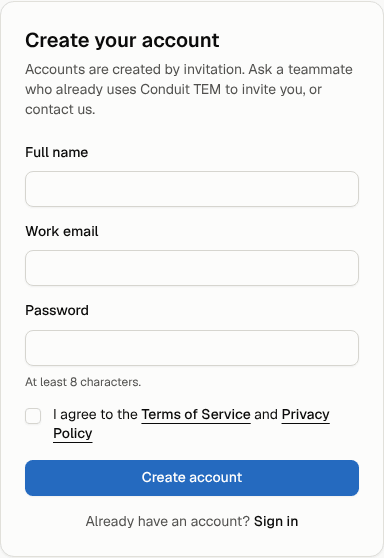
You're signed in straight away. If you came from an invitation, you join that organization and land on its dashboard. Otherwise you're taken to set up your organization.
Every organization on Conduit TEM requires two-step verification, so you'll be asked to set it up with an authenticator app before you can use the rest of the app. See Turn on two-step verification.
Set up your organization
The setup page greets you with Hi (your first name), set up your organization.
- Type your Company name (at least two characters).
- Optional: fill in the company profile now, or skip it and do it later in Settings:
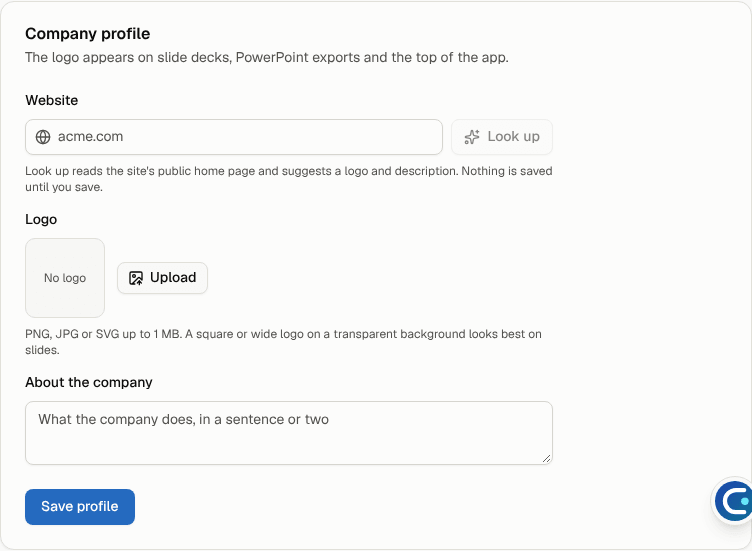
- Website: type your company's website and select Look up. Conduit TEM reads your public home page and suggests a logo and a short description. Nothing is saved until you create the organization.
- Logo: pick one of the suggested logos or Upload your own (PNG, JPG or SVG up to 1 MB).
- About the company: a sentence or two about what the company does.
- Tick I accept the Data Processing Addendum on behalf of (your company). As the person creating the organization, you become its owner and accept it for the company. See Your data and our terms.
- Select Create organization.
You land on the setup checklist: eight short steps from here to your first posted bill. See Finish setting up.
Note: If you already belong to other organizations, the setup page lists them under Open an existing organization, so you can open one instead of creating a new one. You can own up to three organizations.
Every new organization starts with a 30-day trial of the Pro plan with every paid feature switched on. After the trial it moves to the Free plan unless you choose a plan. Bills keep processing either way. See Plans and billing.
Check your organization settings
New organizations start with Canadian dollars (CAD) as the reporting currency and Canada as the country. If that's not right for you, change it before you upload bills:
- Go to Settings. The Organization page opens.
- Change the Name, Reporting currency or Country as needed.
- Select Save changes.
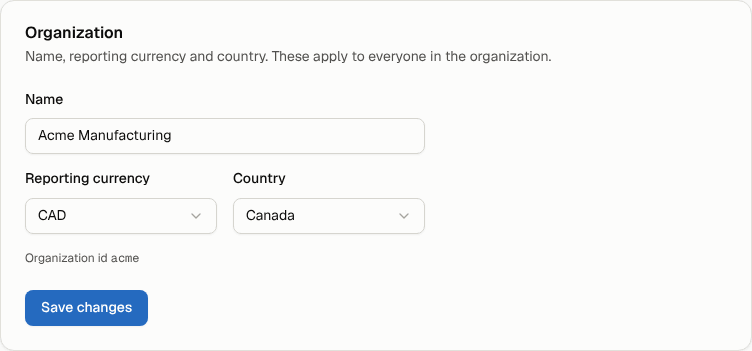
The Company profile card on the same page holds the website, logo and description. The logo appears at the top of the app, on slide decks and on PowerPoint exports. Select Save profile after changing it.
Further down the same page are the cards for Approvals and auto-post, Carrier order approvals, Employee self-service (see Employee self-service) and Security.
Only owners and admins can change these settings. Everyone else sees them read-only.
The menu beside these pages also leads to Integrations, where owners and admins connect AI vendors' admin APIs so AI spend syncs by itself (Connect your AI tools).
Join from an invitation
- Open the invitation email and select its button.
- The Join (organization) page says who invited you, which address the invitation is for, and the role you'll have.
- If you don't have an account yet, select Create your account. Your invited email address is already filled in; add your name and a password, and tick I agree to the Terms of Service and Privacy Policy. If you already have an account with that address, select Sign in to accept.
- Conduit TEM accepts the invitation for you ("Joining organization") and opens the organization's dashboard.
Invitations expire after 7 days. If yours has expired, was cancelled or was already used, the page says This invitation can't be used: ask the person who invited you to send a new one.
Switch between organizations
If you belong to more than one organization, select the organization name at the top of the sidebar (at the top of the screen on a phone) and choose another one. Create organization at the bottom of that menu starts a new one.