Set up employee self-service
Let employees see their own work lines and costs on their phone and ask for changes, and give managers a view of their team's lines.
On this page
Employee self-service gives the people in your company a small page, built for their phone, that shows the work lines and devices you pay for them, what each one costs and what it used. Managers also see their team. Anyone with access can report a problem or ask for a change, and every request reaches you as a draft carrier order.
People often use their phone differently once they see what it costs. You also get fewer "can you check my bill?" emails.
Self-service users are not members of your organization. They don't have a password or a Conduit TEM account. They sign in with a link emailed to them and can only open their own self-service page, never the rest of Conduit TEM.
Note: Owners and admins set up self-service. Other roles can see whether it's on, but they can't change anything.
Turn self-service on
Self-service is off until an owner or admin turns it on.
- Go to Settings.
- Find the Employee self-service card.
- Turn on Let invited employees sign in.
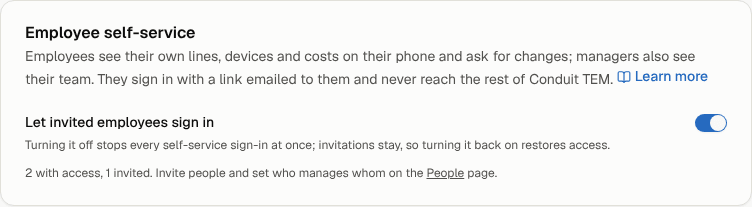
Turning it off stops every self-service sign-in at once. Invitations and access are kept, so turning it back on gives everyone their access back.
Decide who is a manager
A manager sees My team: the lines, costs and findings of the people they're responsible for. You can make someone a manager in two ways, and you can use both:
- Reports to. If Taylor reports to Jordan, Jordan sees Taylor. This also works down the chain: if someone reports to Taylor, Jordan sees them too.
- Manages. If Jordan manages the Brampton warehouse, Jordan sees everyone whose home location is the warehouse or any location or cost center under it.
To set these:
- Go to People and select the person.
- In the Self-service section of their sheet, pick who they Reports to.
- Under Manages, tick the locations or cost centers they're responsible for.
- Select Save reporting line.
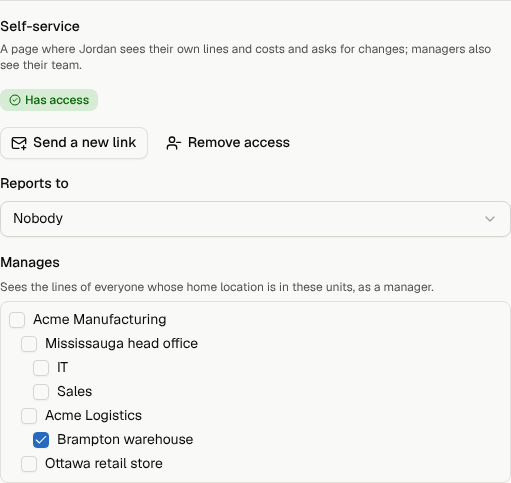
A few rules:
- Manages only appears when your company has more than one location or cost center (see Company structure).
- A location or cost center has one manager. One person can manage several.
- Nobody is on their own team, and you can't make a loop (someone reporting to a person who reports to them).
- People who have left stay on their manager's team. A line that is still billed for someone who left is exactly what a manager should notice.
- The People import doesn't fill in managers yet, so set them on each person.
Invite people
Everyone you invite needs an email address on their person record (see People).
Invite many people at once:
- Go to People and select Invite to self-service.
- Everyone with an email who hasn't left is listed. People who don't have access yet are already ticked. Use All, None or the checkboxes to change the selection.
- Select Send (the button shows how many invitations will go out).
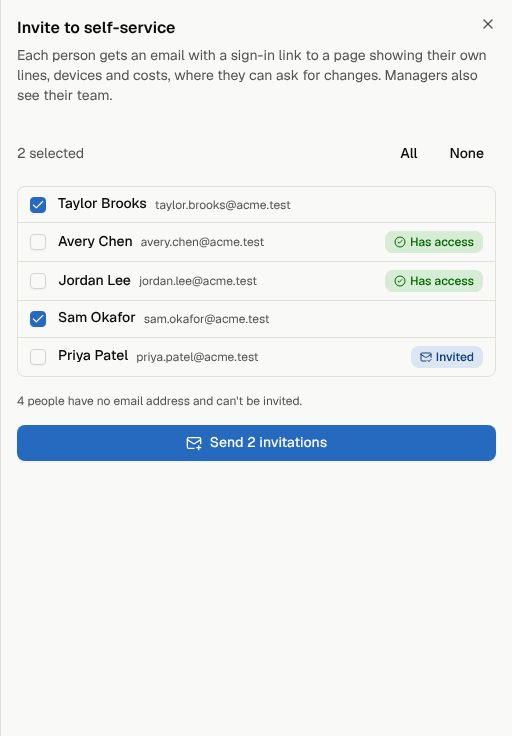
Invite one person: open them on People and select Invite to self-service in the Self-service section.
Each person gets an email with a link that signs them straight in. An invitation link works once and for 3 days. After that, they can ask for a new link themselves on the sign-in page, or you can send one.
Who gets skipped, and why
When you invite, some people may be skipped. A message tells you who and why:
| Reason | What to do |
|---|---|
| No email address | Add their email on People, then invite them. |
| Has left the company | Nothing. People who left can't have access. |
| Someone else here already uses this address | Two people can't share one address. Fix the email on one of them. |
| Several links went to this address in the last hour | An address can get 5 links an hour (invitations and sign-in links together). Try again later. |
Check who has access
The People list shows each person's access with an icon and a label:
- Invited: we sent a link, but they haven't signed in yet.
- Has access: they've signed in at least once. Their sheet shows when they last signed in.
- Access removed: an admin took their access away.
The Employee self-service card in Settings also counts how many people have access and how many are invited.
Send a new link
If someone lost their email or their link expired, open them on People and select Send a new link in the Self-service section. Their access stays as it was.
Employees can also get a new link on their own from the sign-in page, so you rarely need to do this.
Remove someone's access
- Open the person on People.
- In the Self-service section, select Remove access, then confirm.
It takes effect right away: they're signed out and any links they haven't used stop working. Requests they already sent stay with their orders. To give access back later, select Invite to self-service again.
Access also ends on its own when you mark someone as having left, or when you change their email address (invite them again at the new address).
What employees and managers see
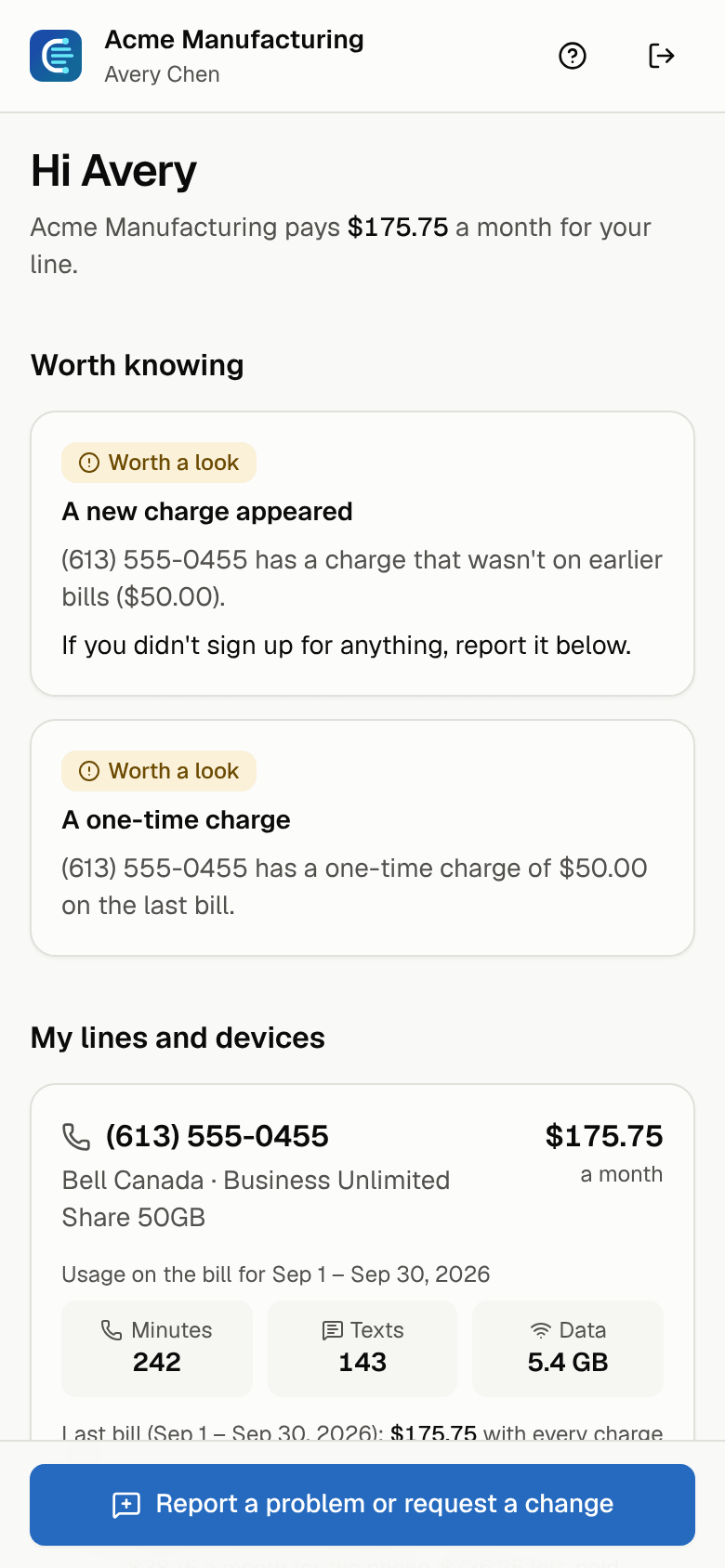
Everyone with access sees, for each of their lines:
- the plan, the monthly cost and the carrier;
- the minutes, texts and data on the latest bill (or a note when the bill doesn't list usage), and any roaming;
- the phone, with what's left to pay on it, and the add-ons;
- Worth knowing: findings on their lines, explained in plain words with what they can do about it. Only line-level findings show up. Bill-level ones (late fees, duplicate bills, contract rates) stay with you;
- My requests: what they asked for and where it stands.
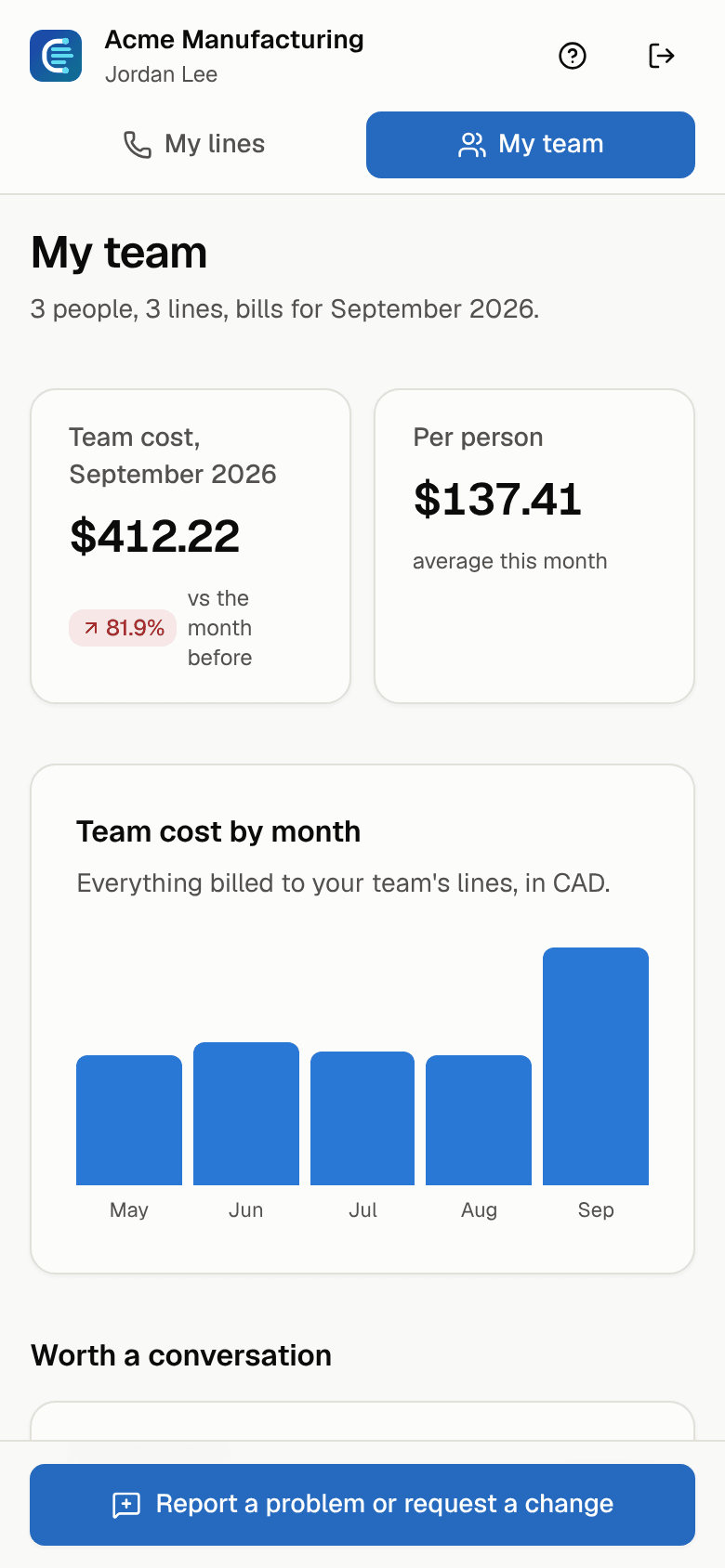
Managers also get My team: the team's cost for the latest billed month compared with the month before, the average per person, a monthly trend, the people and lines worth a conversation (top spend, roaming, unused lines), other findings, and every team line.
Employees never see anyone else's lines, and managers only see their own team. The guide written for them is Your lines and devices on self-service.
How requests reach you
From their page, employees and managers can select Report a problem or request a change. Managers can pick any line on their team, or a person for a new line. Each request becomes a draft carrier order (see Carrier orders) with the line and person attached and their message in the notes:
| They ask for | You get a draft order of this kind |
|---|---|
| Report a problem | Plan change, titled "Problem reported". Change its kind or cancel it. |
| Change my plan | Plan change |
| New or upgraded phone | Upgrade |
| Lost or stolen phone | Suspend |
| Cancel a line I no longer need | Disconnect |
| Ask for a new line | New line or device, with the carrier of the person's other lines |
Nothing is sent to the carrier for them. Every owner and admin gets an email with a Review the draft button. Check the draft, then submit it or cancel it. The order's timeline and the activity log mark these entries "(self-service)".
The employee sees the order's progress in their own words: Waiting for review, Being reviewed, Approved, With the carrier, Done, Closed or Declined.
Note: Each person can send up to 10 requests a day.
Related guides
- Your lines and devices on self-service (for employees and managers)
- People
- Company structure
- Carrier orders
- Roles, scopes and security