Turn on two-step verification
Set up the code from an authenticator app that every Conduit TEM organization requires, keep backup codes, and move to a new phone.
In the app:Profile & security Settings
On this page
Two-step verification adds a second check when you sign in: after your password, you enter a 6-digit code from an authenticator app on your phone. Someone who learns your password still can't get in without your phone.
Bills and payments deserve that protection, so every organization on Conduit TEM requires it for every member. The first time you sign in, you're taken to Profile & security to set it up.
Turn it on for your account
You need an authenticator app, such as Google Authenticator, 1Password, Authy or similar.
- Go to Settings → Profile & security.
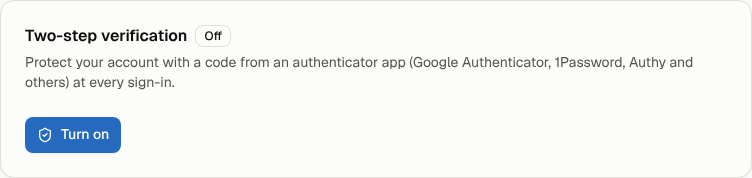
- On the Two-step verification card, select Turn on.
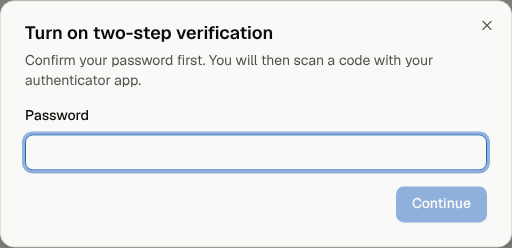
- Enter your Password and select Continue.
- Scan the QR code with your authenticator app. If you can't scan it, type in the key shown under the code instead.
- Enter the 6-digit code the app shows and select Confirm.
- Save your backup codes. Select Copy or write them down, and keep them somewhere safe, such as your password manager. They're shown only once. Then select Done.
The card now shows On. Turning it on or off is recorded in your organization's activity log.
Sign in with two-step verification
- Sign in with your email and password as usual.
- Enter the 6-digit code from your authenticator app and select Continue.
- To skip the code on this computer or phone for a while, turn on Trust this device for 30 days before you continue. Don't do this on a shared computer.
The code request expires after ten minutes. If it has, select Start again and sign in again.
Lost your phone? Use a backup code
On the code screen, select Use a backup code and enter one of the codes you saved. Each backup code works once.
Once you're back in, go to Settings → Profile & security and select New backup codes to replace the ones you've used. Because two-step verification is required, Turn off isn't available to move to a new phone. Contact our team and we'll help you move it.
If you've lost both your phone and your backup codes, contact our team.
Get new backup codes
- Go to Settings → Profile & security.
- Select New backup codes and enter your password.
- Save the new codes. The old ones stop working.
Required for everyone
On Settings → Organization, the Security card shows Require two-step verification for everyone switched on, with the note Required for every organization on Conduit TEM. Owners can't switch it off, and nobody can turn off their own two-step verification while it's required; the card on Profile & security says Required by your organization.
A member who hasn't set it up yet is taken to Profile & security when they open Conduit TEM. That page is the only one they can use until they turn it on. Settings → Members & invitations shows a 2-step on badge next to everyone who has it.
Forgot your password?
- On the sign-in page, select Forgot password?.
- Enter your email address. We email you a reset link.
- Open the link and choose a new password (at least 8 characters).
The link works once, for an hour. Resetting signs you out everywhere, and you still need your authenticator code to sign in.
Signing in with Google or Microsoft
If your organization uses the Continue with Google or Continue with Microsoft buttons on the sign-in page, keep in mind:
- Those buttons can't ask for your Conduit TEM code, so once two-step verification is on, they won't sign you in. You'll see "This account uses two-step verification. Sign in with your email, password and authenticator code." Use your email, password and code instead.
- Turning on two-step verification here asks for your Conduit TEM password. If you only ever signed in with Google or Microsoft and have no password, select Forgot password? on the sign-in page to set one first.