Plans, limits and billing
See which plan your organization is on, what it includes and how close you are to its limits, and upgrade, change your card or download invoices.
In the app:Plan & billing
On this page
Every organization has a plan. The plan decides how many lines, locations and users it is sized for, and which paid features are switched on. Limits never block your bills: anything that is already in keeps processing, whatever the plan.
See your plan
Go to Settings → Plan & billing. Anyone in your organization can open this page.
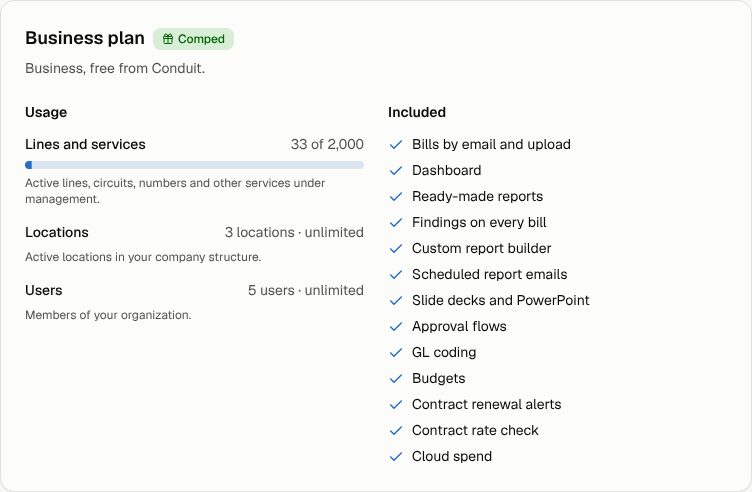
The top card shows:
- The plan name and a status badge, for example Trial · 12 days left, Active, Comped (given to you by Conduit, sometimes until a date), Payment due or Free.
- Usage: how many lines and services, locations and users you have, against your plan's limits.
- Included: what you can use, with a check mark, and the paid features your plan doesn't include, with a lock.
What each plan includes
Every plan, including Free, includes bills by email and upload, the dashboard, the ready-made reports and findings on every bill.
The paid plans add the custom report builder, scheduled report emails, slide decks and PowerPoint, approval flows, GL coding, budgets, contract renewal alerts and the contract rate check.
Cloud spend (your AWS, Azure and Google Cloud costs beside your telecom spend) is included on Business and Enterprise only. Starter and Pro, and the free trial, don't include it. See See your cloud spend beside your telecom spend.
| Plan | Lines and services | Locations | Users |
|---|---|---|---|
| Free | 25 | 1 | 3 |
| Starter | 100 | 5 | 10 |
| Pro | 500 | 25 | 25 |
| Business | 2,000 | Unlimited | Unlimited |
| Enterprise | Unlimited | Unlimited | Unlimited |
Enterprise terms are arranged with us. Plans are priced by the lines and services you manage. The prices for your currency are shown on the Plan & billing page.
Lines and services counts your active lines, circuits, numbers and other services. Locations counts active locations in your company structure. Users counts the members of your organization.
The free trial
A new organization gets the Pro plan with its paid features for 30 days (everything except cloud spend, which is on Business and Enterprise). The Plan & billing page says when the trial ends. Afterwards you move to the Free plan unless you upgrade, and nothing you entered is lost.
If you upgrade before the trial ends, the days you have left carry over, so upgrading early never costs you trial time.
When you reach a limit
Limits only warn; they never stop anything.
- At 80% of a limit, owners and admins see a banner such as "Nearing your Pro plan's limit" at the top of every page, and the usage bar on the Plan & billing page turns to the warning colour.
- At 100%, the banner says "Over your Pro plan's limit" (with your plan's name) and the bar turns red. Everything keeps working: bills still come in, get read and post as usual.
Select See plans in the banner to upgrade.
When a feature isn't on your plan
Where a paid feature would be, you'll see a card marked Paid feature that explains what it does. Owners and admins get a See plans button; everyone else is asked to check with an owner or admin.
Nothing you made earlier disappears when a feature goes away. Saved reports, decks, budgets, GL accounts and approval flows stay readable; you just can't create or change them until you upgrade. Some automation keeps running on purpose so nothing is left half-way: a published approval flow still routes bills, GL rules you set up still code new bills, and approved bills are still sent to accounts payable.
Upgrade your plan
Owners and admins can upgrade.
- Go to Settings → Plan & billing.
- Under Upgrade, choose the currency (CAD or USD) and, when offered, Monthly or Yearly.
- Select Upgrade to the plan you want.
- Enter your payment details on the secure checkout page that opens.
When you come back, the page says your upgrade is on its way; refresh after a moment if the plan hasn't changed yet. If the page shows Contact us to upgrade instead of the upgrade buttons, get in touch and we'll set it up for you.
Note: If your plan was given to you by Conduit (Comped), there's no upgrade section. Talk to your Conduit account manager about changes.
Change your card, download invoices or cancel
Once you've subscribed, owners and admins see a Payment and invoices card on the Plan & billing page.
- Select Manage billing.
- On the secure billing page that opens, change your card, download invoices, switch plans or cancel.
Plan changes are prorated. Your currency is fixed once you subscribe.
If a payment fails
Owners and admins get an email, and the Plan & billing page says Your last payment did not go through. Update the card under Manage billing to keep the paid features. Bills keep processing either way.