Invite your team
Invite colleagues by email, follow up on pending invitations, change someone's role or remove them from your organization.
In the app:Members & invitations
On this page
Conduit TEM works best when the people who handle telecom bills share one place to review them. Invite them by email and choose what each person may do. You manage everyone on the Members & invitations page.
Only owners and admins can invite, change roles and remove people. Everyone else can open the page to see who's in the organization.
Invite someone
- Go to Settings and choose Members & invitations.
- Select Invite someone.
- Enter their Email.
- Choose a Role. A short description under the list says what that role can do. If you're unsure, start with Analyst; you can change it at any time. See Roles and permissions.
- Select Send invitation.
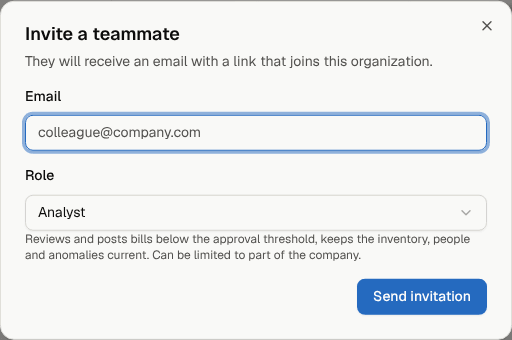
They get an email from Conduit TEM with a link that joins your organization. The invitation shows under Pending invitations until they accept it.
Tip: Invite people with their work email. Accounts are normally created by invitation, so the person must sign up with the exact address you invited.
What your colleague does
- They open the email and select the link.
- They create an account with that email address, or sign in if they already have one.
- Conduit TEM accepts the invitation and opens your organization's dashboard.
If they already belong to another organization, yours is added to their list and they can switch between them from the organization menu at the top of the sidebar.
Follow up on pending invitations
The Pending invitations card lists every invitation that hasn't been accepted yet, with its role and expiry date.
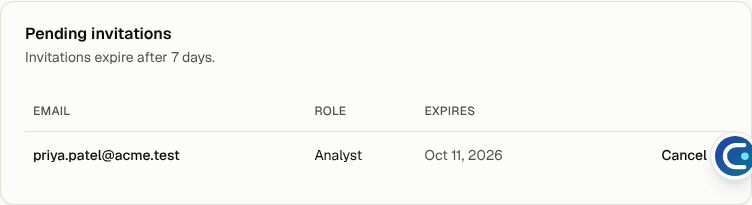
- Invitations expire after 7 days. To send a new one, invite the same email address again. The new invitation replaces the old one.
- To withdraw an invitation, select Cancel on its row.
- Didn't arrive? Ask them to check their spam or junk folder, then invite them again.
Change someone's role
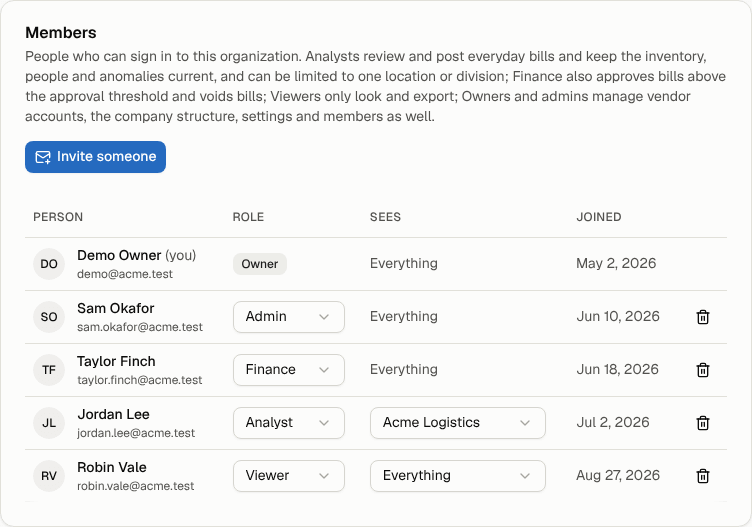
- On Members & invitations, find the person in the Members list.
- Pick a new role from the menu in the Role column.
The change applies right away and you'll see "Role updated". You can't change your own role; ask another owner or admin.
Limit what someone sees
If your company is set up with locations or divisions, the Members list has a Sees column. For analysts and viewers you can choose Everything or one part of the company, such as a single location. They then only see bills, lines, people and findings for that part. Finance, admins and owners always see the whole company.
For the details, see Roles and scopes and Company structure.
Remove someone
- On Members & invitations, select the bin icon at the end of the person's row.
- Select Remove to confirm.
They lose access to the organization immediately. Their notes and history stay, so you don't lose the record of what they did. You can't remove yourself.
Note: Every invitation, role change and removal is recorded under Settings → Activity, with who did it and when.