Connect your AI tools
Connect the OpenAI and Anthropic API platforms, GitHub Copilot and Cursor once with an admin key, and their usage and seats sync into AI spend every day.
On this page
Instead of exporting files every month, you can connect some of your AI vendors once. AI spend then brings in their API usage or seats by itself every day, six months back on the first sync.
| Vendor | What syncs | Key you need |
|---|---|---|
| OpenAI API | API cost per day, project, key and model, with tokens and requests | An organization Admin key |
| Anthropic API | API cost per day, workspace, key and model, with tokens | A Claude Console Admin key |
| GitHub Copilot | Copilot Business or Enterprise seats and each person's last activity | A fine-grained personal access token of an organization owner |
| Cursor | Team members as seats, their last active day, and on-demand spend per day | A Cursor Admin API key |
Owners and admins connect, sync and remove connections. Finance can see their status. AI spend is part of the Business and Enterprise plans.
Connect a vendor
- Select AI spend, then Connect. Or open Settings → Integrations and select Connect an AI vendor.
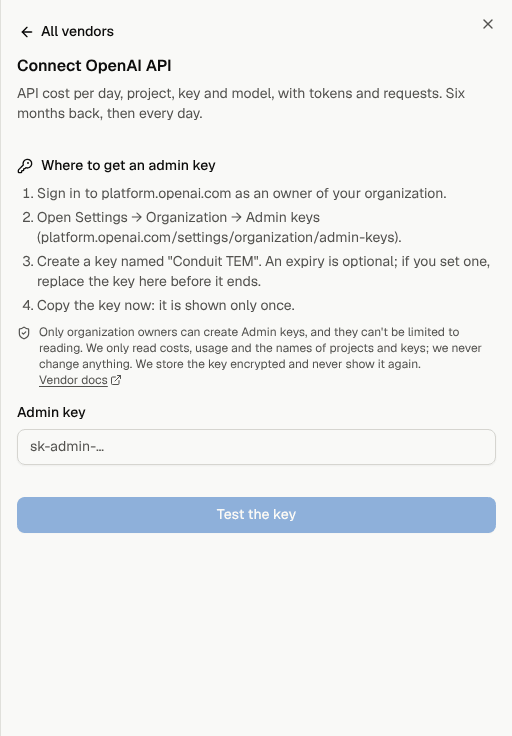
- Pick the vendor. The sheet shows where to create the key, step by step.
- Paste the key and select Test the key. We call the vendor once, read only, and show what the key can see: projects or workspaces and the last 30 days of spend, or the number of seats.
- Check the Connection name, then choose the Account it feeds. If you uploaded this organization's exports before, choose that account so the connection takes over from your uploads. An account another connection already feeds can't be chosen.
- For GitHub Copilot and Cursor, check the Price per seat. It starts at the list price of the plan we found; change it if your contract says otherwise.
- When your company has more than one location, choose where the spend goes.
- Select Connect. A progress bar shows the first sync; you can close the sheet and it carries on. You see a message when it's done.

We store the key encrypted. It is never shown again: Settings shows only its last four characters, and you can replace or remove it at any time.
Where to get the key
OpenAI API
Only owners of your OpenAI organization can create Admin keys.
- Sign in to platform.openai.com.
- Open Settings → Organization → Admin keys.
- Create a key named "Conduit TEM". An expiry is optional; if you set one, replace the key here before it ends.
- Copy the key straight away: it is shown only once. It starts with
sk-admin-.
A project key (sk-proj-…) can't read costs, so the test refuses it. Admin keys can't be limited to reading; we only read costs, usage and the names of projects and keys.
Anthropic API
You need the admin role in your Claude Console organization. Individual accounts have no Admin keys.
- Sign in to the Claude Console.
- Open Settings → Admin keys.
- Select Create key, name it "Conduit TEM", choose an expiration and select Create.
- Copy the key: it is shown only once. It starts with
sk-ant-admin.
A regular API key (sk-ant-api…) can't read costs. Console Admin keys have no scopes to choose from; we only read the cost and usage reports and the names of workspaces and keys.
GitHub Copilot
The token must belong to an owner of the GitHub organization.
- Select your profile picture, then Settings → Developer settings → Personal access tokens → Fine-grained tokens, and Generate new token.
- Name it "Conduit TEM" and choose an expiration. Organizations allow up to 366 days by default.
- Under Resource owner, choose the organization.
- Under Organization permissions, set GitHub Copilot Business to Read-only. Leave everything else at No access.
- Select Generate token and copy it.
In the connect sheet, also enter the organization's name as it appears in its address (github.com/name). A classic token with only the manage_billing:copilot scope works too.
GitHub only shares the email address a person made public. Seats without one are listed by their GitHub login and show as Not matched on Seats.
Cursor
Cursor documents its Admin API for Enterprise teams; on some Teams plans it refuses the key, and the test says so.
- Sign in to cursor.com/dashboard as a team administrator.
- Open API Keys and select New API Key.
- Name it "Conduit TEM" and create it.
- Copy the key now: you won't see it again. It starts with
crsr_.
Cursor's API doesn't say which members have a Premium seat. If you pay more than the standard seat price for some of them, set the average price per seat when you connect, or later on AI spend → Accounts.
What can't be connected yet
| Tool | Why | What to do |
|---|---|---|
| ChatGPT Business or Enterprise | Business workspaces have no admin API for the member list. Enterprise compliance and analytics APIs aren't supported yet. | Upload the member list. |
| Claude Team or Enterprise | Team plans have no admin API for members. Enterprise member and analytics APIs aren't supported yet. | Upload the member list. |
| Microsoft 365 Copilot | Needs an app registered in Microsoft Entra with admin consent; coming later. | Upload the Copilot usage report. |
| Gemini, Azure OpenAI, AWS Bedrock | Not yet. | Upload their exports. |
See Bring in your AI spend for the files to upload.
How syncing works
- Every day each connection asks again for its last three days, because vendors correct recent usage, and replaces what it brought in for those days. Syncing twice never counts anything twice.
- Seats from GitHub Copilot and Cursor are a member list taken each day. Idle means no activity in the 30 days before it.
- Synced from API and Uploaded labels on AI spend, Accounts and the top projects show where each figure comes from.
- The connection wins. For an account and month that a connection covers, files uploaded to that account aren't counted, and invoices from that vendor aren't either. Months the connection doesn't reach keep your uploads and bills, and other accounts (another organization at the same vendor) count as before.
- Removed and connected again? Choose the same account: the new connection takes over what the old one synced, and nothing is counted twice.
Connection status
Settings → Integrations lists every connection with its status, its last sync, how far back its history reaches and the last four characters of its key.

| Status | What it means |
|---|---|
| Connected · synced 3 h ago | Working. |
| Syncing | A sync is running, with its progress. |
| Last sync failed | The vendor didn't answer properly; we try again. Nothing to do yet. |
| Needs attention | The vendor refused the key three times in a row, for example because it was revoked or lost its admin rights. Daily syncs stop until you replace the key. |
| Paused | You paused it; nothing syncs until you resume. |
On AI spend, each connection shows the same status at the top, with Fix it when it needs attention and Sync now for owners and admins.
Replace, pause or remove a connection
- Sync now: brings in the latest days straight away.
- Replace key: paste a new key. We test it first, then forget the old one and sync.
- Pause and Resume: stop and restart the daily sync without losing anything.
- Remove: stops syncing and deletes the saved key. What was synced stays, marked Synced from API. Tick Also delete everything this connection synced to remove that too; this can't be undone.