Your first bill
Upload a carrier bill as a PDF, photo or spreadsheet export, and follow along while Conduit AI reads it and gets it ready for review.
In the app:Upload bills Bills
On this page
Your first bill is where Conduit TEM starts paying off. Upload last month's carrier invoice and, in about a minute, Conduit AI has read every line, matched it to your inventory and flagged anything that looks off. You then check it and post it.
Owners, admins, finance and analysts can upload bills. Viewers can't.
What you can upload
| File | Best for |
|---|---|
| The bill as your carrier issues it. This works best. | |
| CSV or XLSX | A billing-detail export from your carrier's online account. Exports from Bell, Rogers and TELUS business portals are recognised and read directly, without AI. Other spreadsheets with a table of charges are read too. |
| PNG or JPG | A photo or scan of a paper bill. |
Each file can be up to 25 MB, and you can upload up to 20 files at once. Bills over 200 pages and spreadsheets over 50,000 rows aren't supported.
Upload a bill
- Select Upload bills at the top of any page (or press U on your keyboard).
- Drag your files onto the box that says Drop bills here or click to choose, or click it to pick files.
- Optional: choose the Vendor account. Leave it on Detect automatically and Conduit AI works it out from the bill.
- Optional: if your company has several locations, choose a Location. Leave it on Read from the bill to place each charge by what the bill prints. If you pick a location, charges the bill doesn't tie to a site go there.
- Select Upload bills (the button shows how many files you picked).

On a phone, Take a photo opens your camera so you can photograph a paper bill.
Tip: Nothing to upload yet? Ask the person who gets your carrier bills to forward one to your bill inbox instead. See Email bills in below.
What happens while Conduit AI reads it
After the upload, a card for each file shows its progress through these stages:
| Stage | What happens |
|---|---|
| Received | The file is stored safely. |
| Reading | The text and pages are pulled out of the file. |
| Detecting | The vendor and account number are recognised. |
| Extracting | Conduit AI reads the bill: header, totals and every charge line. |
| Validating | Totals and dates are checked: do the lines add up to what the bill says? |
| Matching | Lines are matched to your inventory of phone numbers, circuits and services. |
| Review | The bill is ready for you. |
Processing usually takes under two minutes per bill. You can leave the page: progress continues in the background, and the bill appears on the Bills page when it's ready. You'll also get an email saying "A bill is ready for review" unless you turned that off under Settings → Profile & security.
When the card says Ready for review, select Review to open it. See Review and post a bill.
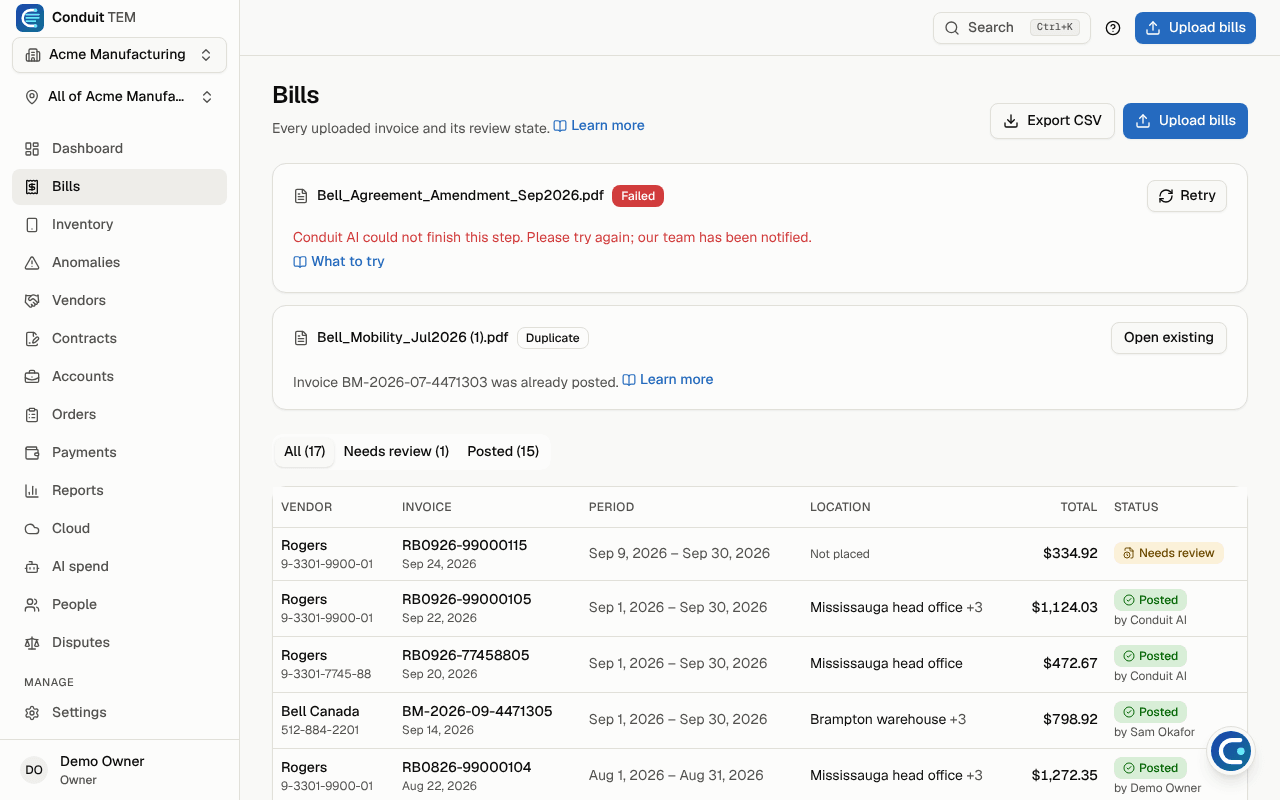
If something goes wrong
The card shows one of these instead of the stages:
- Failed: the bill couldn't be read. Select Retry to have Conduit AI read it again. See A bill failed to read.
- Duplicate: this file, or a bill with the same invoice number on the same account, was already processed, so it isn't counted twice. See I uploaded the same bill twice.
- A message such as "Unsupported file type" or "File is larger than 25 MB" right after you upload: the file wasn't accepted. Check the file and try again.
Bills that post by themselves
Some bills skip the review queue. If an owner or admin turned on Post automatically when Conduit AI is confident (under Settings → Organization), a clean bill that Conduit AI is sure about, with no warnings and below any approval threshold, posts by itself. Its card says Posted automatically. Your first bill from a new account always waits for review.
Email bills in instead
Every organization has its own bill inbox: an email address that turns forwarded bills into bills on the Bills page, just like an upload. Many teams set up their carrier accounts to send bills there and never upload by hand again. See Your bill inbox.
Coming from another system?
If you have history in another expense management tool or in spreadsheets, owners and admins can import it under Settings → Import data, so trends and checks work from your first bill. See Import your history.