Find your way around
Learn the dashboard tiles, the menu, quick search and keyboard shortcuts, the location switcher, the phone layout and dark mode.
In the app:Dashboard
On this page
Conduit TEM has one menu, one search box and a dashboard that sums up where your telecom money goes. This guide shows where everything is, on a computer and on a phone.
The dashboard
The dashboard opens when you sign in. Before your first bill it simply invites you to Upload a bill (and, for owners and admins, to Import from another system). Once bills are posted, it shows:

| Tile or card | What it tells you |
|---|---|
| Spend | What the latest billing month cost, and the change versus the month before. |
| Monthly run-rate (inventory) | What your active lines and services cost per month, and how many there are. |
| Open anomalies | Findings nobody has dealt with yet, and how many are high severity. |
| Potential savings flagged | The money at stake in open findings, plus anything recovered through disputes. |
| Spend by month | Each month's spend, split by service type, with taxes shown separately. |
| By location / By vendor | Where the latest month's money went. |
| Top open anomalies and Recent bills | Shortcuts to the findings and bills that need attention. |
| Open requests | Owners and admins: requests still under way and proposals waiting for your answer (see Track your requests and proposals). |
If you set up budgets, a Budgets card shows how each one is tracking. The line under the Dashboard title tells you how many bills are posted and how many are waiting for review.
The menu
On a computer, the menu runs down the left side:
- Dashboard, Bills, Inventory and Anomalies for everyday work;
- Vendors, Contracts, Accounts (upgrades and renewals), Orders (with your requests and proposals), Payments, Reports, People and Disputes;
- Settings under Manage.
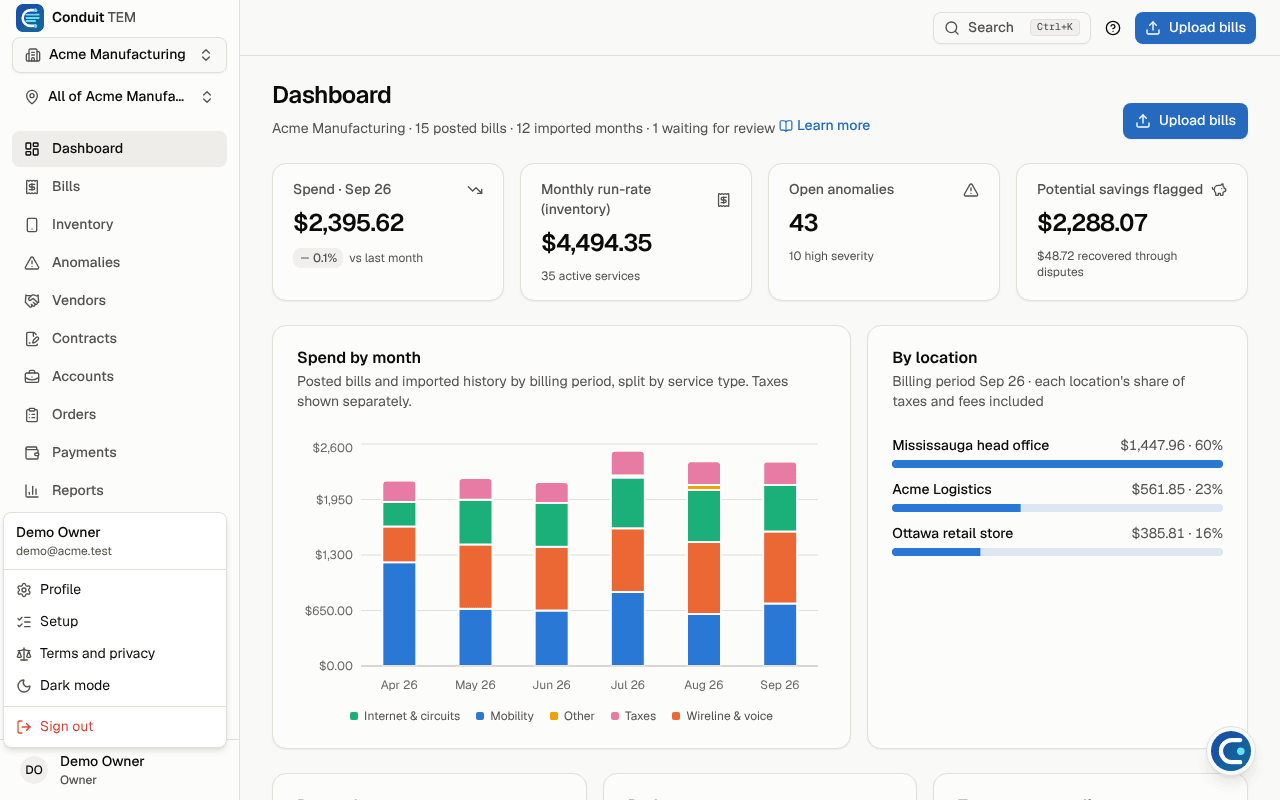
At the top of the menu, the organization name opens the list of your organizations. At the bottom, your name opens your profile, the light and dark mode switch and Sign out. Owners and admins also see Setup, which opens the setup checklist (see Finish setting up).
Along the top of every page you'll find Search, the Help centre button (the question mark) and Upload bills. Viewers don't see Upload bills.
Jump anywhere with search
Select Search at the top of the page, or press Ctrl+K (⌘K on a Mac). Type where you want to go, such as "bills", "import" or "help", and press Enter.
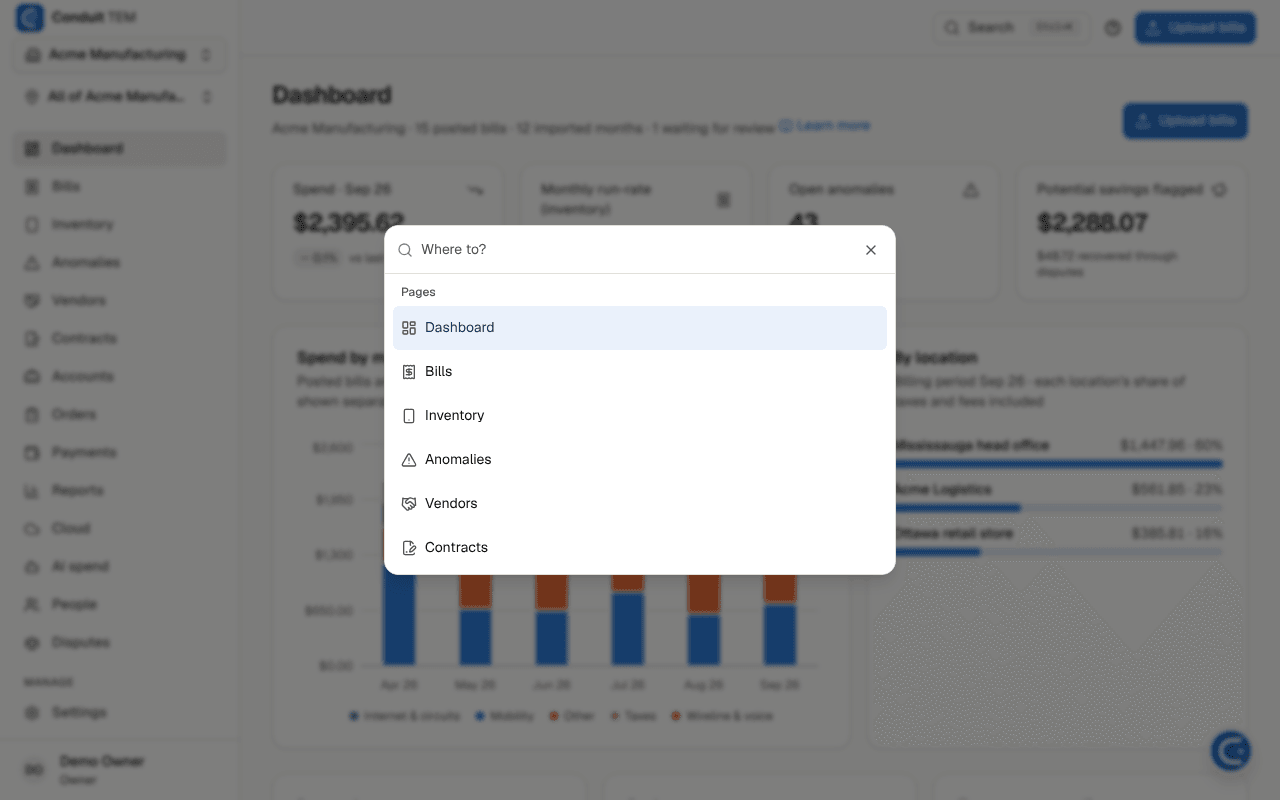
Search takes you to any page in the menu, plus Company structure, Import data and the Help centre. It also has an Upload bills action.
Keyboard shortcuts
| Keys | What it does |
|---|---|
| Ctrl+K or ⌘K | Open or close search |
| U | Go to Upload bills (not while you're typing or a dialog is open) |
Look at one location
If your company is set up with locations or divisions, a second menu under the organization name says All of your company. Choose a location or division to narrow every list, chart and total to that part of the company. Choose All of your company again to see everything.
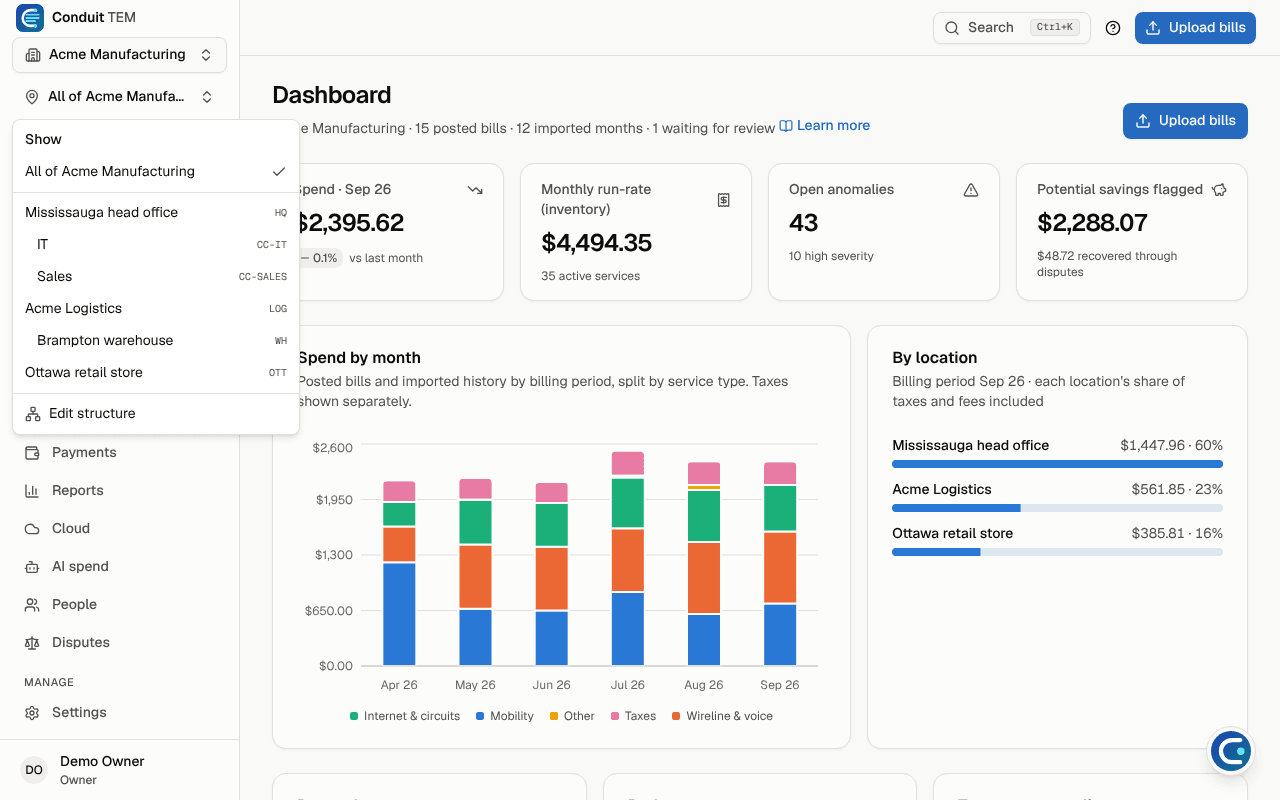
If you're limited to part of the company, it reads Everything you can see and lists only your part. Companies with a single location don't see this menu.
On a phone
Conduit TEM works in your phone's browser. The layout changes to fit:
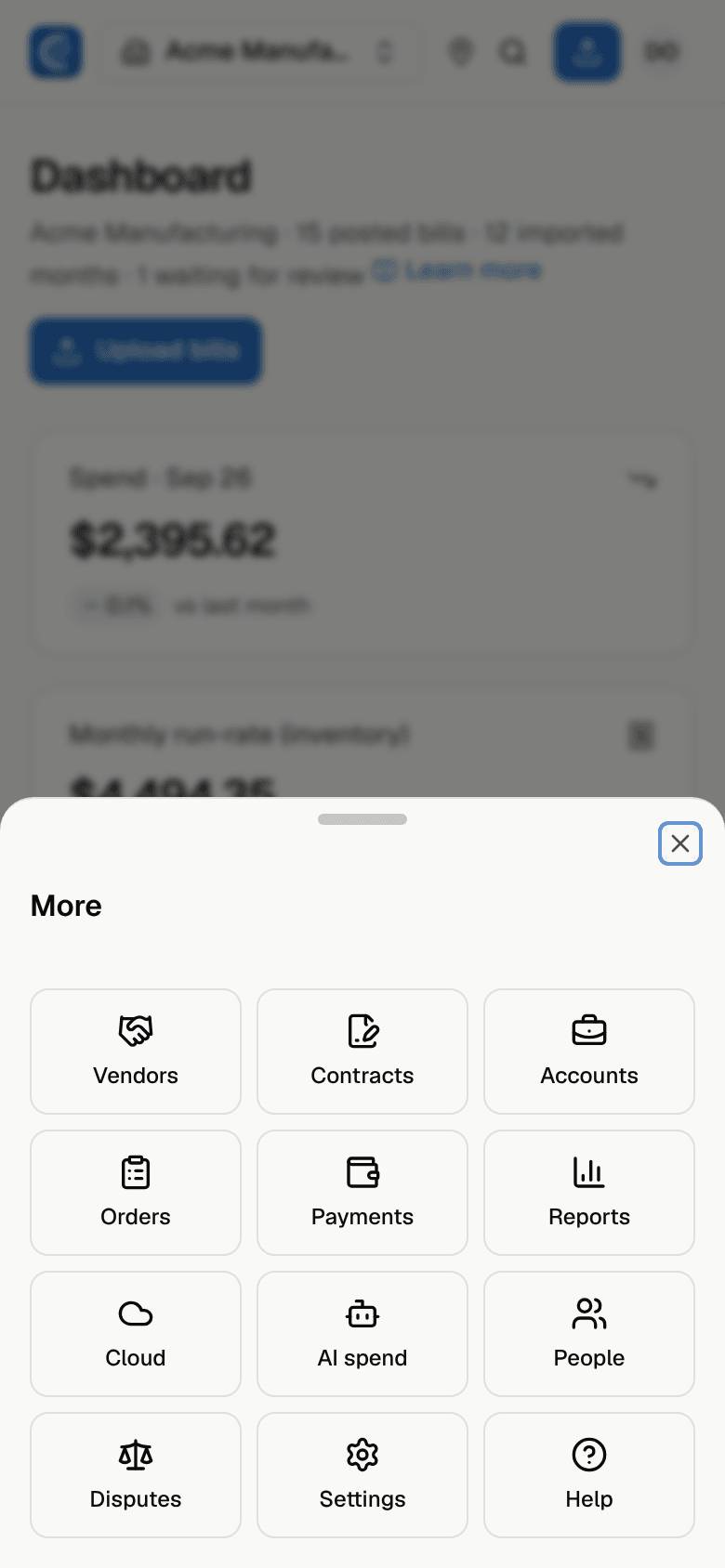
- The bar along the bottom has Dashboard, Bills, Inventory, Anomalies and More.
- More slides up a sheet with every other page, plus Settings and Help.
- The top bar has the organization menu, the location pin (when you have locations), search, the upload button and your initials for the profile menu.
- On the Upload bills page, Take a photo lets you photograph a paper bill.
Switch to dark mode
- Select your name at the bottom of the menu (your initials at the top right on a phone).
- Select Dark mode. Select Light mode to switch back.
To follow your device's light or dark setting instead, go to Settings → Profile & security and set Appearance to System. The same page holds your name, password, two-step verification and which emails you get.