Review and post a bill
Check what Conduit AI read from a bill, fix anything it got wrong, place charges in the right locations and post the bill so it counts.
In the app:Bills Learned corrections
On this page
When Conduit AI has read a bill, it waits for a person to check it. Reviewing takes a minute or two for a clean bill: look at the warnings, confirm the totals add up, fix anything that was misread and post it. Posting is what makes the bill count in your spend, inventory, reports and findings.
Owners, admins, finance and analysts can review and post. Viewers see the same screen read-only.
Open a bill for review
- Go to Bills. Bills waiting for you show Needs review, or a red blocking count when something must be fixed first.
- Select Needs review above the list to see only those bills.
- Select a bill to open it.

On a computer, the original bill sits on the left so you can compare as you go. On a phone, open the Document tab to see it.
Read the header
The top of the page shows the vendor and invoice number, the status, the account number, the billing period and the due date. It also shows Conduit AI confidence: how sure Conduit AI is that it read the bill correctly. Bills read from a carrier spreadsheet say Read from the carrier's spreadsheet, no AI needed instead.
The buttons on the right are:
- Tour: a short guided tour of this screen, one part at a time. Use Next and Back or the arrow keys, and Esc to close it. It shows on bills waiting for review.
- Export lines: download the bill's lines as a CSV file.
- Re-extract: have Conduit AI read the bill again from scratch. Use it when much of the bill was misread; for a few mistakes it's quicker to fix them by hand.
- Post invoice: post the bill. It reads Approve and post when the bill needs an approver and you are one, or shows how many blocking items are left.
- Void: take the bill out of your spend (finance, admins and owners only). See Void a bill.
Work through the warnings
If anything needs a look, a card at the top lists it. It's titled Fix these before posting when something is blocking, or Worth a look when there are only warnings.
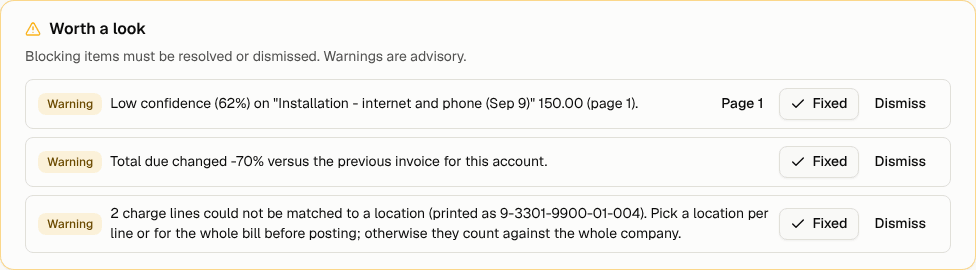
- Blocking items stop you from posting, for example when the total due wasn't found or the lines don't add up to the bill's own totals. Fix the cause, then select Fixed, or select Dismiss if it doesn't matter.
- Warnings are advice. Typical ones: a line Conduit AI read with low confidence, a total that changed a lot since last month, a new vendor account, or lines that couldn't be matched to a location.
- When a warning mentions a page (or a row, for a spreadsheet), select Page to jump the original bill to that spot.
Check the totals add up
On the Summary tab, Does it add up? compares the lines Conduit AI read with the bill's own current charges. A green tick and a difference of $0.00 mean every charge was captured.
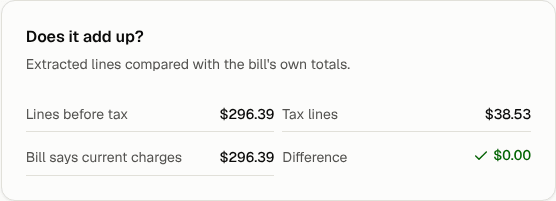
If there's a difference, look for a missed or misread line on the Lines tab. See The totals don't match.
Fix the invoice details
The Invoice details card on the Summary tab holds the invoice number, dates, currency and the bill's totals. Correct anything that was misread and select Save details. Changes apply to this bill only.
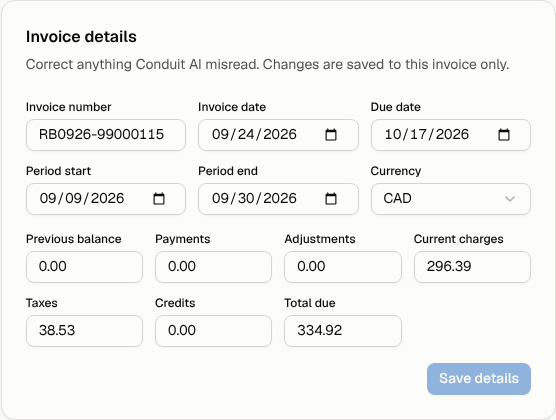
Below it you'll find any Anomalies on this bill and a Notes box where you can leave a note for the next person ("Asked Rogers about the installation fee").
Fix the charge lines
Open the Lines tab to see every charge, grouped the way the bill groups them.
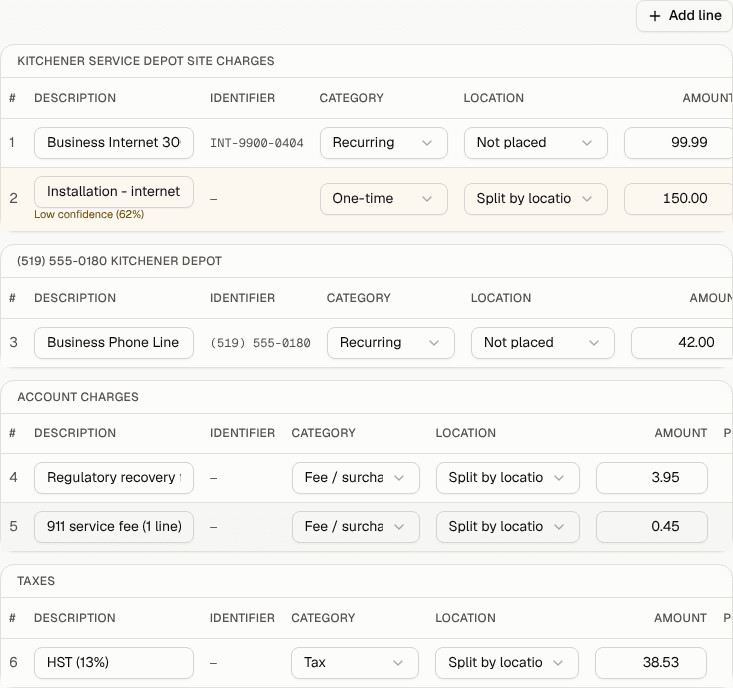
- Edit a line's description, category, location or amount right in the table. Each change saves when you leave the field.
- Low confidence under a description means Conduit AI wasn't sure about that line. Compare it with the original.
- Select the page number on a line to jump the original bill to it.
- Add line adds a charge Conduit AI missed. Enter the description, amount, category and, if it belongs to a phone number or circuit, its identifier.
- The bin icon deletes a line that shouldn't be there.
A Usage tab appears when the bill lists calls, data or messages by number.
Place charges in locations
If your company has more than one location or division, Locations on this bill shows how much of the bill belongs to each, and how much is Not placed yet.
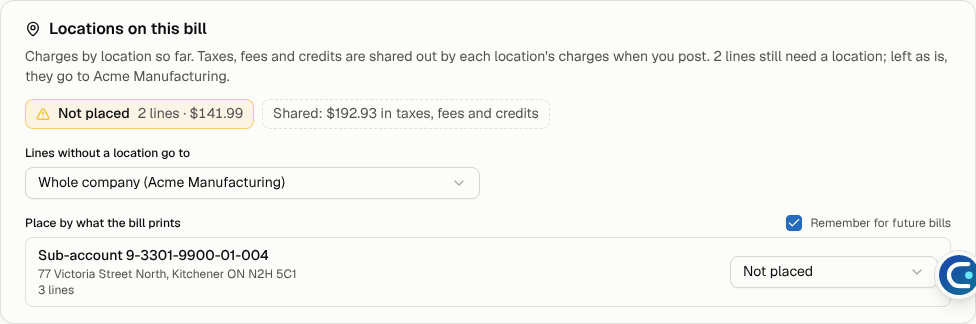
- Choose a location per line in the Location column of the Lines tab, or place every line printed with the same sub-account or service address at once under Place by what the bill prints.
- Lines without a location go to sets where anything left unplaced counts. By default that's the account's default location or the whole company.
- Owners and admins can tick Remember for future bills so lines printed the same way go to that location automatically next time.
- Taxes, fees and credits show as Split by location. When you post, they're shared out by each location's charges.
See Company structure for setting up locations.
Post the bill
When the warnings are handled and the totals add up, select Post invoice. You'll see "Invoice posted". Posting:
- adds the bill to your spend, dashboard and reports;
- updates your inventory of lines and services from the bill;
- runs the checks that look for overcharges and other findings;
- teaches Conduit AI from your corrections (see below).
A posted bill can't be edited any more. If it's wrong, void it.
When a bill needs an approver
Owners and admins can set an approval threshold under Settings → Organization → Approvals and auto-post. Bills at or above that amount can only be posted by Finance, an admin or an owner, and show a Needs an approver card.
- If you're an analyst, review the bill as usual, then select Request approval. Finance, admins and owners get an email, and the button changes to Approval requested.
- If you're Finance, an admin or an owner, check the bill and select Approve and post.
The Bills page lists these bills under Needs an approver so they're easy to find.
Void a bill
Finance, admins and owners can void a bill that shouldn't count, such as a test upload or a bill for another company. Select Void, then Void invoice. A voided bill is left out of your spend and findings; the original file is kept.
Note: Uploading the very same file again is skipped as a duplicate, so void only when you're sure. If a bill was simply misread, use Re-extract or fix it by hand instead.
How Conduit AI learns from your corrections
When you post a bill you corrected, Conduit AI remembers certain fixes and applies them to the next bills from that vendor, before anyone looks at them. It learns when you:
- change a line's charge type (category) or section;
- fix a line's phone number, circuit or sub-account;
- combine several lines into one, or split one line into several.
One-off fixes to amounts and descriptions aren't learned, and nothing is learned from bills that posted automatically.
On later bills, lines it changed are marked Learned from your corrections. Hover over the mark to see what changed. If a learned fix is wrong, correct the line; Conduit AI learns from that too and replaces the old fix.
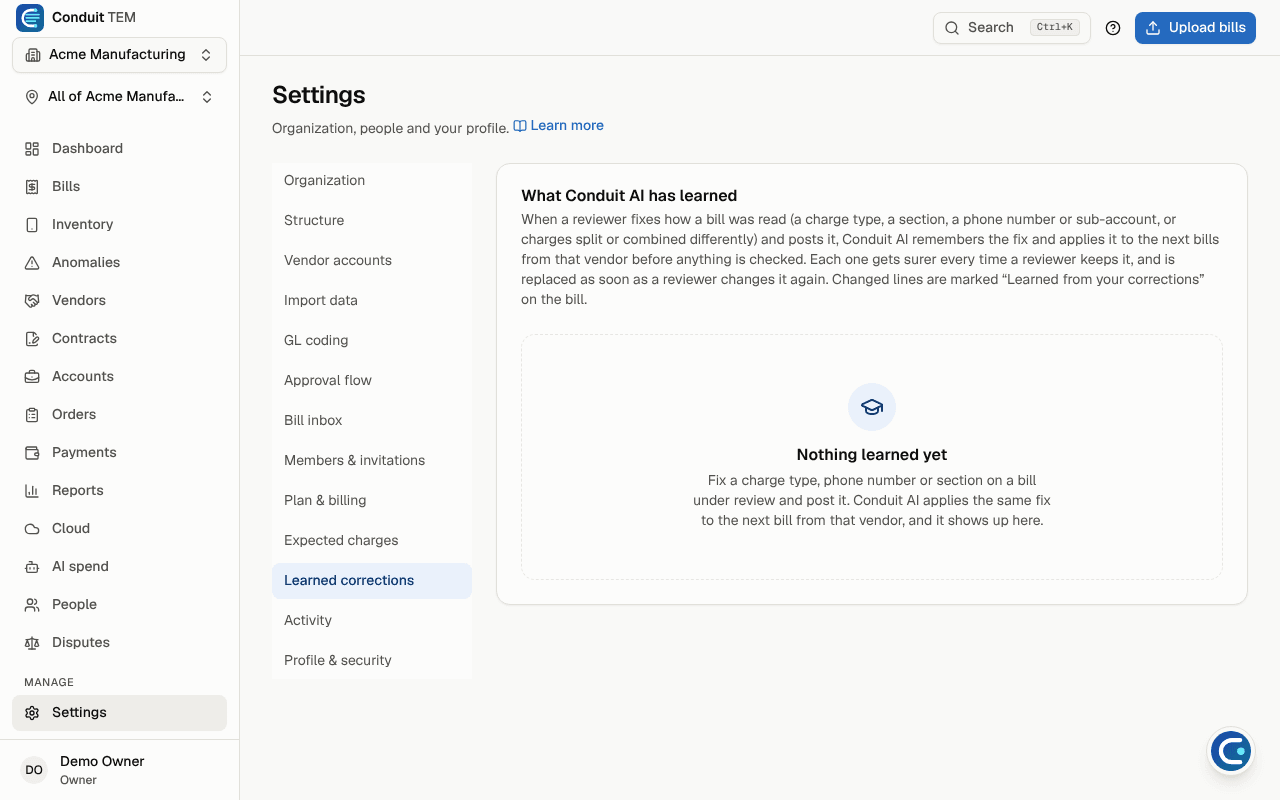
Owners and admins can see and delete everything Conduit AI has learned under Settings → Learned corrections.