I emailed a bill in, but it isn't showing
Track down a bill you forwarded to your bill inbox. Check the address, the attachment and the inbox's Recent emails to see what happened to it.
In the app:Bill inbox Bills
On this page
Bills sent to your bill inbox normally appear on the Bills page within a minute or two. If one hasn't, the inbox itself can usually tell you why. Work through these checks in order.
1. Check Recent emails
- Go to Settings and choose Bill inbox.
- Scroll to Recent emails. It lists the last 30 emails your inboxes received, newest first, with what happened to each.
Find your email by its subject and sender, then read its label:
| Label | What it means | What to do |
|---|---|---|
| Bill received | The bill was accepted. A link says how many bills are on the Bills page. | See step 4. |
| Already received | Every attachment had been received before, so nothing new was added. | Nothing. The earlier copy is on the Bills page. See I uploaded the same bill twice. |
| No attachment | The email had no bill file attached. | Forward the original email again with the PDF attached. |
| Link only, no PDF | The carrier's email only links to its online portal. | Turn on PDF attachments in your carrier account. See Get PDF bills from your carrier. |
| Forwarding confirmation | Gmail or Outlook sent a code or link to confirm a new forwarding rule. | Finish setting up forwarding with that code or link. See Set up forwarding from your mailbox. |
| Not a bill | Files were attached, but none could be used. The reason is listed after Skipped. | See step 3. |
| Inbox turned off | The email reached an inbox that an owner or admin turned off. | Ask an owner or admin to select Turn on for that inbox. |
Note: Viewers can't open the bill inbox address or its emails. Ask an owner, admin, finance member or analyst to check for you.
2. If the email isn't listed at all
The email never reached your inbox. Check:
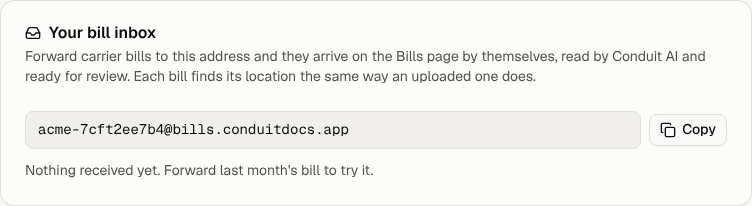
- The address. Copy it again from Your bill inbox with the Copy button and compare it with where the email was sent. One wrong character means it goes nowhere. Emails to an unknown address are dropped without a reply.
- A new address. If an owner or admin gave the inbox a New address, the old one stopped working straight away. Update your forwarding rules and carrier accounts.
- Forwarding rules. An automatic forward in Gmail or Outlook only starts once it's confirmed. Look for a Forwarding confirmation entry, and check the rule's conditions really match the carrier's emails.
- Time. Give it a few minutes, then refresh the page.
3. Check the attachment
The inbox takes the bill files attached to an email and skips everything else. A file is skipped when:
- it isn't a PDF, PNG, JPG, CSV or XLSX file ("Not a PDF, image, CSV or XLSX");
- it's larger than 25 MB;
- it looks like a logo or signature image (small or inline pictures in the email body);
- its contents don't match its type, such as a renamed file;
- the email has more than 10 attachments (send the rest in another email);
- your organization reached its daily file limit (it resets at midnight UTC).
If your carrier sends a ZIP file or a link to a download, save the PDF and forward or upload that instead.
4. The email was received, but the bill isn't on the Bills page
- It's still being read. Look at the top of the Bills page for a card showing its progress.
- It failed. A Failed card is shown at the top of the Bills page. See A bill failed to read.
- It posted by itself. Bills from a trusted sender can post automatically when Conduit AI is confident. Look under Posted rather than Needs review.
- You see only part of the company. If your access is limited to some locations, bills for other locations don't appear for you. Ask an owner or admin to check.
- A location is selected. If the location menu at the top of the sidebar shows one location, switch it back to All of your company.
Who gets told
Conduit TEM doesn't reply to the sender. Instead, members see every email under Recent emails, and when the bill has been read they get the usual "A bill is ready for review" email (or "We could not process" if it failed). Each member chooses these emails under Settings → Profile & security.
Each delivery is also recorded under Settings → Activity as "Received an email in a bill inbox".