Your bill inbox
Find your organization's bill inbox address, learn what it accepts and what happens to every email it receives.
In the app:Bill inbox
On this page
Every organization gets its own bill inbox: an email address that turns forwarded carrier bills into bills on the Bills page. Conduit AI reads each one and it waits for review, exactly as if you had uploaded it. Set it up once and you stop downloading and uploading PDFs every month.
Find your inbox address
- Go to Settings and choose Bill inbox.
- Your address is in the Your bill inbox card. It looks like
[email protected]. - Select Copy to put it on your clipboard.
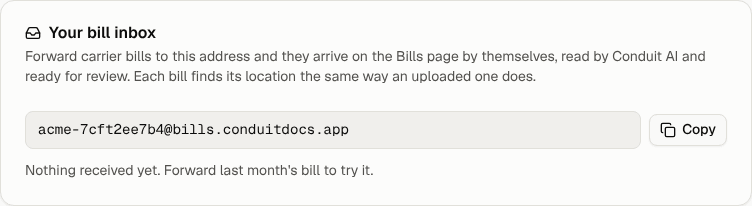
Under the address you'll see when the last email arrived, or "Nothing received yet" if no email has come in. Forward last month's bill to try it out.
Owners, admins, finance and analysts can see the address. Viewers can't. They see a note asking them to get it from an owner or admin.

New organizations also find the address, with the same Copy button and forwarding tips, in the Get your bills in step of the setup checklist. See Finish setting up.
Note: The address is private to your organization. The random part is what keeps it private, so share it only with the people and carrier accounts that send you bills.
What the inbox accepts
Each email can carry up to 10 bill files. These files are accepted:
| File | Notes |
|---|---|
| The usual carrier bill. | |
| JPG or PNG | A photo or scan of a paper bill. |
| CSV or XLSX | A billing export from your carrier's online account. |
These attachments are skipped:
- Files over 25 MB.
- Any other file type, such as Word documents, ZIP files or calendar invites.
- Small images that look like a logo or an email signature.
- Files whose contents don't match their name, for example a renamed file.
- Any file past the tenth. Send the rest in another email.
The same file sent twice is only processed once. The second copy shows as Already received.
What happens to each email
When an email arrives, Conduit TEM:
- Saves every accepted attachment as a new bill. The bill starts processing right away and usually reaches the Bills page within a couple of minutes.
- Places the bill's lines on your locations the same way an uploaded bill's lines are placed. See Company structure.
- Records the email under Recent emails on the Bill inbox page.
- Adds an entry to the activity log: "Received an email in a bill inbox".
Bills that arrive by email wait for a person to review them. The exception is a bill from a trusted sender, which can post by itself under your auto-post setting.
Who gets told
Nobody is emailed when the email itself lands. People hear about the bill once Conduit AI has read it:
- A bill is ready for review goes to members who keep that notification on.
- A bill could not be processed goes out if a file can't be read.
Each member turns these on or off under Settings → Profile & security, in Email notifications. A member who is limited to one location or division only hears about bills for their part of the company.
Check Recent emails
The Recent emails card lists the last 30 emails your inboxes received. Each one shows a status:
| Status | What it means | What to do |
|---|---|---|
| Bill received | At least one bill file was taken in. A link takes you to the Bills page. | Review the bill. |
| Already received | Every file in it had been received before. | Nothing. |
| No attachment | No bill file was attached. | Forward the email again with the PDF attached. |
| Link only, no PDF | The carrier sent a "your bill is ready" link instead of the bill. | Turn on PDF attachments in your carrier account. See Get PDF bills from your carrier. |
| Forwarding confirmation | Your mail provider sent a code or link to confirm forwarding. | Finish the setup. See Set up forwarding. |
| Not a bill | It had attachments, but none was a bill file. | Check the "Skipped" line for the reason. |
| Inbox turned off | The inbox was off when the email arrived. | Turn the inbox back on if that was a mistake. |
When files are skipped, the email shows which ones were skipped and why, for example "Larger than 25 MB".
Turn an inbox off or give it a new address
Owners and admins manage inboxes in the More inboxes card, which also lists your main inbox.
- Turn off stops an inbox processing mail. Emails are still listed under Recent emails as "Inbox turned off", but no bills are created. Select Turn on to start again.
- New address replaces the address, for example if it leaked or attracts spam. The old address stops working right away, so update every forwarding rule and carrier account that uses it.
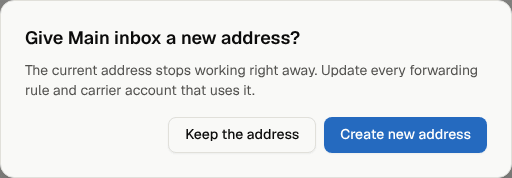
Your main inbox can't be deleted. You can turn it off or give it a new address instead. Extra inboxes can be deleted. See Extra inboxes for locations.