Set up forwarding from your mailbox
Forward carrier bills to your bill inbox automatically from Gmail, Outlook or Microsoft 365, or forward a single bill by hand.
In the app:Bill inbox
On this page
If your carrier bills already arrive in a shared mailbox (accounts payable, IT or billing), a forwarding rule sends each one on to your bill inbox as it arrives. You set it up once in your mail program and every new bill appears on the Bills page without anyone lifting a finger.
You'll need your inbox address first. Get it from Settings → Bill inbox (see Your bill inbox). The Get bills to your inbox card on that page has the same steps in short form.
How a forwarding rule works
Whatever mail program you use, the idea is the same:
- Create a rule or filter that matches your carriers' bill emails. Match on the sender, for example messages from
bell.ca,rogers.comortelus.com. Add has attachment if you can, so only emails with the bill attached are forwarded. - Set the action to forward (or redirect) to your bill inbox address.
- Save the rule, then forward last month's bill by hand to check that everything works.
Tip: Keep the rule narrow. Forwarding newsletters or promotions from your carrier does no harm, since they show as "No attachment" or "Not a bill", but they add noise to Recent emails.
Forward from Gmail or Google Workspace
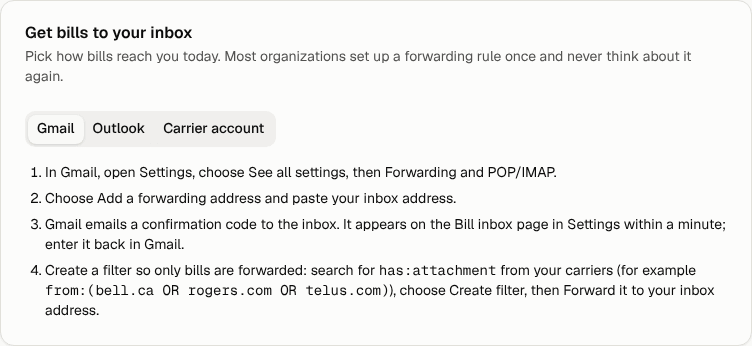
- In Gmail, open Settings, choose See all settings, then Forwarding and POP/IMAP.
- Choose Add a forwarding address and paste your inbox address.
- Gmail sends a confirmation code to your bill inbox. Within a minute it shows on Settings → Bill inbox, in the Your bill inbox card, as "Your mail provider sent a forwarding confirmation" with the code. Enter that code back in Gmail. You can also use the confirmation link shown there.
- Create a filter so only bills are forwarded. Search for
has:attachmentfrom your carriers, for examplefrom:(bell.ca OR rogers.com OR telus.com) has:attachment. Choose Create filter, then Forward it to your inbox address.
The confirmation email is also listed under Recent emails with the status Forwarding confirmation.
Note: Your Google Workspace administrator can turn off automatic forwarding for your company. If the forwarding option is missing or greyed out, ask them to allow forwarding to your bill inbox address.
Forward from Outlook or Microsoft 365
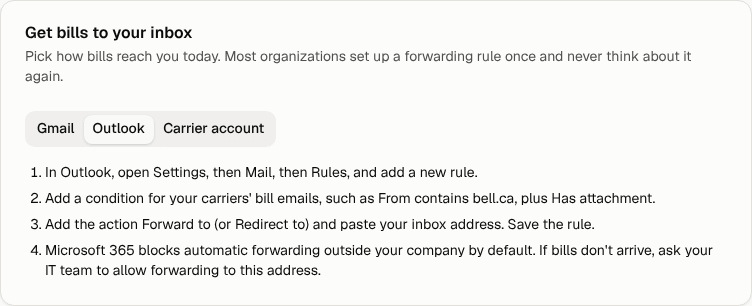
- In Outlook, open Settings, then Mail, then Rules, and add a new rule.
- Add a condition for your carriers' bill emails, such as From contains
bell.ca, plus Has attachment. - Add the action Forward to (or Redirect to) and paste your inbox address. Save the rule.
Microsoft 365 blocks automatic forwarding to outside addresses by default. If bills don't arrive, ask your IT team to allow forwarding to your bill inbox address. Nothing shows under Recent emails when forwarding is blocked, so a forwarded test that never appears is the usual sign.
If Microsoft sends a confirmation email to the inbox, it shows on the Bill inbox page the same way Gmail's does.
Other mail programs
Most mail systems (Apple Mail, Zoho Mail, Fastmail, a company mail server) have rules or filters that can forward. Use the same recipe: match the carrier's sender, require an attachment, forward to your inbox address. If your system needs the address confirmed first, look for the confirmation under Recent emails on the Bill inbox page.
Forward one bill by hand
You don't need a rule to use the inbox. To send a single bill:
- Open the carrier's email in your mail program.
- Choose Forward. Make sure the PDF is still attached; some programs drop attachments when you reply instead of forwarding.
- Paste your inbox address in To and send.
You can also attach bills to a new email. A scan or a phone photo (JPG or PNG) works too, up to 10 files per email and 25 MB each.
Check that it worked
Go to Settings → Bill inbox and look at Recent emails:
- Bill received means the bill is on its way to the Bills page. Select the link to open it.
- Link only, no PDF means the carrier sent a link instead of the bill. See Get PDF bills from your carrier.
- No attachment usually means the forward dropped the PDF. Forward it again with the attachment.
- Nothing at all means the email never reached us. Check the address, then check whether your mail system blocks forwarding.