Carrier orders
Ask a carrier for a new line, an upgrade, a move or a disconnect, get it approved, send it, and let the next bill prove it was done.
On this page
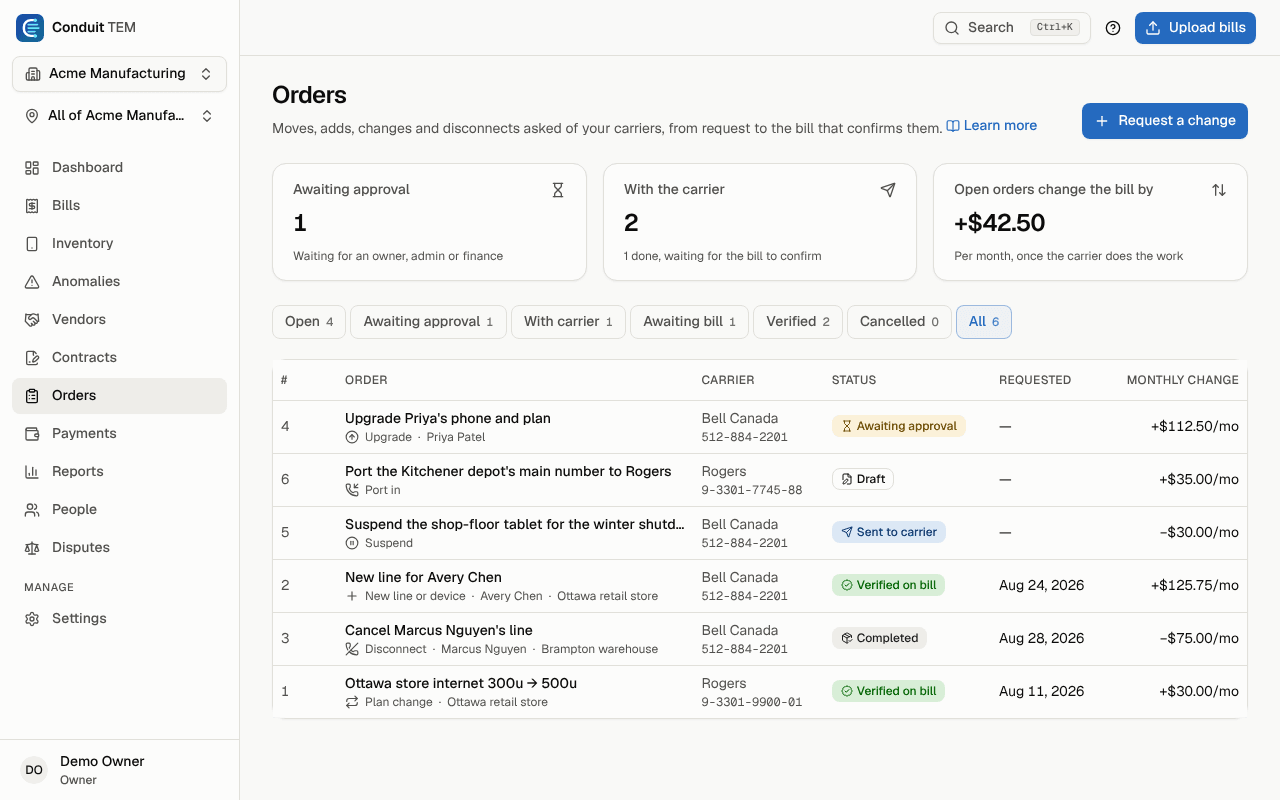
Orders is where you ask a carrier for a change and follow it until a bill shows it really happened. You can order a new line or device, an upgrade, a plan change, a move, a port-in, a suspension or a disconnect.
Every order runs through the same steps:
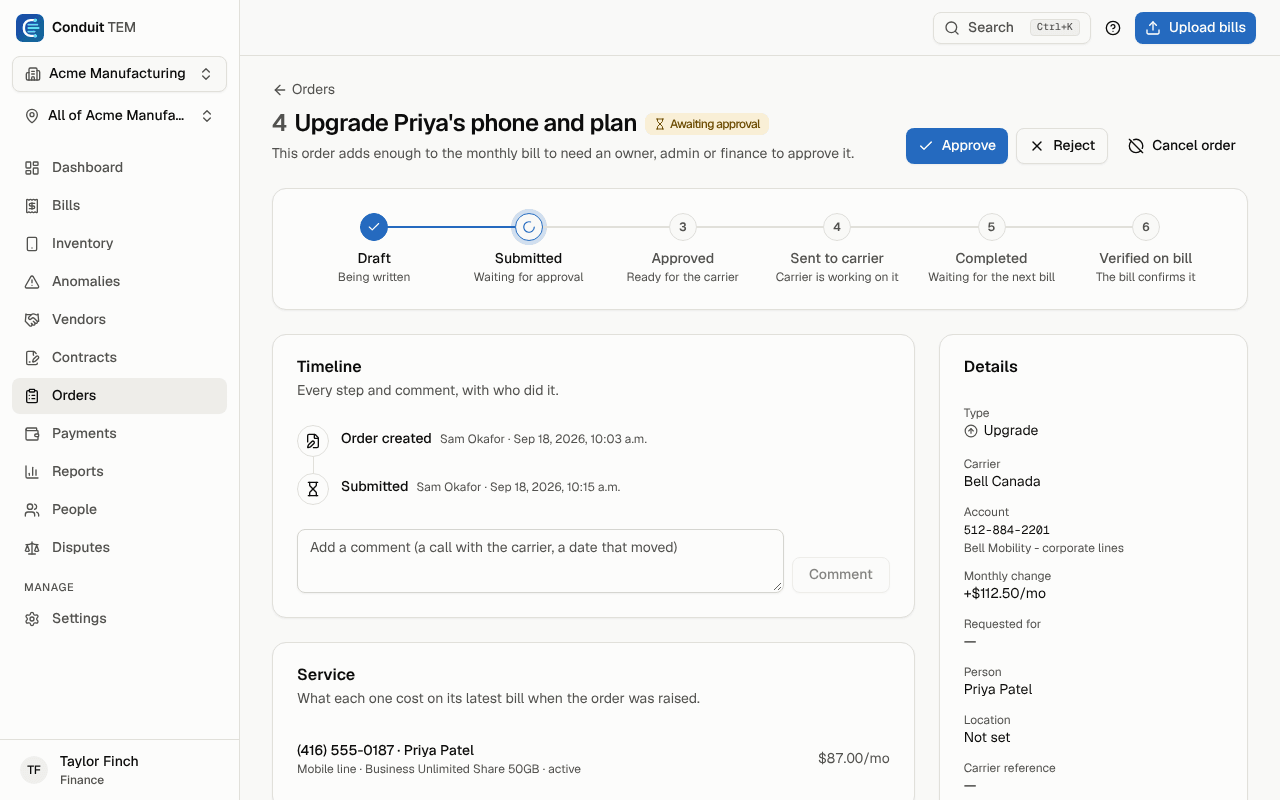
Draft → Submitted → Approved → Sent to carrier → Completed → Verified on bill
Orders that add a lot to the monthly bill wait for an approver. You can email the carrier from Conduit TEM. After the work is done, the next bill confirms it, or flags it if the carrier keeps billing a line you cancelled.
Who can do what
| Role | Can |
|---|---|
| Owners, admins, finance, analysts | Raise orders, edit drafts, submit, send to the carrier, mark completed, confirm by hand, cancel, comment and attach files. |
| Owners, admins, finance | Approve or reject orders waiting for approval. |
| Owners, admins | Set the approval threshold, and email or save an address other than the account's saved order contact. |
| Viewers | Read orders. |
Members limited to part of the company see, and raise, orders only for their own locations and services.
Travel passes asked from Inventory or self-service also arrive here as Plan change drafts, with the trip's destination, dates and needs, and are emailed to your account manager.
If your organization uses employee self-service, requests employees and managers send from it (a problem, a plan change, a lost phone and so on) arrive here as Draft orders, with the line and person attached and their words in the notes. Owners and admins get an email about each one. Nothing is sent to the carrier until someone on your team reviews the draft and submits it. The order's history shows the employee's name with "(self-service)".
Request a change
- Go to Orders and select Request a change. You can also open a line in Inventory and select Request a change there. The line and order type are filled in for you.
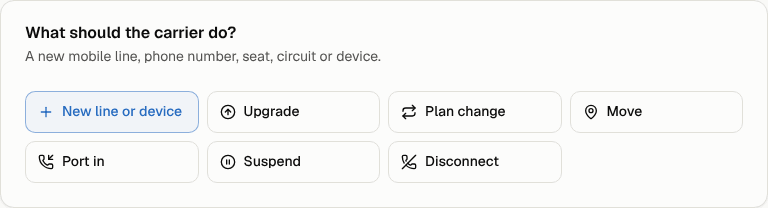
- Under What should the carrier do?, pick the type: New line or device, Upgrade, Plan change, Move, Port in, Suspend or Disconnect.
- For a change to existing lines, use Find a service to add them. One order covers lines on one account.
- For a new line or a port-in, fill in The new service: type, plan, device, and the number if you know it (for a port-in, the Number to port and who it's Ported from).
- For a plan change, upgrade or move, fill in The change: the New plan, New device or new address and location.
- Under Details, check the Expected monthly change. For a disconnect it suggests what the lines cost now, as a saving. Add a Title, the Requested for date, the Person and the Location or cost center.
- Notes are for your team and the approver. They are never sent to the carrier.
- Select Submit, or Save as draft to finish later.
Approval
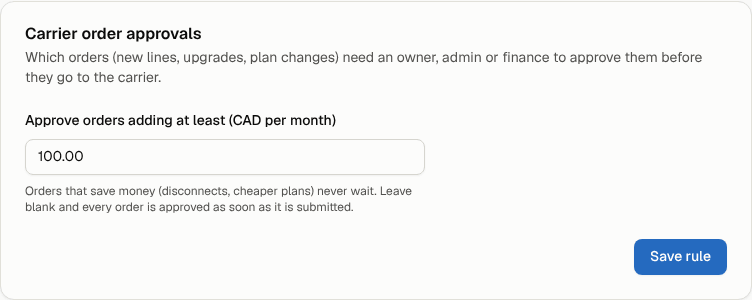
Owners and admins set the threshold under Settings → Organization, in Carrier order approvals:
- Enter an amount in Approve orders adding at least (… per month).
- Select Save rule.
When an order is submitted:
- If it adds at least that much a month, it waits as Awaiting approval, and owners, admins and finance get an email.
- If it adds less, or saves money (disconnects, cheaper plans), it's approved straight away. The timeline notes this.
- If the threshold is blank, every order is approved as soon as it's submitted.
To decide, open the order and select Approve or Reject. A rejection needs a reason, which the requester sees on the timeline. A rejected order can't be reopened, so raise a new one instead. Whoever raised an order can't approve it themselves, unless they're the organization's only approver.
Send it to the carrier
On an approved order, select Send to carrier and choose how:
- Email from here sends the request to the account's order desk under Carrier contact email. The email includes the account number, the lines, the new-service details, the requested date and your order number, plus an optional Message to the carrier. Your notes stay internal. Replies come to you. Select Send email.
- Placed another way records that you ordered through the carrier's portal, by phone or through your rep. Enter the Carrier ticket or reference and a Note, then select Mark as sent.
Anyone who can send an order can email the account's saved order contact. Only owners and admins can type a different address, and they can tick Save as this account's order contact to keep it. You can also edit the order contact under Settings → Vendor accounts. Each organization can send up to 30 order emails a day.
Mark it completed
When the carrier says the work is done, select Mark completed. Enter the Completed on date (the day the carrier did the work), their reference and a note.

The order now waits for the next bill. On the Orders page it shows under Awaiting bill.
How the bill verifies an order
When a bill on the order's account is posted, Conduit TEM checks it against completed orders:
| Order | Verified when the bill shows |
|---|---|
| Disconnect | A period starting on or after the completion date, with no monthly or usage charges left on the lines (after credits). Final-bill items such as an early-termination fee or device payout are expected. |
| Suspend | The lines' monthly and usage charges dropped below what they cost before, or to nothing. |
| New line or device | The new number, or (if you didn't know it) exactly one new line of that type on the account. |
| Port in | The ported number. |
| Plan change / Upgrade | The new plan name, or (if you didn't give one) a different monthly rate on a full month after the change. An upgrade also counts a new device or one-time charge on the line. |
| Move | The new address on the line, or the line placed on the order's new location. |
A verified order moves to Verified on bill, naming the bill. A verified disconnect marks its lines disconnected in your inventory. Findings the order explains close by themselves with a note, such as a new line's Billed but not in inventory.
If the bill can't confirm the order (the carrier bills it elsewhere, or no number was known), select Confirm by hand and say what you checked.
Billed after disconnect
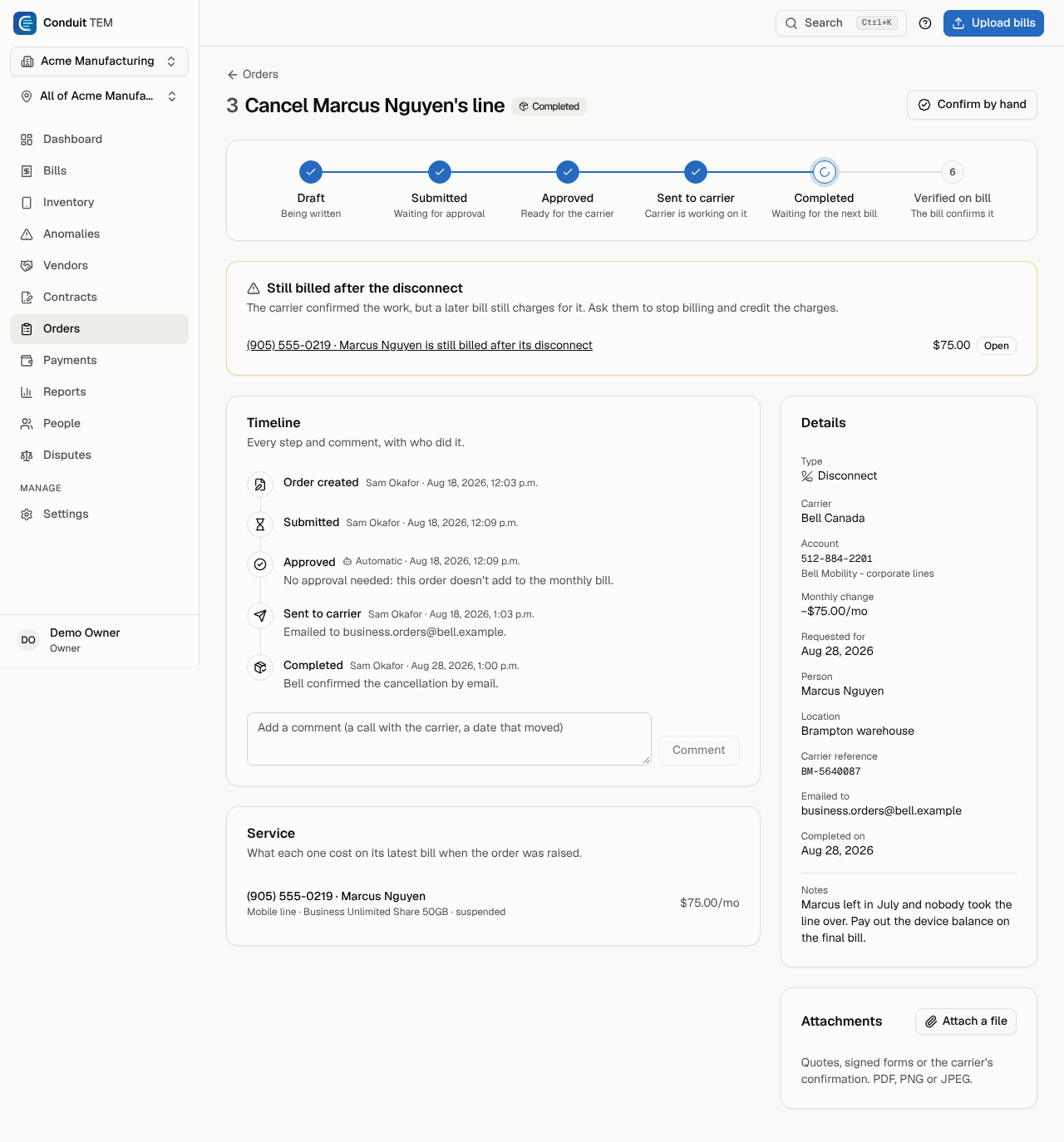
If a bill covering days after a disconnect still charges for the line, the order stays Completed. The bill raises a Billed after disconnect finding, which appears on the order under Still billed after the disconnect. Ask the carrier to stop billing and credit the charges, then open the finding and select Dispute with vendor. See Disputes and credits.
Follow an order
- The Orders page tabs show Open, Awaiting approval, With carrier, Awaiting bill, Verified, Cancelled and All. The tiles show what's waiting for approval, what's with the carrier, and how much open orders will change the monthly bill.
- Each order page has a step tracker, a Timeline of every step and comment with who did it, the lines with what they cost when the order was raised, and Attachments (quotes, signed forms, carrier confirmations as PDF, PNG or JPEG).
- To add a comment, such as a call with the carrier or a date that moved, type it under the timeline and select Comment.
- To stop an order before it's completed, select Cancel order and give a reason. If it was already sent, tell the carrier too. Cancelling here doesn't reach them.
- Owners and admins also see a Requests & proposals tab: new lines, upgrades, plan changes and travel passes your people asked for, in plain-word statuses, and the proposals your account manager shared. See Track your requests and proposals.