Export your data
Every CSV download in Conduit TEM, what each file contains, how your access shapes it, and the files that arrive by email.
In the app:Bills Inventory Anomalies Disputes People GL coding Activity
On this page
Most lists in Conduit TEM have a download button. Exports are CSV files, which open in Excel, Google Sheets, Numbers or any finance app. Every export contains what you can see, and every download is recorded in the activity log.
Find the export button
On most pages the button is Export CSV, at the top right next to the page title. It appears once the list has something in it.

Every export and what's in it
| Where | Button | What the file contains |
|---|---|---|
| Bills | Export CSV | One row per bill: vendor, account, invoice number and date, billing period, due date, status, currency, previous balance, payments, adjustments, current charges, taxes, total due, the locations it was split across, and when it was posted. |
| A bill's review screen | Export lines | Every line of that one bill: section, identifier, description, charge type, quantity, unit rate, amount, location and location code, service and service type, sub-account, service address, GL account and the page it was on. |
| A bill's GL coding card | Coding CSV | How that bill is booked: one row per GL account and location, with the tax portion. |
| Settings → GL coding | Download CSV under Export to your finance app | Posted bills dated in a range, as a plain GL journal, QuickBooks Online bills or Xero bills. See below. |
| Inventory | Export CSV | Every line, circuit and device: name, type, identifier, name on bill, plan, status, monthly cost, vendor, account, who it's assigned to, department, location, sub-account, service address, when it was last billed, and tags. |
| Anomalies | Export CSV | Every finding: rule, severity, status, title, summary, dollar impact, vendor, bill, service, location, first and last seen, when it was resolved, and the explanation. |
| Disputes | Export CSV | Every dispute: vendor, account, finding, bill, service, location, status, expected credit, vendor reference, when it was opened, sent and closed, the credit received, and the bill it was credited on. |
| People | Export CSV | Everyone in your people list: name, email, title, department, status, when they left, location, number of services, and their monthly cost. |
| Reports | CSV | The report's table: its rows, one column per series, and totals. Also on each saved report's row. See Build a report. |
| Slide decks | PowerPoint and PDF | The deck for the chosen month. See Slide decks. |
| Settings → Activity | Export CSV | The activity log: time, who, their email, what happened, the record it concerns and details. Owners and admins only. |
Note: There are no Excel (.xlsx) or PDF downloads of lists yet. Open the CSV in Excel and save it as a workbook if you need one.
Export to QuickBooks Online, Xero or a GL journal
Under Settings → GL coding, the Export to your finance app card exports posted bills by GL account and location, with shared charges already split.
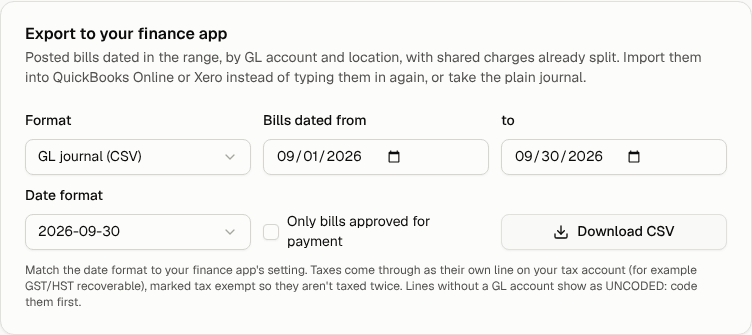
- Choose the Format: GL journal (CSV), QuickBooks Online bills or Xero bills.
- Set Bills dated from and to.
- Pick the Date format your finance app expects.
- Tick Only bills approved for payment if you want each bill only once it's ready to pay.
- Select Download CSV.
Taxes come through as their own line, and lines without a GL account show as UNCODED, so code them first. For the details of coding and importing, see the Accounting and budgets guides.
What an export includes
- Your access. A member limited to part of the company only gets the rows for their part. See Roles, scopes and security.
- The location you're viewing. If you picked a location in the location picker under your organization's name, exports are narrowed to it too. Choose "All of" your organization to export everything you can see.
- Spreadsheet safety. A cell that starts with
=,+,-or@(other than a plain number) is neutralised, so a value from a bill can never run as a formula when you open the file. - The activity log. Each download is recorded with who made it and how many rows it had.
Files that arrive by email
Two emails bring CSV files without you downloading anything:
- Monthly summary. On the first of each month: last month's spend by vendor, findings opened and closed and credits recovered, with two attachments: last month's bills (vendor, account, invoice number, period, total due, currency, when it was posted and whether automatically or by a person) and the open findings (rule, severity, title, impact, bill and first seen). Each person's email covers only the part of the company they can see, and nothing is sent for a quiet month. Turn it on or off under Settings → Profile & security; see Email notifications.
- Scheduled reports. A saved report emailed weekly or monthly, with the full table attached. See Save and schedule reports.