Code bills to your general ledger
Add your telecom GL accounts, set rules that code every bill line automatically when it posts, and fix a line's account by hand.
In the app:GL coding
On this page
GL coding books every line of every posted bill to one of your general-ledger accounts. You set up the accounts and a few rules once. From then on, each bill is coded the moment it's posted, accounts payable gets the coding with the approved bill, and finance can export it or report spend by GL account and location.
Who can do this
- Owners, admins and Finance add accounts, write rules and change a line's account.
- Everyone else sees the coding read-only.
GL coding is part of the paid plans. If your plan doesn't include it, accounts and coding set up earlier stay readable. See Plans and billing.
Add your GL accounts
You only need the telecom part of your chart of accounts, such as telephone and internet, mobile phones, equipment, and the tax account you recover sales tax to.
- Go to Settings → GL coding.
- Select Paste accounts.
- Copy the two columns (number and name) from a spreadsheet or your accounting system and paste them, one account per line. Commas, tabs or a space between number and name all work, and a header row is skipped.
- Select Import. Numbers you already have get the new name.
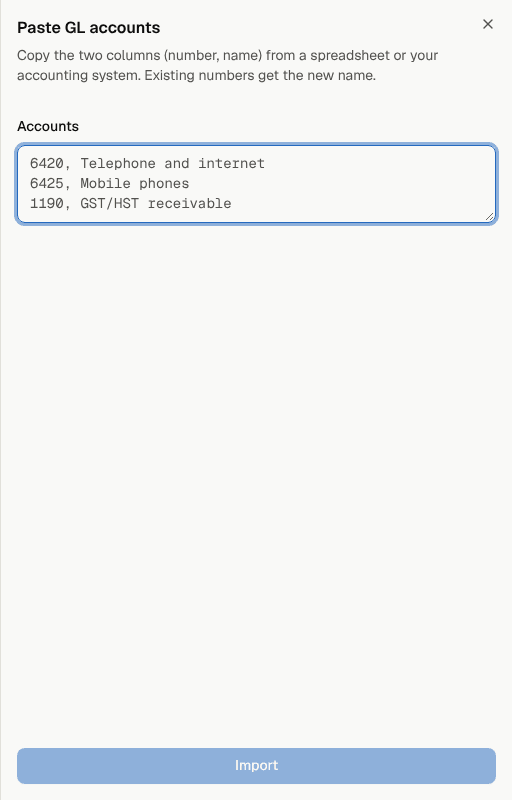
To add a single account, select Add account and enter the Account number, Name and optional Notes, exactly as they appear in your accounting system.
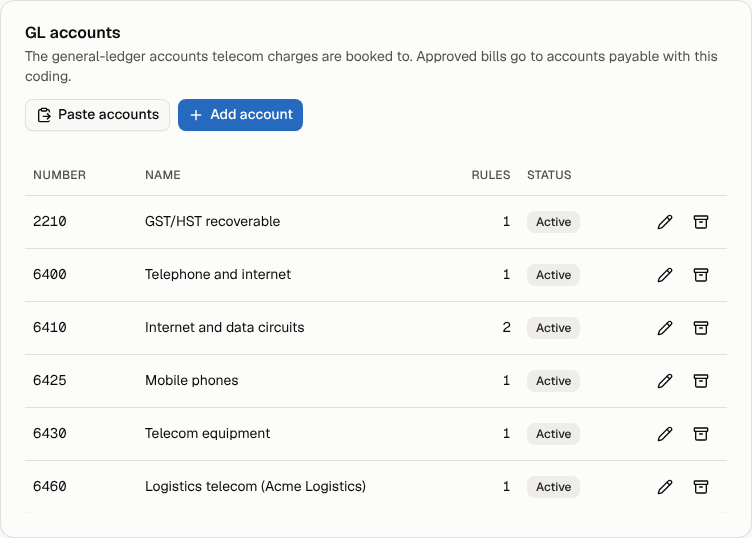
Use the pencil icon to edit an account, and the archive icon to archive one you no longer use. Archiving stops its rules from applying, and bills that haven't gone to accounts payable yet are recoded with the rules that still apply. Bills already sent to AP, and lines someone coded by hand, keep their account. You can restore an archived account later.
Add coding rules
A rule says "charges like this go to that account". When a bill posts, each line gets the account of the most specific rule it matches.
- In Coding rules, select Add rule.
- Choose the GL account.
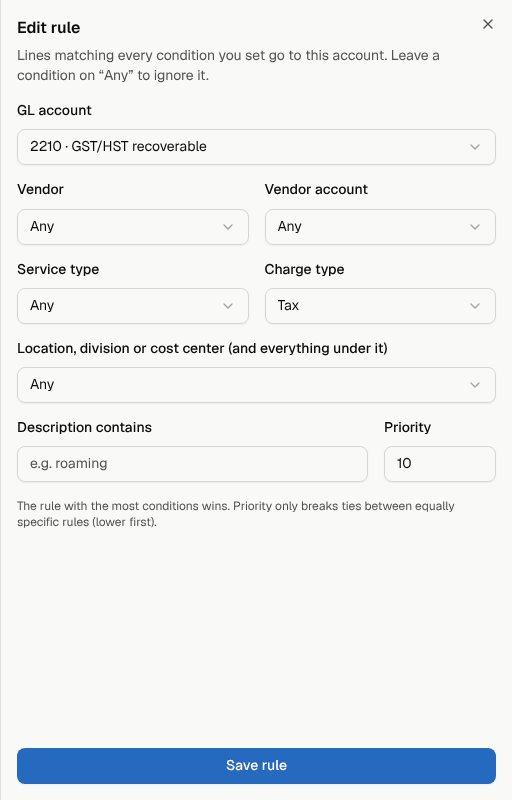
- Set any conditions you need. Leave a condition on Any to ignore it.
- Vendor and Vendor account
- Service type (for example internet, mobile line, circuit)
- Charge type (for example tax, equipment)
- Location, division or cost center (and everything under it)
- Description contains (for example "roaming")
- Optionally set a Priority (see below).
- Select Save rule.
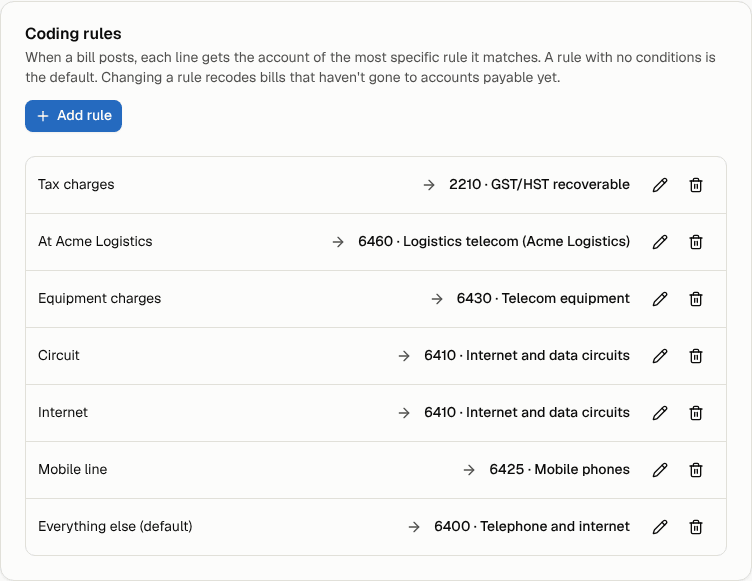
Start with a default. A rule with every condition on Any is your default ("Everything else"). Then add rules for the exceptions, such as tax going to your recoverable tax account, or a division that books to its own account.
Which rule wins
- The rule with the most conditions wins.
- If two equally specific rules both name a location, the one nearest the line wins. A cost center beats the location above it.
- Otherwise, the lower Priority number wins.
Give overlapping rules different priorities. For example, a phone bought on a mobile line matches both an "equipment" rule and a "mobile line" rule. Give the equipment rule a lower priority number if equipment should win.
A line no rule matches stays uncoded. Settings shows a Needs attention banner with the number of uncoded lines, and exports show them as UNCODED.
Shared charges on multi-site bills
Location rules use the line's own location. A shared charge with no location of its own (tax, a fee or a credit) uses the bill's location, or the vendor account's default location. On a consolidated bill covering several sites, neither is set, so code shared charges by Charge type (for example tax to GST/HST recoverable) or by hand. Their amounts are still split across your locations in the coding summary and exports.
When rules change
Saving or changing a rule (or an account) recodes posted bills that haven't gone to accounts payable yet: bills with no payment record, and bills awaiting approval, approved or on hold. What AP has already been sent is never rewritten. Lines someone coded by hand keep their account.
Check and change a bill's coding
Posted bills show a GL coding card on the bill page once your organization has GL accounts.
- Open the bill from Bills (or from Payments).
- The GL coding card shows the amount per GL account and location, with shared charges already split. An Uncoded warning appears if any line matched no rule.
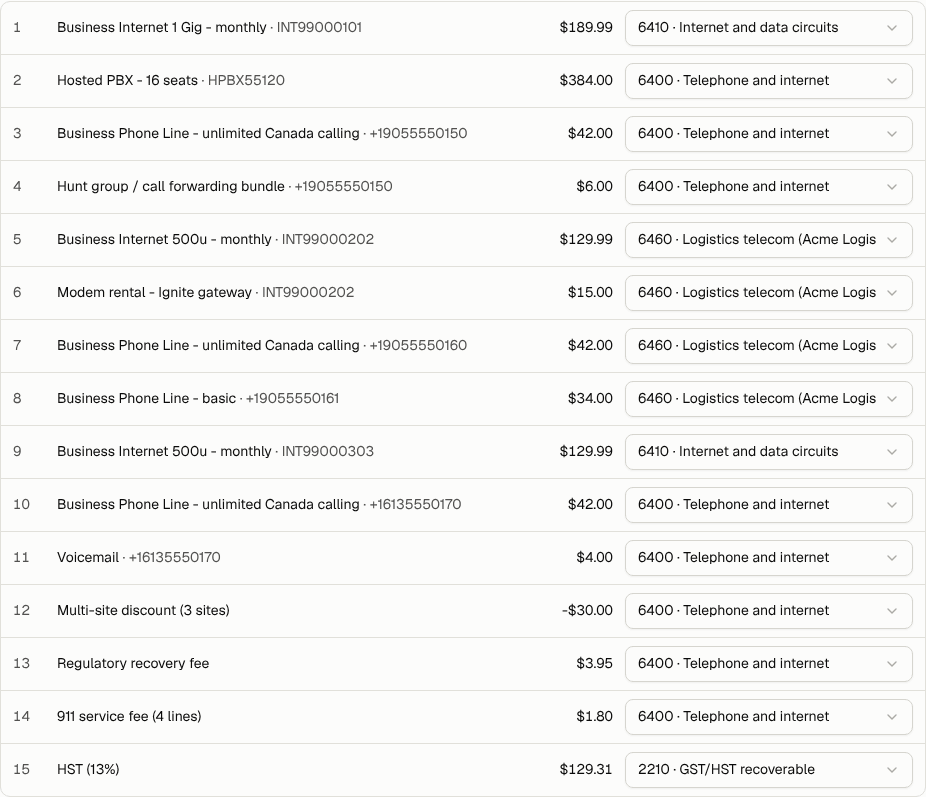
- Select Account on each line to see every line's account.
- To change one, pick another account from the line's menu. The line is marked By hand, and the rules leave it alone from then on.
- To hand a line back to the rules, choose Use the rules from its menu.
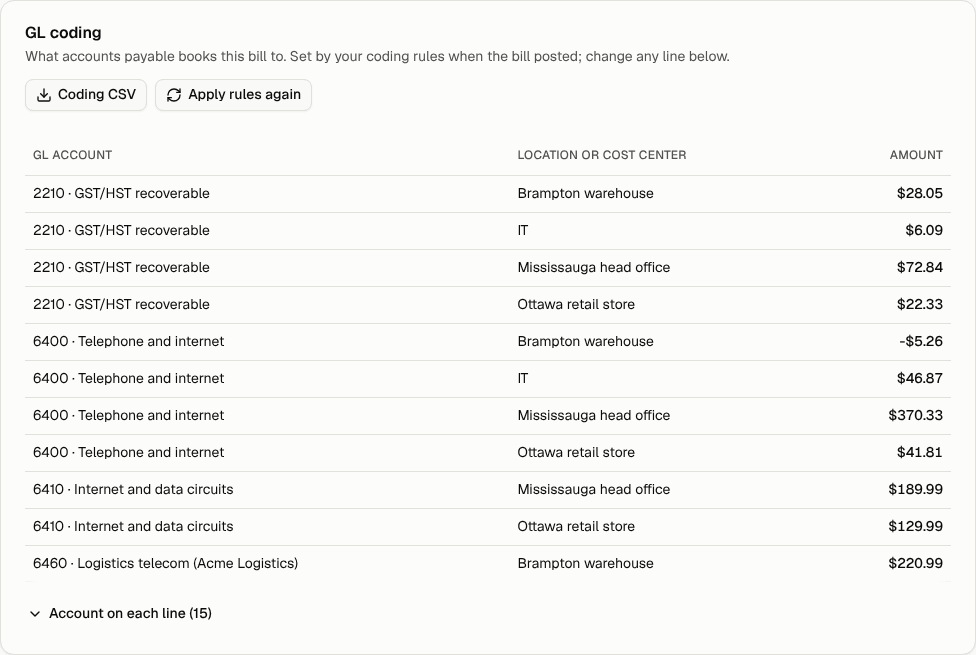
Apply rules again re-runs your rules over this bill, for example after you add a rule. Lines coded by hand keep their account. Coding CSV downloads this bill's journal (see The GL journal).
Where the coding goes
- Accounts payable: the approval email shows the coding instead of the plain location split, and attaches a GL coding CSV next to the bill PDF. See Payments and the handoff to accounts payable.
- Exports: the GL journal, and import files for QuickBooks Online and Xero. The bill page's Export lines download also includes each line's GL account.
- Reports: a GL account dimension, and the Chargeback by GL account report (locations by GL account, last month).
- Approval flows: a Check step can route bills with Lines without a GL account.
- Budgets: a budget can cover a single GL account.