Roles, scopes and security
Decide what each member can do and which part of the company they see, check who did what in the activity log, and learn how your data is protected.
In the app:Members & invitations Activity
On this page
Conduit TEM controls access in two ways: a member's role decides what they can do, and their scope decides which part of the company they can see. The activity log then records who did what.
Roles at a glance
| Role | Can do |
|---|---|
| Owner | Everything, including members, settings, the company structure, vendor accounts and billing. |
| Admin | The same as an owner. |
| Finance | Everyday bill work, plus approving bills above the approval threshold and voiding bills. |
| Analyst | Upload, review and post everyday bills, and keep the inventory, people and findings current. |
| Viewer | Look and export. Viewers change nothing. |
For the full list of what each role can do, see Roles and permissions. Owners and admins change roles under Settings → Members & invitations.
Limit a member to part of the company
An analyst or a viewer can be limited to one location, division or cost center (and everything under it). They then see only that part of the company.
- Go to Settings → Members & invitations. Only owners and admins can change this.
- Find the member. In the Sees column, open the list and choose the part of the company, or Everything.
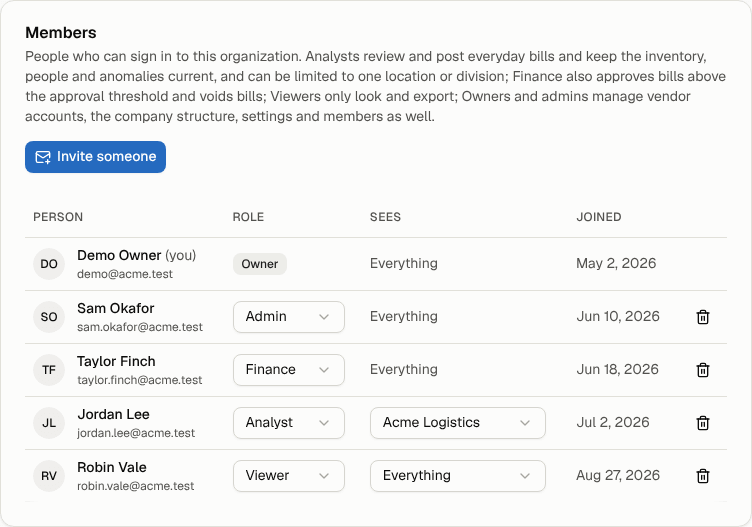
The Sees column only appears when your company structure has more than one unit. Owners, admins and finance always see everything. Build the structure first under Settings → Structure; see Company structure.
What a limited member sees
- Lists: bills, inventory, findings, disputes and people only show what belongs to their part.
- Dashboard and reports: totals only include their part. A bill shared across several locations counts only the share allocated to theirs.
- Slide decks: the same deck shows their part's figures.
- Exports: CSV files only contain their rows.
- Emails: they're only told about bills and findings that touch their part, and their weekly and monthly summaries cover only their part. See Email notifications.
Note: The location picker under your organization's name is different: it narrows what you are looking at for now, within what you're allowed to see. A scope is a limit set by an owner or admin that the member can't widen.
Check who did what in the activity log
Owners and admins can see the activity log under Settings → Activity. It records uploads, posts, voids, edits, finding and dispute decisions, orders, structure and settings changes, plan changes, exports, self-service invitations, sign-ins and requests, answers to proposals your account manager shared, and more, with who did it and when. Actions an employee took in self-service show their name with "(self-service)".
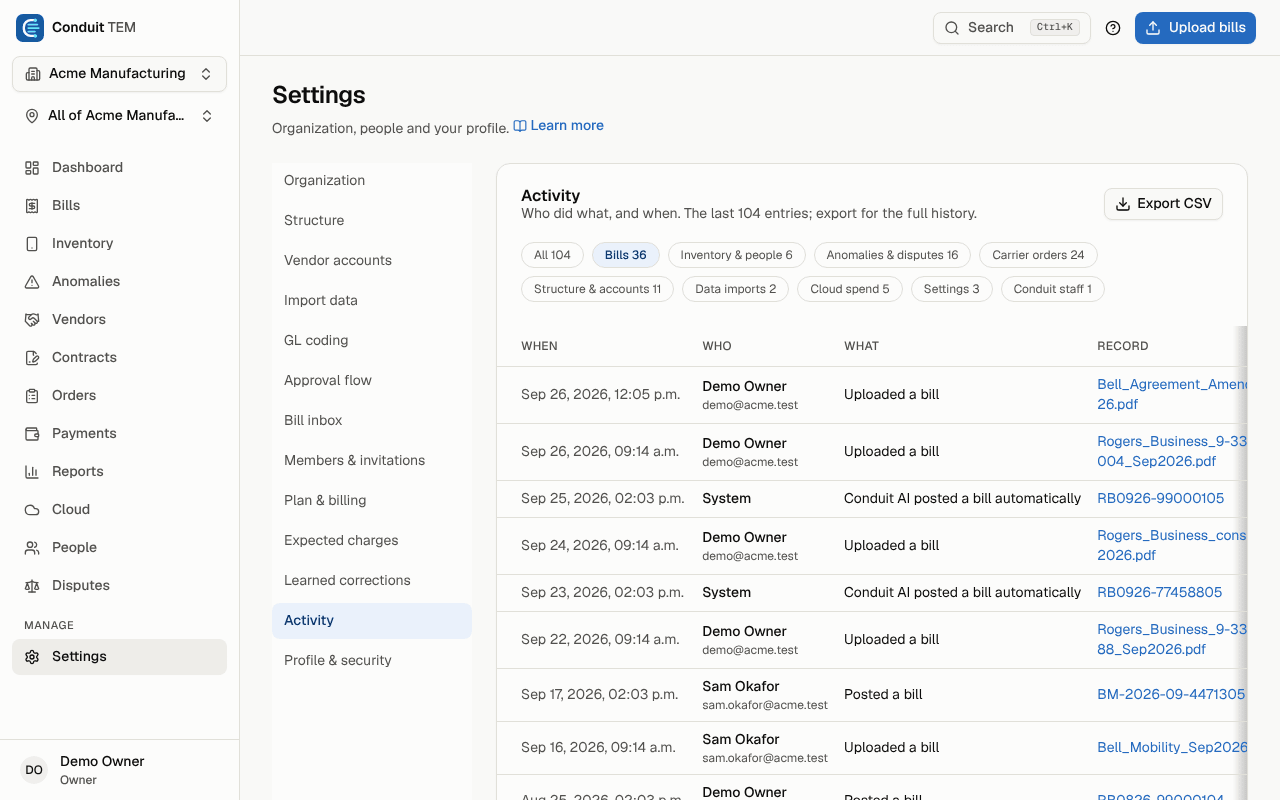
- Select a filter such as Bills, Anomalies & disputes, Reports, Settings or Plan & billing to narrow the list.
- Select a record's name to open it.
- The page shows the latest 500 entries. Select Export CSV for the full history.
Every time someone from Conduit staff opens your organization, it appears here too, under Conduit staff.
How your data is protected
- Your organization's data is kept separate. Each organization's records are walled off at the database level, so no other customer can ever read them.
- Roles and scopes are checked on every action, not just hidden in the menus. A viewer can't change anything even by guessing a link, and a limited member can't open a record outside their part.
- Two-step verification is required for every member. See Turn on two-step verification.
- Conduit staff who help you always use two-step verification, and every visit they make to your organization is in your activity log.
- Only invited people join your organization. Nobody becomes a member unless an owner or admin invites them.
- Sign-in attempts are rate limited to slow down password guessing.
- Uploaded and emailed files are checked: only bill files (PDFs, images, spreadsheets and text files) are accepted, up to 25 MB each, and nothing inside them can run in your browser.
- Your bill inbox address contains a secret. Only senders an owner or admin has marked as trusted can post bills automatically; everything else waits for a person. See Your bill inbox.
- Exports are safe to open: values that would act as spreadsheet formulas are neutralised.
- Backups are taken nightly and checked, with an encrypted copy kept off-site.
If you think something is wrong with your account's security, contact our team directly with what you saw and when, so we can check the activity log.