Slide decks for your monthly and business reviews
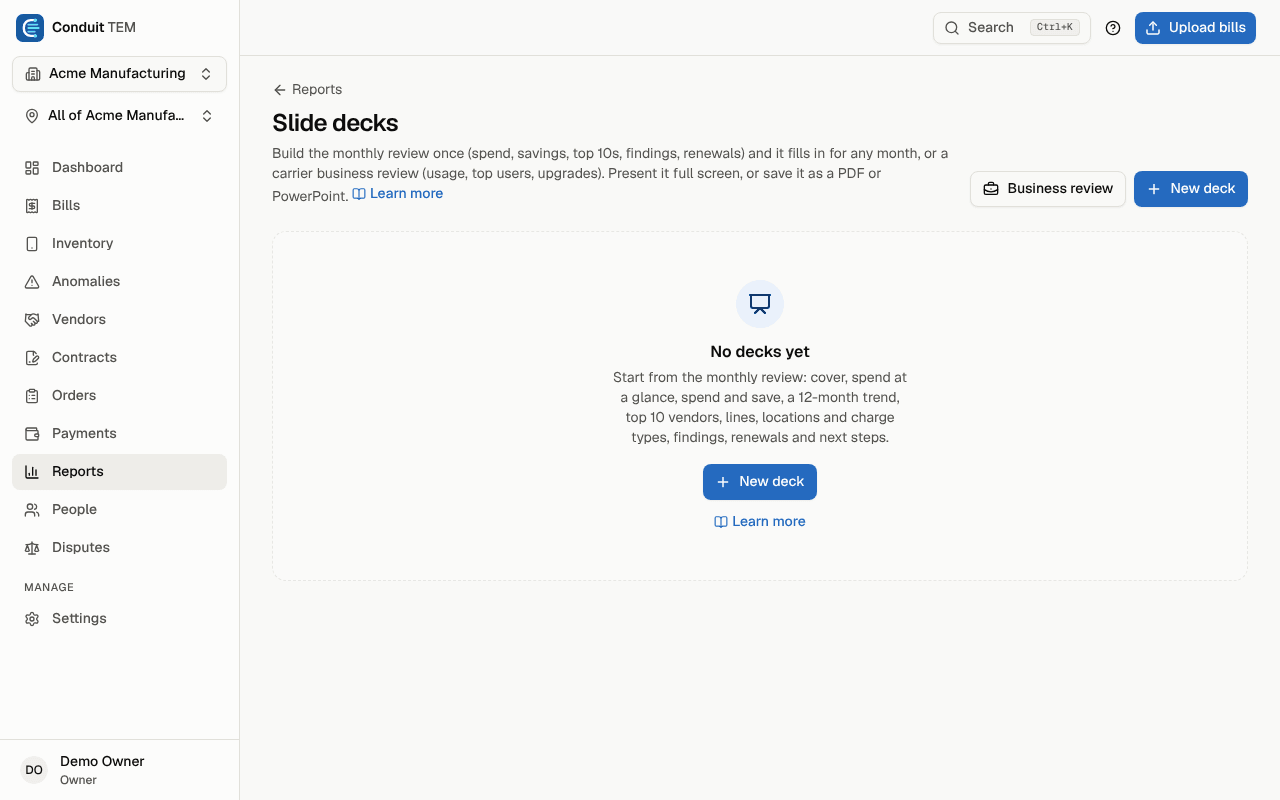
Build a monthly telecom review or a carrier business review deck that fills itself in, then present it, print it to PDF or download it as PowerPoint.
In the app:Slide decks
On this page
A slide deck is the review you'd otherwise build by hand. There are two templates:
- Monthly review: spend at a glance, savings, a trend, top 10 lists, findings and contracts coming up. You set it up once, and it fills in from your posted bills for whichever month you pick.
- Carrier business review: the periodic review deck carrier reps bring to a client, with an agenda, the support team, an account summary, usage against the plan, top users and the current slate of lines and plans.
Slide decks are part of the paid plans (Slide decks and PowerPoint). Decks made earlier stay readable on every plan: you can still open them, change the month, present them and download them.
Create a monthly review deck
Anyone except viewers can create decks.
- Go to Reports and select Slide decks at the top of the page.
- Select New deck.
The new deck, "Monthly telecom review", starts from the monthly review template: a cover, spend at a glance, spend and save, a 12-month spend trend, top 10 vendors, lines, locations and charge types, what we found, contracts coming up and a next steps slide.
Create a carrier business review
- On the Slide decks page, select Business review.
- Tick the vendor accounts the review covers. Leave them all unticked to cover every account.
- Check the Deck name. When the accounts share one carrier, it's suggested as "Business review – carrier".
- Select Create review. The new deck opens in the editor.
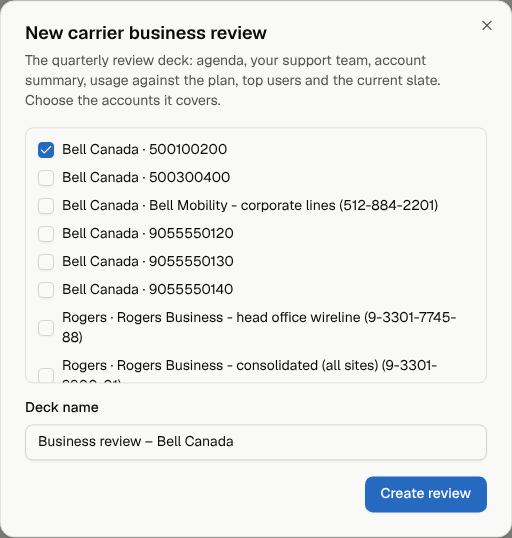
The review starts with a cover (the carrier and year above the title, "Prepared for" your organization below), an agenda, section dividers, your support team, an account summary, a usage review, top users by voice and by data, the current slate and a "Thank you." slide. The carrier's name comes from the accounts you chose.
Before you present it, fill in what only you know: the agenda items, the support team's contacts, and on the usage review, what the client has today for each kind of usage (for example "300 GB shared" for data).
The figures come from the usage on your posted bills, over the months each slide covers (3, 6 or 12; 6 by default). Upgrade eligibility, bring-your-own-device lines and data pool sizes are filled in where Conduit TEM knows them for a line. Where no usage was recorded, slides show "—" or No data rather than a misleading zero.
Add upgrades and renewals to a deck
On Accounts → Upgrades & renewals, Add to a deck appends four slides to a deck you pick (or a new one): a divider, the current slate, contracts coming up and the recommended next steps for each line. See Upgrades and renewals.
Edit the slides
The deck editor shows the list of slides on the left and the real slides, with your figures, on the right. Changes save as you go.
- At the top, set the Deck name, Prepared by and the Month the deck reports on. Change the month at any time: every slide refills.
- Open a slide in the list (or select it on the right) to change its settings.
- Use the arrows to move a slide up or down, and the bin button to remove it.
- Select Add a slide to add another one.
- Add a Speaker note to any slide. Notes are shown to you while presenting, not on the slide.
The slides you can add
| Slide | What it shows | You can set |
|---|---|---|
| Cover | Title, subtitle (your organization's name by default), a short line above the title (the month by default), your name with a line under it, and your logo. | Title, subtitle, above the title, under your name |
| Spend at a glance | Spend against last month, bills, issues found, credits recovered and what is still open. | |
| Spend and save | Savings found and recovered this month and to date, what is being disputed, and charges above your contract rates. | |
| Spend trend | Spend over time, split into groups. | 6 or 12 months; split by service type, vendor, charge type or location |
| Top 10 | The largest items, with the change against last month. | Rank by vendor, vendor account, service type, charge type, location, cost center, person, line or service, or GL account; show 5, 10 or 15 |
| What we found | The largest findings first seen that month. | Top 5 or top 10 |
| Budgets | Spend against your budgets. | |
| Contracts coming up | Contracts with a notice date or end date ahead. | Looking ahead 90 days, 180 days or a year |
| Text slide | Your own title and points, one per line. | Title, text |
| Section divider | A title slide between sections. | Title, subtitle |
| Agenda | Up to 8 agenda items, each with a short detail. | The items |
| Support team | Up to 6 contacts: name, role, phone, email and what each one handles. | Title, contacts |
| Account summary | Active and suspended lines, the shared data pool, the voice and data mix, and average monthly cost, in total and per user. | Accounts, months, shared data pool |
| Usage review | Domestic airtime, data, SMS, and US and international roaming against what the client has, each marked Fits, Review or No data, with a note when a data pool is over 90% or under 40% used, or roaming happens without a plan. | Accounts, months, the current solution for each kind of usage |
| Top users | The lines with the most usage, one row per line and bill month. | Accounts, months; rank by voice, data, text or roaming; show 5, 7 or 10 |
| Current slate | Lines, lines eligible to upgrade, lines with no usage, bring-your-own-device lines, and the mix of price plans. | Accounts, months, headline |
| Thank you | A closing slide. | Title, text under your name |
The business review slides work in any deck, and the monthly slides can be added to a business review. On the business review slides, Accounts left empty means every account.
Note: Slides are filled within the access of the person viewing the deck. A member who sees only one division sees that division's figures in the same deck.
Present a deck
- Open the deck and select Present (or select Present next to the deck on the Slide decks page).
- Move between slides with the arrow keys, the space bar, Page Up and Page Down, or the arrow buttons at the bottom. Home and End jump to the first and last slide.
- Press N or select Notes to show or hide your speaker notes.
- Select Done to go back to the editor.
Save a deck as PDF
- In the deck editor, select PDF. A print view opens in a new tab with one slide per landscape page.
- Select the print button and choose Save as PDF in your browser's print dialog. Set margins to none for full-bleed slides.
Download as PowerPoint
Select PowerPoint in the deck editor. You get a .pptx file for the month you chose, with real, editable PowerPoint text, tables and charts, your speaker notes, and your organization's logo when one is set in your company profile.
Delete a deck
Open the deck and select Delete deck, then confirm. It disappears for everyone in your organization; no bills or figures are affected. Only the person who created the deck, or an owner or admin, can delete it.