Build an approval flow
Draw who approves which bills for payment, using checks, approval steps and notifications, then test it on a real bill and publish it.
In the app:Approval flow
On this page
An approval flow decides who has to approve each posted bill before it goes to accounts payable. You draw it on a canvas: checks split bills by amount, vendor, location and more, approval steps wait for the right people, and every path ends with the bill either approved for payment or put on hold.
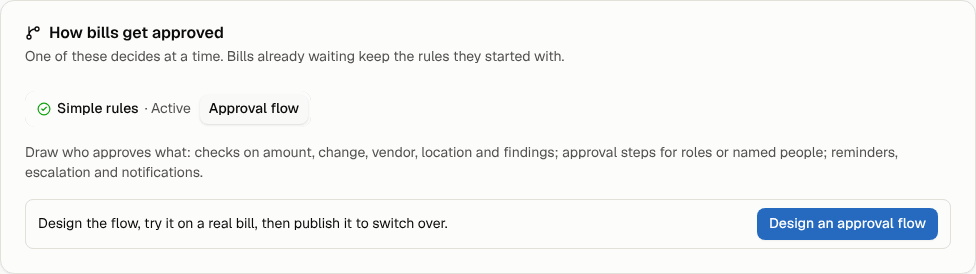
Only one approval mode decides at a time. Until you publish a flow, the Simple rules on the Payments page apply (a person approves each bill, unless it passes your auto-approve limits). See Payments and the handoff to accounts payable.
Note: Approval flows are part of the paid plans. If your plan doesn't include them, a flow you published earlier stays readable and bills keep following it. See Plans and billing.
Open the builder
Go to Payments. In the How bills get approved card, select Approval flow, then Design an approval flow (or Edit the flow once one is published). It's also under Settings → Approval flow.
Owners and admins can edit the flow. Everyone else can open it, read it and try bills against it.
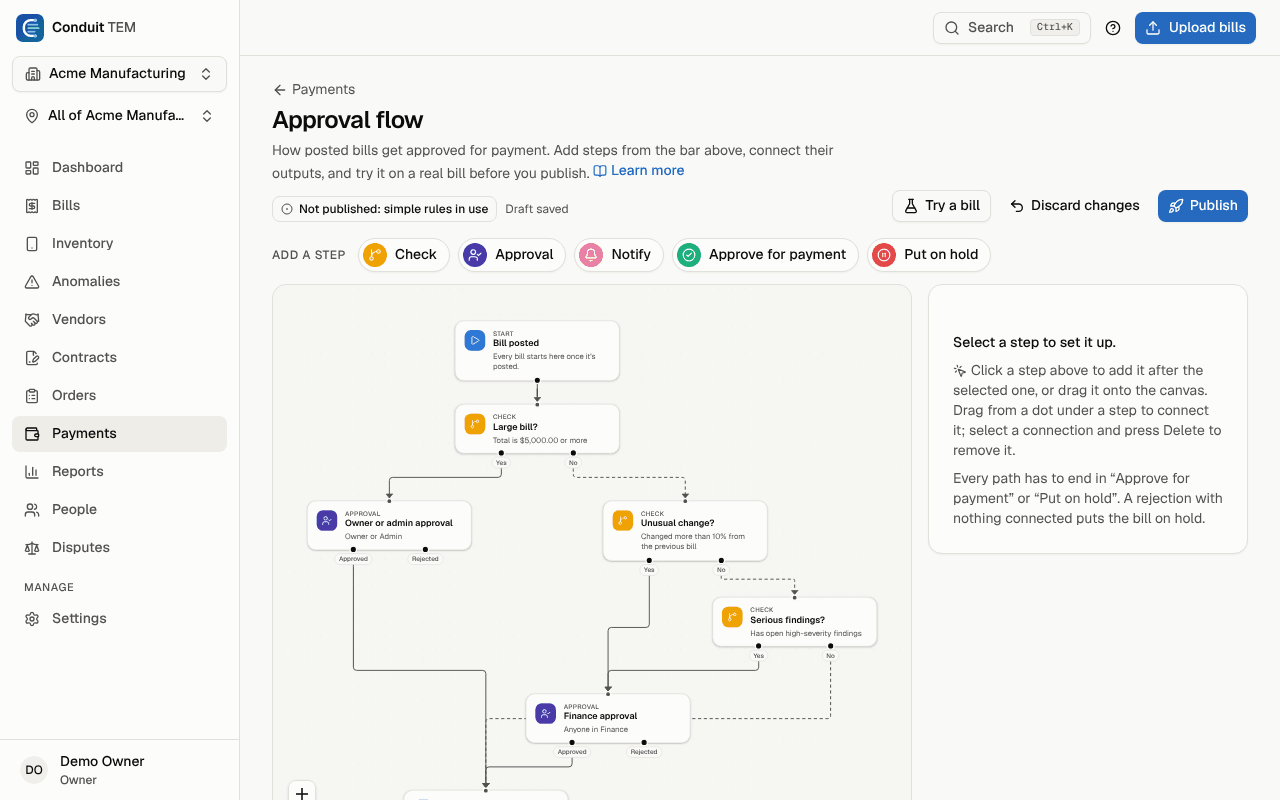
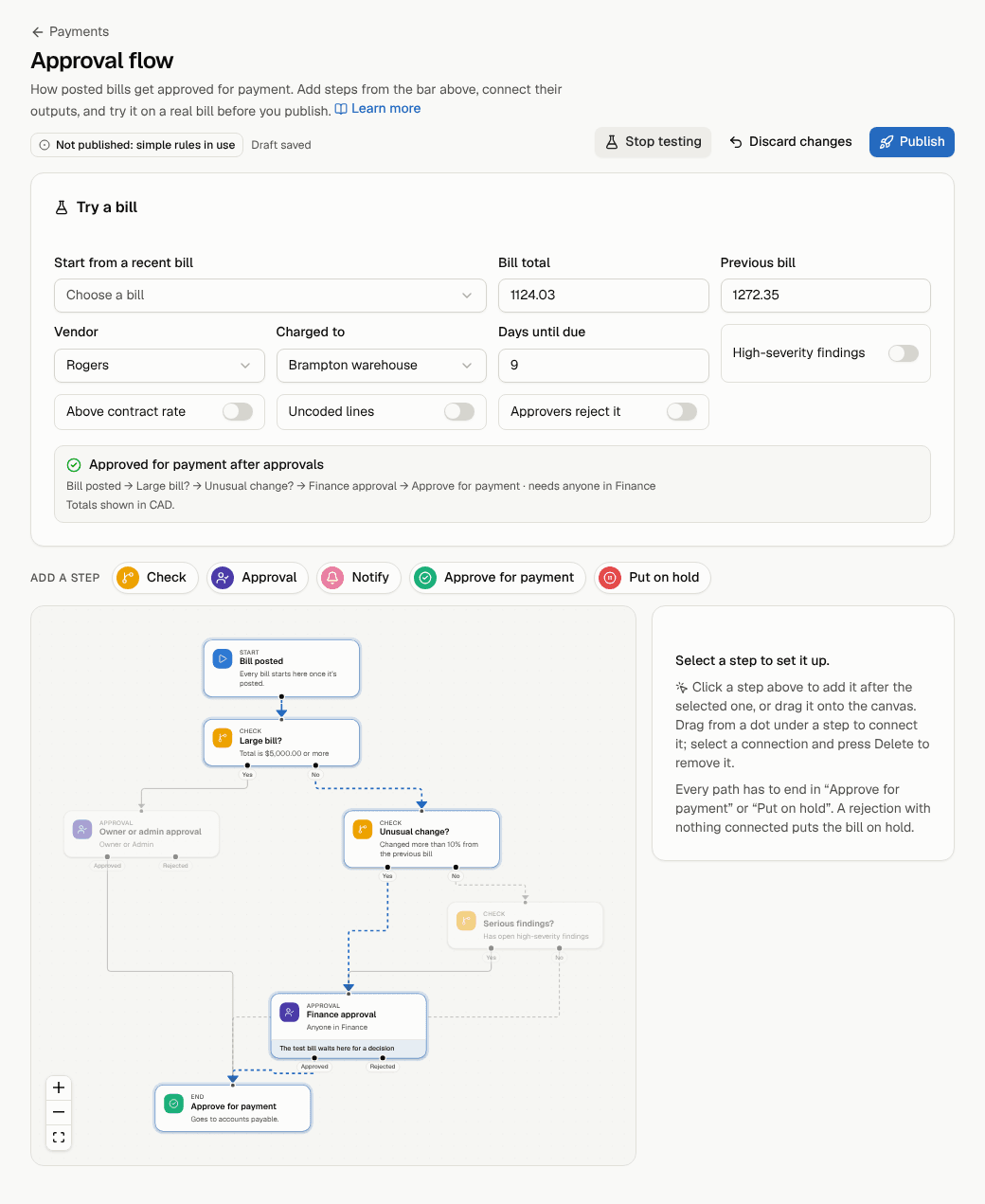
The first time, you start from a ready-made starter flow:
- Bills of $5,000 or more need an owner or admin.
- Otherwise, a bill that changed more than 10% from the previous bill (or is the first on its account), or that has serious findings, needs Finance.
- Everything else is approved for payment straight away.
Change it to fit how your company works, or delete steps and start fresh.
The steps you can use
Every flow starts at Bill posted and every path ends at Approve for payment or Put on hold.
| Step | Outputs | What it does |
|---|---|---|
| Bill posted | Next | The start. Every bill enters here once it's posted and its findings and contract checks are done. There's exactly one, and it can't be deleted. |
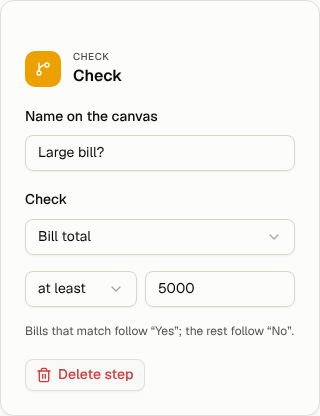
| Check | Yes / No | Tests one thing about the bill. Bills that match follow Yes; the rest follow No. |
| Approval | Approved / Rejected | Waits for people to approve. The people at this step get an email when a bill arrives. |
| Notify | Next | Emails people as the bill passes through, for their information. The flow doesn't wait for them. |
| Approve for payment | none (end) | The bill is approved and goes to accounts payable the way Payments is set up (each bill, or the morning digest). |
| Put on hold | none (end) | The bill goes on hold with the reason you give. Someone with Finance or above can release it from Payments, which starts the flow again. |
What a Check can test
| Check | Settings |
|---|---|
| Bill total | at least or under an amount |
| Change from the previous bill | up or down by more than a percentage. A first bill on an account counts as changed. |
| First bill on the account | no settings |
| Vendor | one or more vendors |
| Location or cost center | one or more units. A bill matches when any of its money is charged to a chosen unit or anything below it. |
| High-severity findings | the bill has open high-severity findings |
| Lines above the contract rate | a line is charged more than your contract allows |
| Lines without a GL account | some lines aren't coded (see GL coding) |
| Due date | due within a number of days (0 means due today or overdue) |
Setting up an Approval step
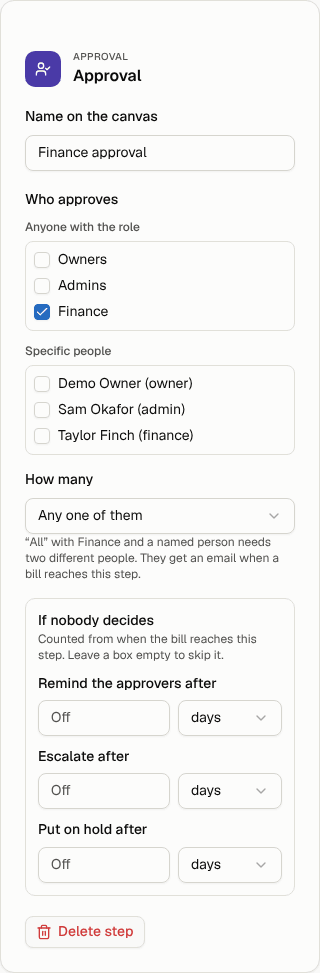
- Who approves: tick roles under Anyone with the role (Owners, Admins, Finance) and/or named people under Specific people. Only members with the Owner, Admin or Finance role can be chosen.
- How many:
- Any one of them: one approval from anyone listed settles the step.
- One from each (all of them): every entry needs its own approval, from a different person each time. "Finance" plus a named person needs two different people.
- If nobody decides: optional reminders, escalation and a time limit. See Escalation and cover while you're away.
If an approver rejects a bill and nothing is connected to Rejected, the bill goes on hold with their reason. Connect Rejected to another step if you want something else to happen, such as a Notify step followed by Put on hold.
Setting up a Notify step
Choose roles or people under Who to tell, and add up to 10 Other email addresses for people outside Conduit TEM, such as your controller. They get an email with the bill's amount, due date and where it stands.
Every step except Bill posted also has an optional Name on the canvas, such as "Large bill?", so the flow reads well at a glance.
Build or change the flow
- Add a step: select a step in the Add a step bar. It's added after the selected step and connected to its first free output. You can also drag a step onto the canvas.
- Connect steps: drag from the dot under a step's output (for example Yes) to the next step. Each output goes to exactly one step. Connecting it again moves the connection.
- Remove a connection: select it and press Delete.
- Set up a step: select it. Its settings appear beside the canvas (in a panel that slides in on tablets).
- Delete a step: select it and choose Delete step, or press Delete.
Your changes save as a draft automatically ("Draft saved"). Bills don't follow the draft until you publish it.
Try a bill before you publish
- Select Try a bill.
- Choose one of your recent bills under Start from a recent bill to use its real figures, or type your own: total, previous bill, vendor, location, days until due, and switches for findings, contract-rate overcharges and uncoded lines.
- The canvas highlights the path the bill takes, and the result says where it ends up and who would need to approve it. Turn on Approvers reject it to see what happens on a rejection.
Publish, discard or turn off
- Publish checks the flow and makes it live. New bills follow it from then on. A badge shows the version ("Published · version 2"), and Unpublished changes appears once you edit it again.
- Discard changes throws away your draft and goes back to the published flow (or to the starter flow if nothing is published yet).
- Turn off goes back to the simple rules on the Payments page. Owners and admins can also do this from the Payments page: select Simple rules in the How bills get approved card, then Switch to simple rules. The flow is kept as a draft either way.
A flow publishes only when nothing is wrong with it. The builder lists any problems above the canvas under Before publishing, and marks the step they're on. Select a problem to jump to its step. Common ones:
- a step has an output that isn't connected (only Rejected may be left empty);
- an Approval step has nobody chosen;
- there's no Approve for payment step;
- a step isn't connected to the flow, or the flow loops back on itself.
Note: A bill keeps the version of the flow it started with. Editing, republishing or turning off the flow never changes the course of a bill that's already waiting. Taking a bill off hold restarts it on the version it started with.
On a phone
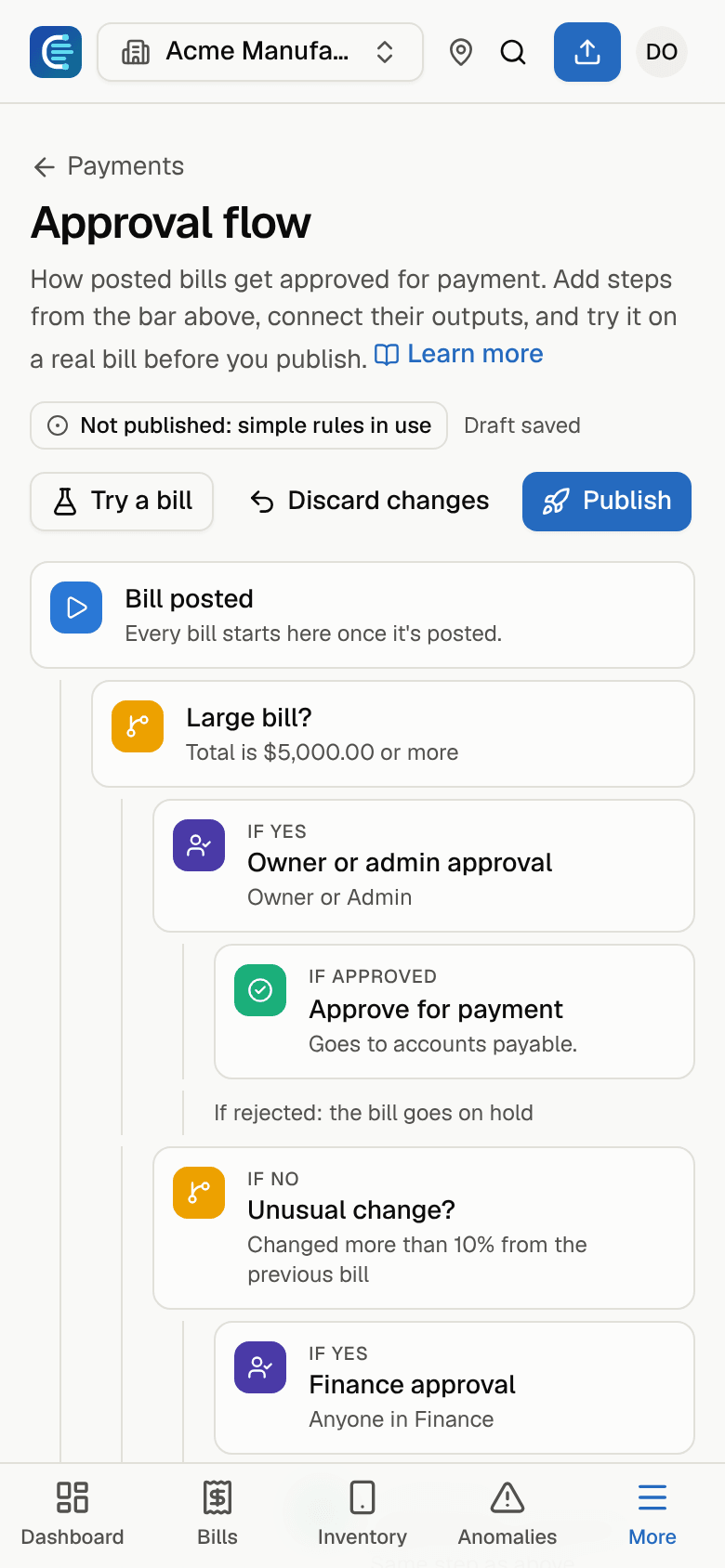
Phones show the flow as an outline you can read, with Try a bill. Edit the flow on a tablet or computer.
How flows relate to the posting rules
Approval flows cover approval for payment, after a bill is posted. Two separate rules under Settings → Organization → Approvals and auto-post apply before posting:
- Approval threshold: bills at or above this total can be posted only by Finance, an admin or an owner. Analysts ask for approval from the bill page.
- Post automatically when Conduit AI is confident: clean bills that Conduit AI is confident about (90%, 95% or 99% and up) post without review. Bills with anything flagged, and bills above the approval threshold, always go to a person.
Both still apply when you publish a flow. See Review and post a bill.