Payments and the handoff to accounts payable
Follow each posted bill from approval to paid, set up automatic approval for routine bills, and send approved bills to accounts payable.
In the app:Payments
On this page
Once a bill is posted, Conduit TEM opens a payment record for it on the Payments page. From there the bill is approved for payment, handed to your accounts payable (AP) team, and recorded as paid. This page is where your team decides what gets paid and when.
Who can do what
- Owners, admins and Finance can approve bills, put them on hold, send them to AP and mark them paid.
- Owners and admins also change the settings at the bottom of the page: how bills get approved (simple rules or an approval flow), automatic approval, the AP contacts and how AP hears about bills.
- Analysts and viewers can see the Payments page but can't act on bills.
Where each bill is: the tabs
Open Payments in the sidebar. The tabs across the top show how many bills are at each stage, and the total for the tab you're on.
| Tab | Status on the bill | What it means |
|---|---|---|
| To approve | Awaiting approval | Posted, waiting for someone to approve it for payment. |
| Approved | Approved for payment | Approved, but not yet sent to AP (for example, no AP contact is set up yet, or it's waiting for the morning digest). |
| With AP | Sent to AP | Emailed to your AP contacts. |
| Paid | Paid | Someone recorded the payment date. |
| On hold | On hold | Kept out of approval and AP until someone takes it off hold. The reason shows on the bill. |
Each bill shows its due date. Bills due within three days get a Due in… badge, and late ones an Overdue badge. Click the vendor and invoice number to open the bill.

A payment record appears a few seconds after a bill is posted, once its findings and contract checks are done. Bills you imported as history are never sent for payment.
Approve bills for payment
- On the To approve tab, read the line under each bill. It says why the bill needs a person, for example "Auto-approval is off" or "Up 12.4% from the previous bill".
- Select Approve on a bill, or tick several bills (or Select all) and select Approve selected.
- The bill moves to Approved, or straight to With AP if AP gets each bill as it's approved.
If your organization has published an approval flow, each bill instead shows the step it's waiting at, for example "Approval flow: Waiting for Finance approval". You'll see Approve and Reject only on bills waiting for you, along with the words Your decision is needed. Owners and admins also get Approve anyway, which skips the remaining steps. The activity log records it as an override.
Choose how bills get approved
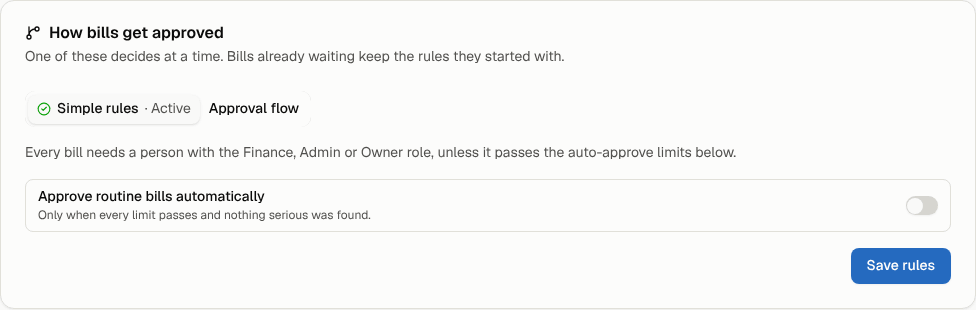
The How bills get approved card near the bottom of the page shows which of the two approval modes is in charge. Only one decides at a time, and the active one is marked Active:
- Simple rules: every bill needs a person with the Finance, Admin or Owner role, unless it passes your auto-approve limits (below). This is where every organization starts.
- Approval flow: a flow you draw decides who approves what. Select Approval flow in the card, then Design an approval flow to build one, try it on a real bill and publish it. Publishing switches over. See Build an approval flow.
To go back from a published flow, select Simple rules in the card, then Switch to simple rules. Your flow is kept as a draft you can publish again. Either way, bills already waiting keep the rules they started with. Only owners and admins can switch modes.
Approve routine bills automatically
While Simple rules is active, owners and admins set the auto-approve limits in the How bills get approved card.
- Turn on Approve routine bills automatically.
- Optionally set Under this amount (for example 2000.00) and Within this % of the previous bill (for example 5).
- Select Save rules.
A bill is approved automatically only when every rule passes:
- its total is under the amount you set (if you set one);
- it's within the percentage of the account's previous bill (if you set one; a first bill has nothing to compare with, so it waits for a person);
- it has no open high-severity findings;
- no line is charged above a contract rate.
Anything else waits on the To approve tab, with each rule that didn't pass listed under it. These limits aren't used while an approval flow is published, so the card doesn't show them then. The flow decides instead.
Set up the handoff to accounts payable
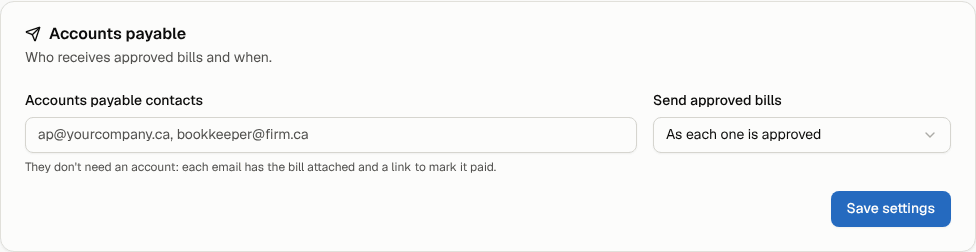
AP settings live in their own Accounts payable card at the bottom of the page. They work the same in either approval mode.
- In Accounts payable contacts, enter up to 10 email addresses, separated by commas. AP contacts don't need a Conduit TEM account.
- Under Send approved bills, choose:
- As each one is approved: one email per bill, sent the moment it's approved.
- In one email each morning: a single daily digest listing everything approved since the last one.
- Select Save settings.
What AP receives
With As each one is approved, each email includes:
- the vendor, account, invoice number, billing period, amount and due date;
- who approved it (or that your rules approved it automatically);
- how the amount splits across your locations, or the GL coding if you use GL coding;
- the bill PDF attached (when it's under about 2.5 MB; larger bills go as a link only);
- a GL coding CSV attached, when your organization has GL accounts;
- a Mark as paid button.
The morning digest lists each approved bill with its amount and due date. Each one links to a page where AP can see the bill's details and mark it paid.
The Mark as paid link works for 90 days and needs no sign-in. See Mark a bill paid.
Note: If no AP contact is set, approved bills stay on the Approved tab. Add a contact, then select Send to AP on each bill.
Send a bill to AP by hand
On the Approved tab, select Send to AP. On the With AP tab, Send to AP again resends the email with a fresh link, which helps if AP lost the first one or the link expired.
Put a bill on hold
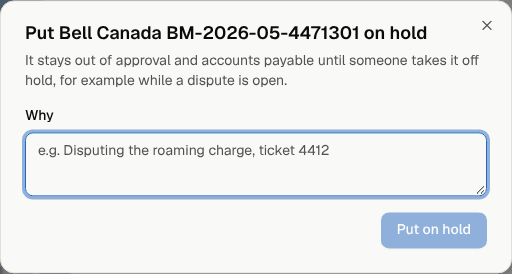
Use a hold when you don't want a bill paid yet, for example while you dispute a charge.
- Select Hold on the bill (bills waiting for approval, approved, or with AP can be held).
- In Why, say what's going on, for example "Disputing the roaming charge, ticket 4412".
- Select Put on hold.
To release it, open the On hold tab and select Take off hold. The bill goes back to To approve. If it follows an approval flow, the button reads Take off hold and restart the flow: earlier decisions are cleared and the bill starts the flow again from the top. If AP opens the link for a bill that went on hold after it was sent, the page tells them not to pay it.
Reminders about bills due soon
Every morning, owners, admins and Finance get one email listing bills still awaiting approval that are due within three days or already overdue. Each bill is included at most once a day.