Escalation and cover while you're away
Keep bills moving when approvers are busy or away, with reminders, escalation and time limits on approval steps, and cover between two dates.
In the app:Payments Approval flow
On this page
Bills shouldn't sit unpaid because an approver is on holiday or missed an email. In an approval flow you can tell each approval step what to do when nobody decides in time. Approvers can also hand their approvals to a colleague for a few days.
What approvers receive
When a bill reaches an approval step, the people at that step get an email titled Your approval is needed followed by the bill's name. It includes:
- the amount and due date;
- why it needs a look, for example "First bill on this account", "Up 18.2% from the previous bill", open high-severity findings, lines above the contract rate, or lines without a GL account;
- a Review and decide button that opens the Payments page.
On Payments, bills waiting for you say Your decision is needed. Select Approve, or Reject with a reason. Each person gets this email once per step for each bill.
Separately, every morning owners, admins and Finance get one email listing bills still awaiting approval that are due within three days or overdue.
Set what happens when nobody decides
Owners and admins set this on each Approval step in the flow builder.
- Go to Settings → Approval flow (or, on Payments, select Approval flow in the How bills get approved card, then Edit the flow).
- Select an Approval step.
- Under If nobody decides, fill in the boxes you want. Leave a box empty to skip it.
- Remind the approvers after: sends the approvers one reminder email.
- Escalate after: brings in more people. Choose them under Escalate to (roles or named people).
- Put on hold after: puts the bill on hold with the reason "Nobody decided at step in time".
- Pick hours or days for each.
- Publish the flow.
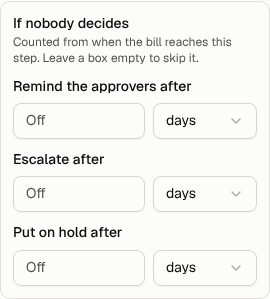
The steps have to come in order: the reminder before the escalation, and the hold after both. The step's card on the canvas sums up the policy, for example "Reminds after 1 day, escalates to Owner after 2 days, holds after 5 days".
How the timing works
- Time counts from when the bill reached that step. It starts again whenever the bill moves to a different step.
- Times are calendar hours, so weekends and evenings count.
- Conduit TEM checks once an hour, so an email may arrive up to an hour after the time you set.
- Each action happens once per step. If two are due at the same check (for example after a long weekend), only the later one happens, so nobody gets a reminder and an escalation at the same moment.
What escalation means
The people a bill escalates to get an email titled Escalated to you. Any one of them can settle the step on their own, even if the step needed several approvals. The original approvers can still decide too. On Payments, the bill's reason adds "escalated to…", and its history shows Reminder sent or Escalated.
Hand off your approvals while you're away
Use the Away? Hand off approvals card on the Payments page.
- If you're an owner or admin, choose Who is away (yourself or someone else). The field starts on you, or empty if you don't approve bills yourself. Everyone else sets cover for themselves.
- Under Covered by, choose a colleague. They need the Finance, Admin or Owner role.
- Set From and Until (inclusive). Cover can last up to three months at a time.
- Select Set cover.

The card lists current and upcoming cover, such as "Sam Okafor covers for you · Oct 14, 2026 – Oct 18, 2026 (now)". Select the bin icon to remove one. You can remove your own cover; owners and admins can remove anyone's. Setting new cover for someone replaces any cover of theirs that overlaps those dates.
While cover is in force
- The person covering can approve or reject anything the away person could, at any step of the approval flow, including steps escalated to them.
- Their decision counts as the away person's. History shows both names, for example "Approved by Sam Okafor for Taylor Finch".
- Approval, reminder and escalation emails also go to the person covering, and say who they're covering for.
Tip: Cover matters most when your flow names specific people. If a step accepts anyone in a role, others in that role can already approve while you're away.