The GL journal
Download the GL journal for a date range or a single bill, with amounts by GL account and location and taxes shown separately.
In the app:GL coding
On this page
The GL journal is a CSV of your posted bills, booked by GL account and location. Use it to post telecom spend in your accounting system at month end, to charge costs back to locations, or to check the coding before you import bills into QuickBooks Online or Xero.
What's in the journal
There's one row for each bill, GL account and location. Shared charges such as taxes and multi-site fees are already split across your locations, the same way they are in reports.
| Column | What it holds |
|---|---|
| Invoice date, Due date | From the bill |
| Vendor, Account | The vendor and your account number with them |
| Invoice number | The bill's number |
| GL account, GL account name | The account number and name, or UNCODED for lines no rule matched |
| Location or cost center, Location code | Where the money is charged |
| Amount | The total for this bill, account and location |
| Of which tax | How much of the amount is tax |
| Currency | The bill's currency |
Only posted bills are included. History you imported from spreadsheets isn't. Members who see only part of the company get only the rows for their locations.
Download the journal for a date range
- Go to Settings → GL coding.
- In Export to your finance app, leave Format on GL journal (CSV).
- Set Bills dated from and to. They start on last month. The range uses each bill's invoice date.
- Optionally tick Only bills approved for payment to leave out bills still awaiting approval or on hold.
- Select Download CSV.
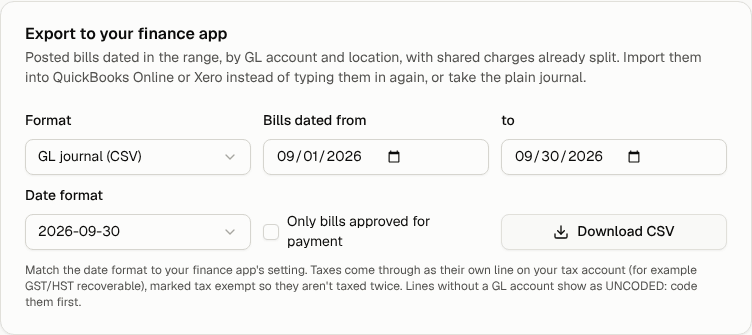
The export card appears once your organization has at least one GL account. The Date format option applies to the QuickBooks Online and Xero files. The GL journal always uses dates like 2026-09-30.
Tip: Code anything marked UNCODED before you book the journal. Open the bill and pick an account for those lines, or add a rule in Settings → GL coding.
Download the coding for one bill
On a posted bill's page, select Coding CSV in the GL coding card. You get the same columns for just that bill.
Accounts payable also receives this file attached to each approved bill's email when your organization uses GL coding. See Payments and the handoff to accounts payable.
Other ways to see spend by GL account
- Reports: build a report with the GL account dimension, or open the Chargeback by GL account report (locations by GL account, last month). See Reports.
- Export lines: on a bill's page, the line export includes each line's GL account and name.