Export bills to QuickBooks Online
Download your coded telecom bills in a bill-import file for QuickBooks Online, so you don't have to type them in again.
In the app:GL coding
On this page
If you use QuickBooks Online, Conduit TEM can give you your posted telecom bills as a CSV laid out for importing bills, already coded to your GL accounts and split by location. You import the file into QuickBooks Online yourself. There's no live connection between the two.
Before you start
- Set up GL coding with the same account numbers and names you use in QuickBooks Online.
- Code any uncoded lines. They come through with the account
UNCODED, which QuickBooks won't recognize. - Your vendors (Bell, Rogers and so on) should exist as suppliers in QuickBooks Online, or be ready to be added during the import.
- If you use locations in QuickBooks Online, name them to match your Conduit TEM locations.
Download the QuickBooks Online file
- Go to Settings → GL coding.
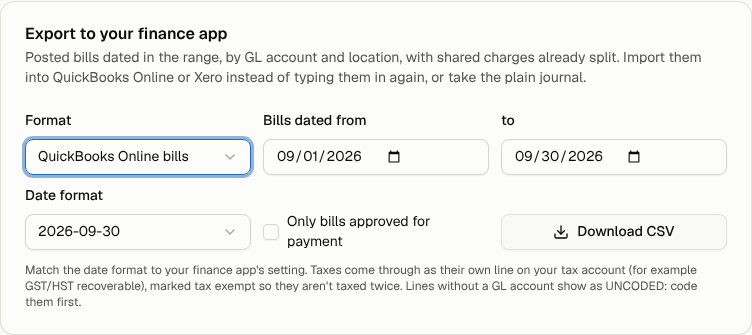
- In Export to your finance app, set Format to QuickBooks Online bills.
- Set Bills dated from and to (the bill's invoice date).
- Set Date format to match the date setting in your QuickBooks Online company (for example 30/09/2026 or 09/30/2026).
- Tick Only bills approved for payment if you want each bill to go over once, when it's ready to pay. Pick date ranges that don't overlap so a bill isn't imported twice.
- Select Download CSV.
What's in the file
Each row is one bill line for one GL account and location. A bill split across three accounts has three rows with the same Bill No.
| Column | What it holds |
|---|---|
| Bill No | The invoice number |
| Supplier | The vendor name |
| Bill Date, Due Date | From the bill (the bill date if no due date was printed) |
| Memo | "Account" and your account number with the vendor |
| Account | The GL account name |
| Account Number | The GL account number |
| Line Description | "Telecom" or "Taxes", and the location |
| Line Amount | The amount |
| Line Tax Code | Always "Exempt" |
| Location | The location or cost center |
| Currency | The bill's currency |
About tax: sales tax comes through as its own line, coded to your tax account (for example GST/HST recoverable), and every line is marked tax exempt. That way QuickBooks doesn't add tax a second time on top of amounts that already include it.
Import the file into QuickBooks Online
The exact screens in QuickBooks Online change from time to time, so check Intuit's help for the current steps. In general:
- In QuickBooks Online, find the option to import bills (it's usually with the other data import tools).
- Upload the CSV you downloaded.
- When QuickBooks asks you to map columns, match each one to the field with the same name: bill number, supplier, bill date, due date, memo, account, line description, line amount, tax code, location and currency. If it lets you map the account by number, use Account Number.
- Review the preview. Fix any supplier or account QuickBooks doesn't recognize, then finish the import.
Tip: Try a short date range first, such as one month, and check a couple of bills in QuickBooks before you import more.