Your lines and devices on self-service
For employees and managers. Sign in with the emailed link, see your work phone and what it costs, and ask for a change or report a problem.
In the app:Self-service portal
On this page
Your company uses Conduit TEM to manage its phone bills. If your telecom admin invited you to self-service, you have a page that shows the work phone and lines your company pays for you. It shows what they cost, what you used, and anything worth knowing. You can also ask for a change from there. It's built for your phone, and there's no password to remember.
Sign in
The first time: open the invitation email and tap the link. It signs you straight in. The link works once and for 3 days. Bookmark the page or add it to your home screen so you can find it again.
After that:
- Open your bookmark. If you're signed out, you see the sign-in page. (An old sign-in link from your email also takes you there.)
- Enter your Work email and tap Email me a sign-in link.
- Open the email and tap the link. It works once and for 15 minutes.
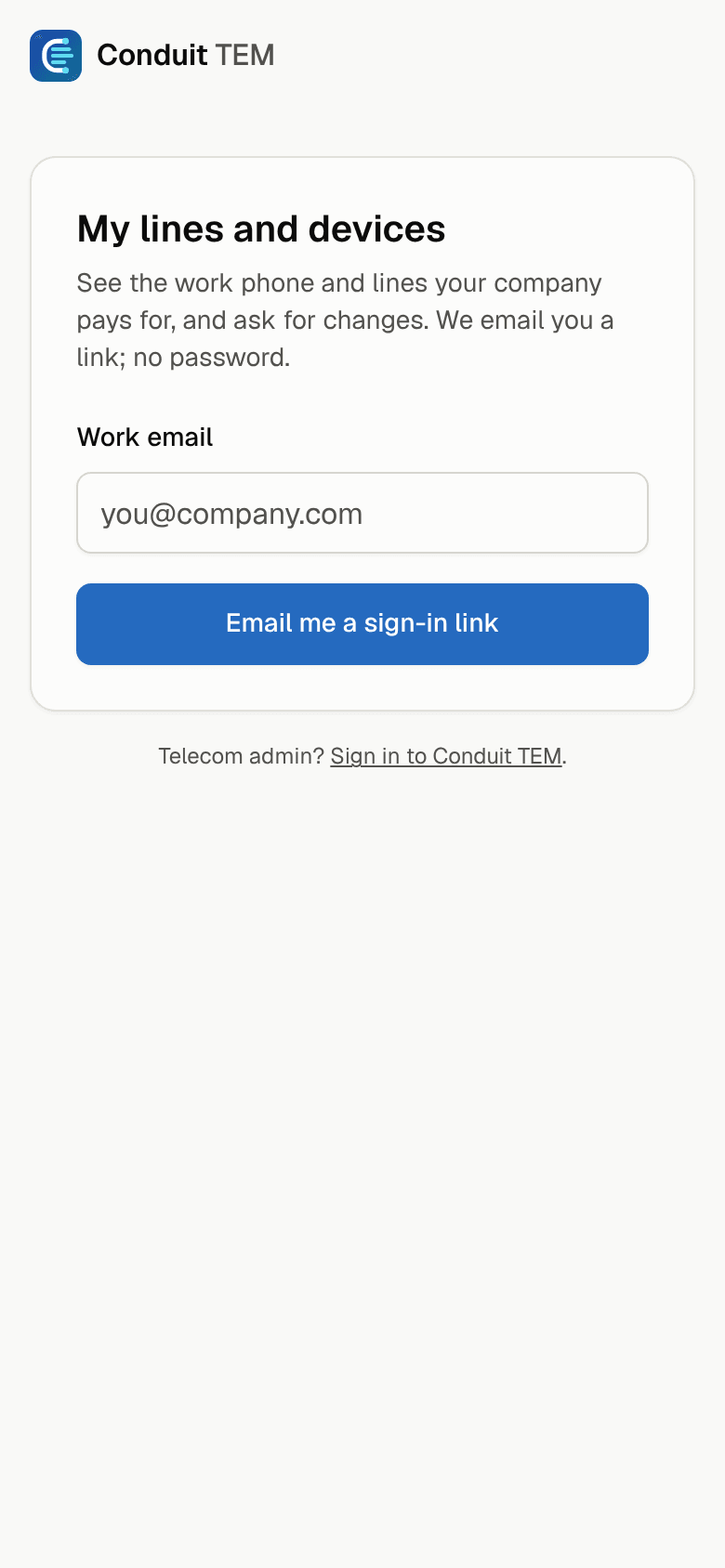
Once you're in, you stay signed in on that phone for two weeks after your last visit. To sign out, tap the sign-out icon at the top right.
Tip: No email arrived? Check your spam folder and make sure you used your work address. You can ask for up to 5 links an hour. If a link says it has expired or was already used, just ask for a new one.
If the page says your address doesn't have access, ask your telecom admin to invite you.
See your lines
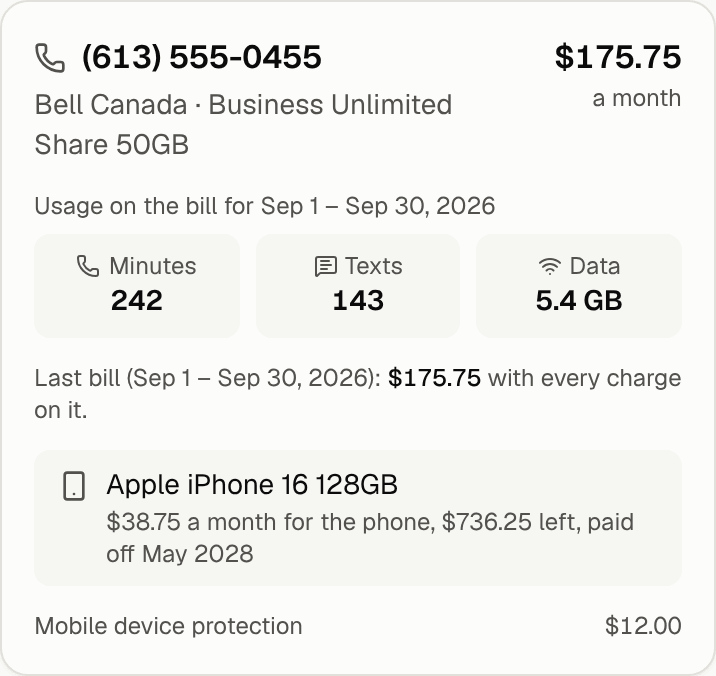
My lines shows each line and device your company pays for you:
- the phone number, the carrier and the plan, with what it costs a month;
- the minutes, texts and data on the latest bill, and any roaming outside the country;
- what the last bill charged in total;
- your phone, with what's left to pay on it, and any add-ons.
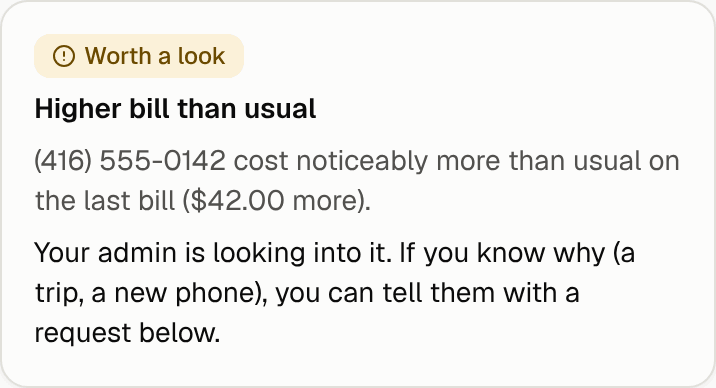
At the top, Worth knowing points out anything unusual on your lines, in plain words, and what you can do about it. For example: a roaming charge, an add-on you don't use, or a new charge you might not recognise.
You only see your own lines. Nobody else in the company can see them here, except your manager on their My team page.
Report a problem or ask for a change
- Tap Report a problem or request a change (on a phone it's at the bottom of the screen).
- Under What do you need?, pick one: Report a problem, Change my plan, New or upgraded phone, Lost or stolen phone, Cancel a line I no longer need or Ask for a new line.
- Under Which line?, pick the line.
- Add a message. It's required when you report a problem ("No signal at the warehouse since Monday"), and optional otherwise.
- Tap Send request.
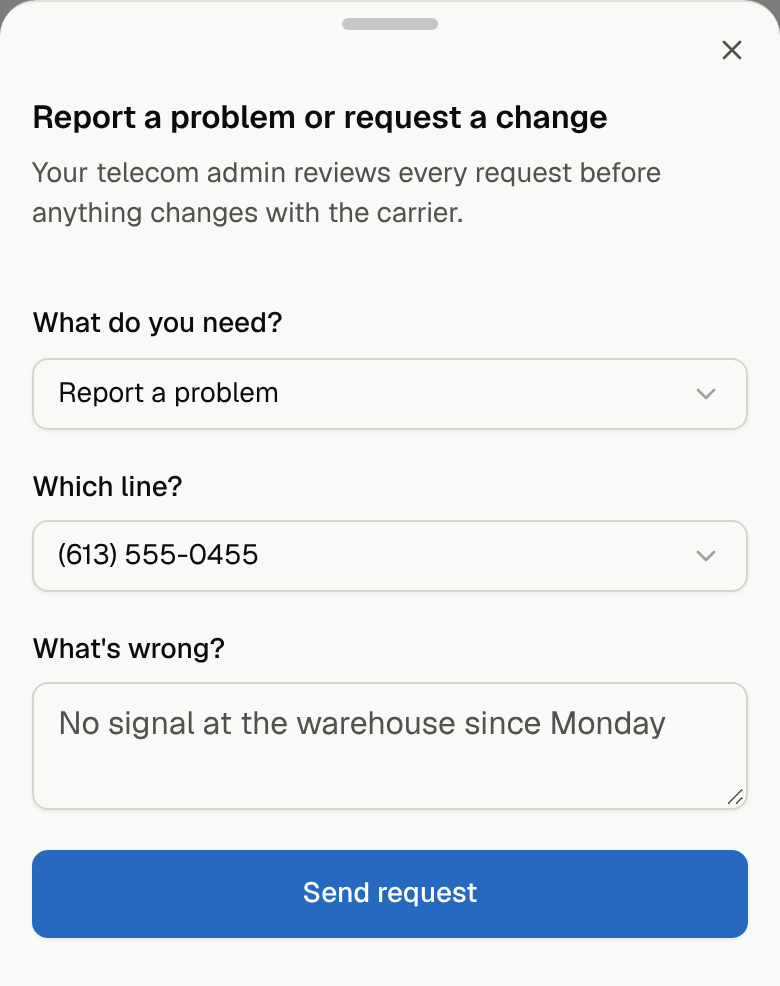
Your telecom admin reviews every request before anything changes with the carrier.
Travelling?
Tap Travel pass before the trip, enter where you're going, the dates and what you need, and tap Send request. Your account manager sets up a travel pass, which costs much less than roaming as you go. See Travel passes.
Lost or stolen phone? Send the request right away so your admin can suspend the line, and tell them directly if it's urgent.
Follow your requests
My requests lists everything you sent, with its status:
| Status | What it means |
|---|---|
| Received | It arrived; your telecom admin and your account team have it. |
| Being quoted | Your account team is pricing it with the carrier. |
| Proposal ready | A proposal is ready; your telecom admin decides on it. |
| Approved | It's approved and about to go to the carrier. |
| Ordered | The carrier is working on it. |
| Completed | It's done. |
| Declined | It didn't go ahead. Ask your admin if you'd like to know why. |
You can send up to 10 requests a day.
For managers: My team
If people report to you, or you manage a location, you also see a My team tab. Your telecom admin decides who's on your team.
My team shows:
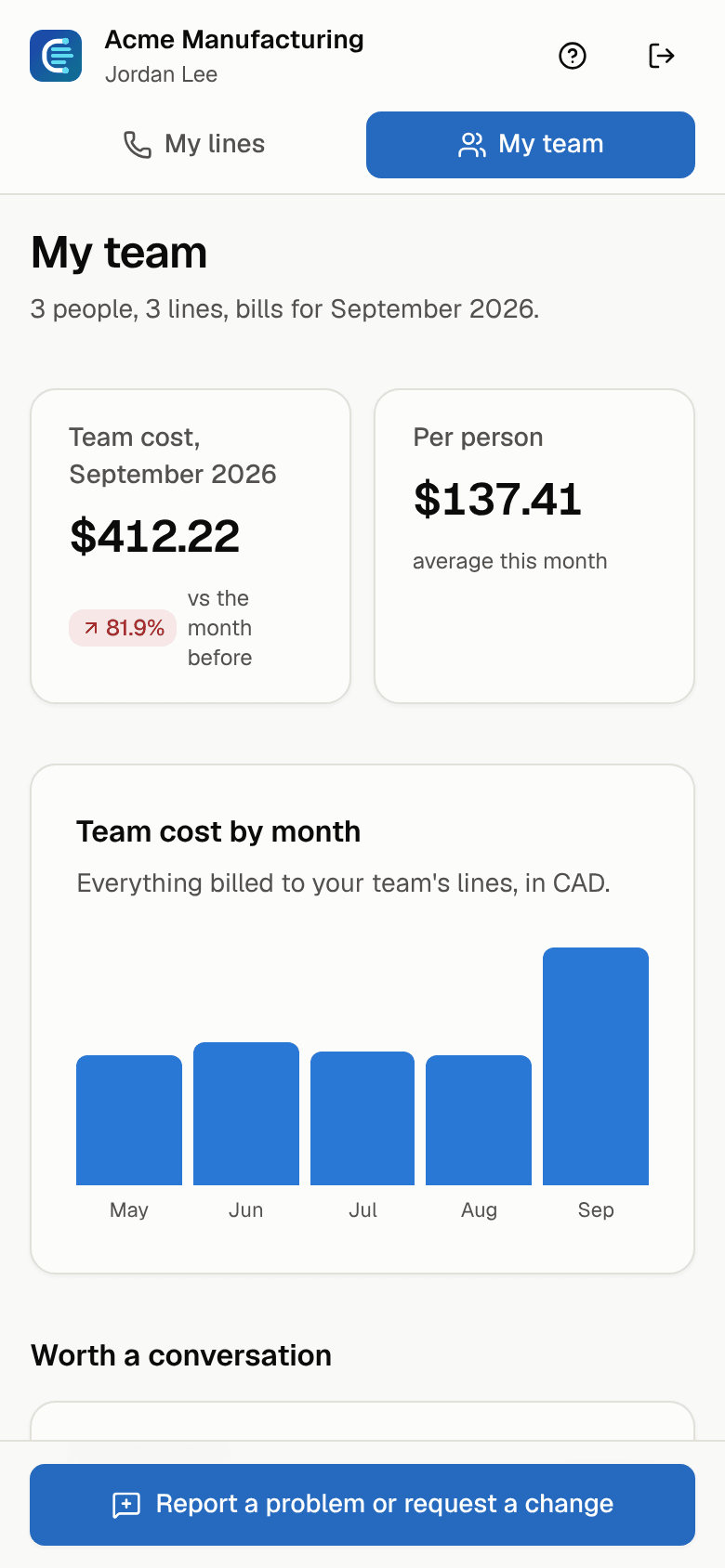
- the team's cost for the latest billed month, compared with the month before, and the average per person;
- Team cost by month, so you can spot a jump;
- Worth a conversation: the highest spenders, roaming and lines nobody uses;
- other findings on your team's lines;
- Cost per person and every team line.
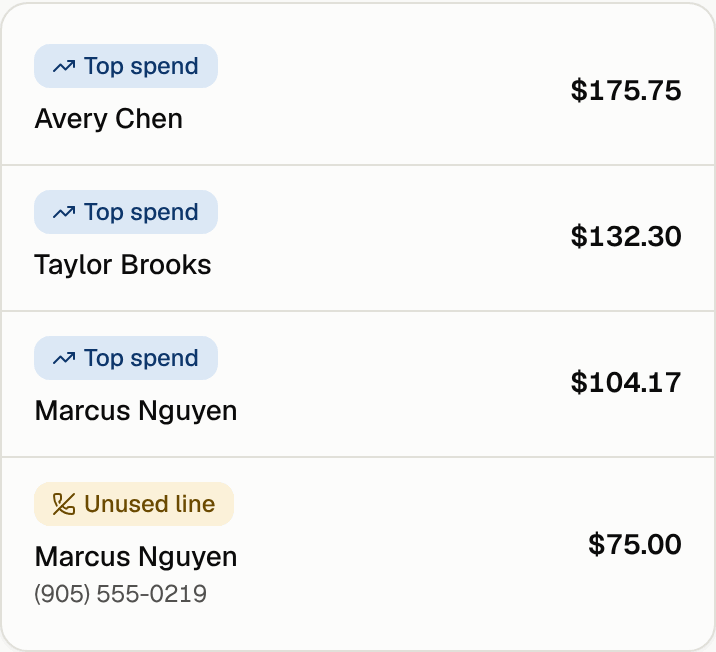
People who have left stay on your team while their line is still billed, so you can catch a line that should have been cancelled.
From My team, the request button lets you pick any team line, or ask for a new line for someone on your team. Team requests lists what was asked for your team's lines, with the same statuses as My requests.
Related guides
- Set up employee self-service (for telecom admins)