Import your Bell portal exports
Load a Bell client's users list, usage report and services workbook in one go, so their lines, usage, wireline services and contracts are ready for a business review.
In the app:Import data
On this page
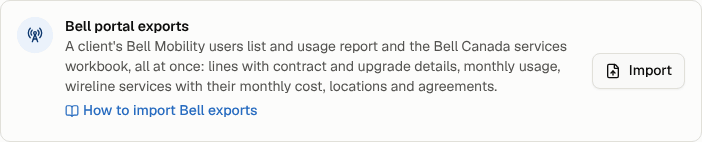
Bell's business portals let you download three Excel files about an account. Conduit TEM reads all three, so you can see a client's lines, who uses them, their monthly usage, their wireline services and their Bell agreements without typing anything in.
| File from Bell | What you get in Conduit TEM |
|---|---|
| Detailed users list (Bell Mobility) | Every mobile line with its plan, status, the person who uses it, the device and what's left to pay on it, and contract and upgrade dates |
| Usage report (Bell Mobility) | Minutes, data, texts, long distance and roaming for each line, month by month |
| Services workbook (Bell Canada) | Business lines, Local Link, Megalink and Business Internet services with their monthly cost and address, plus your Bell agreements as contracts |
Only owners and admins can import, because an import changes the whole organization.
Before you start
- Download the files from Bell's portal as Excel workbooks (
.xlsx). Don't change or re-save them; Conduit TEM reads them as Bell exports them. - You can import one, two or all three files at once. Doing all three together links each line's usage to the line itself.
- Each file can be up to 10 MB.
Step 1: Choose the files
- Open Settings and choose Import data.
- Under Bell portal exports, select Import.
- Under Choose the exports, pick the Bell files. You can pick all three at once, or add them one at a time.
- Check the list of chosen files. To take one off, select the X next to it.
- Select Preview.

Tip: if you drop a Bell file on one of the other imports (for example Inventory), Conduit TEM recognises it and offers Import as a Bell export. Select it to carry on here.
Step 2: Check the preview
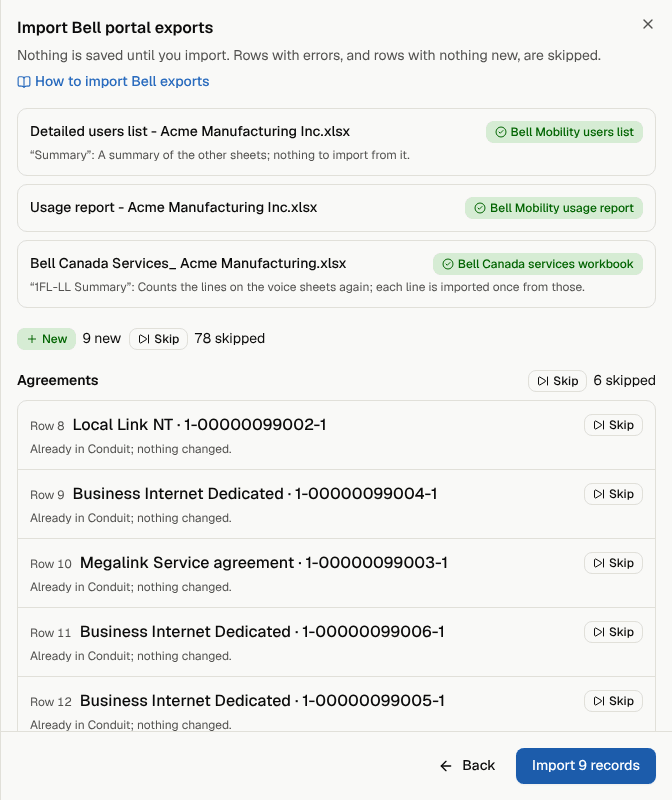
Nothing is saved yet. At the top, each file shows what Conduit TEM recognised it as, for example Bell Mobility users list. A file it doesn't recognise shows Not imported with the reason.
Below that, the preview is split into sections: Agreements, Locations, People, Mobile lines, Wireline services and Monthly usage. Every row has a badge:
- New: it will be added.
- Update: it is already in Conduit TEM and something has changed. The row says what.
- Skip: there is nothing new, or it is left alone on purpose. The row says why.
- Error: it can't be imported. The row says why. The rest of the import still works.
Read the warnings too. For example, a phone number on the usage report that isn't on the users list keeps its usage, but it isn't linked to a line.
Step 3: Import
Select the Import button at the bottom. It says how many records will be written. Everything is saved in one step: if anything goes wrong, nothing is saved.
The import then appears under Past imports on the same page, and in the activity log under Settings → Activity.
What you'll see afterwards
- Inventory lists the Bell Mobility lines and the wireline services, each with its plan and monthly cost.
- People has anyone from the users list who wasn't there yet. Bell's file has no email addresses, so you can add them later. A line named after a place or a role, such as "Front Desk" or "Spare Line", isn't added as a person; the name becomes the line's label.
- Contracts has each Bell agreement with its start and expiry dates, whether it renews automatically, and its master agreement (MCA) in the notes.
- Settings → Structure may have new locations, one for each service address you didn't already have. An address you already have is matched, and its services are placed there.
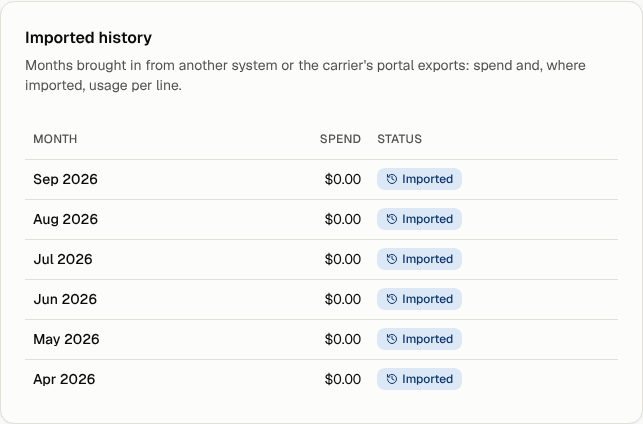
- Vendor accounts: open the Bell Mobility account and look under Imported history. Select a month to see each line's usage for that month.

Good to know
- Importing again is safe. If you import the same files again, every row shows Skip and the button reads Nothing to import. If Bell's newer files differ, only the changes are made. For example, next quarter's usage report adds only the months you don't have yet.
- SIM cards and serial numbers are kept to their last four digits only.
- Monthly cost of mobile lines. Bell's users list doesn't show what each line costs, so mobile lines show $0 a month until a bill or a spend history import gives the amount.
- Wireline cost is the total of everything Bell lists for that line: the line itself, its features, fees and discounts. Features that cost nothing are kept as details of the line, not as separate services.
- Usage is history, not a bill. It never needs review, creates no payments or approvals, and sends no emails. If a real Bell bill is already in Conduit TEM for a month, that bill's usage counts and the imported month is skipped.