Vendor accounts
See every carrier billing account with its spend, bills, services and findings, and set each account's name, default location and master account.
In the app:Vendors Vendor accounts
On this page
A vendor account is one billing account with one carrier, such as your Bell Mobility corporate account or a Rogers sub-account for a single site. Conduit TEM creates accounts for you: the first bill for a new account number creates it, and so does an inventory import. You never have to set them up by hand, but a few settings make them easier to work with.
Browse your vendors
Select Vendors in the side menu. Each card is one billing account, showing:
- The account's name, carrier, account number and currency.
- A chart of posted spend over the last six billing months.
- Latest month, Bills (posted, and how many are in review) and Services.
- Open findings, the date of the last bill, and, for multi-site companies, the default location, the master account it sits under or how many sub-accounts it has.
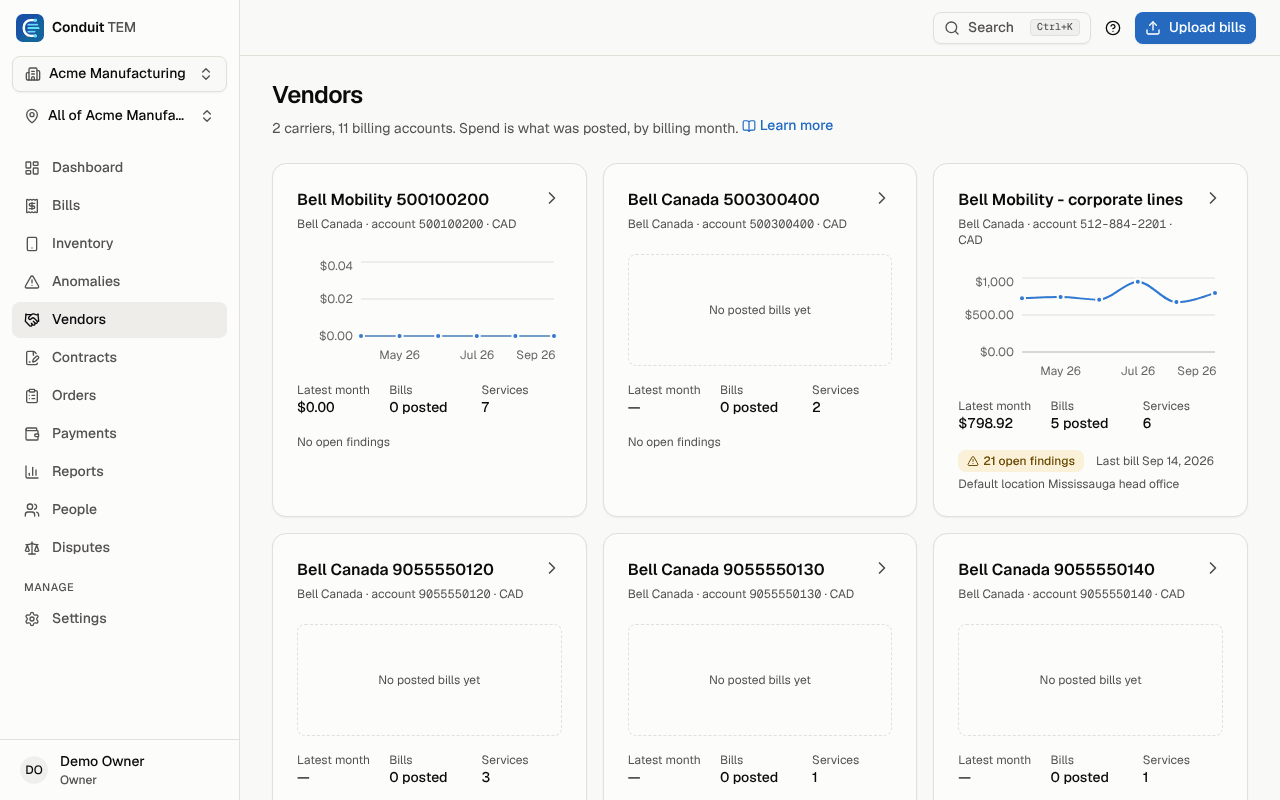
When the location switcher is set to one location, the page lists only the accounts with charges there.
Open an account
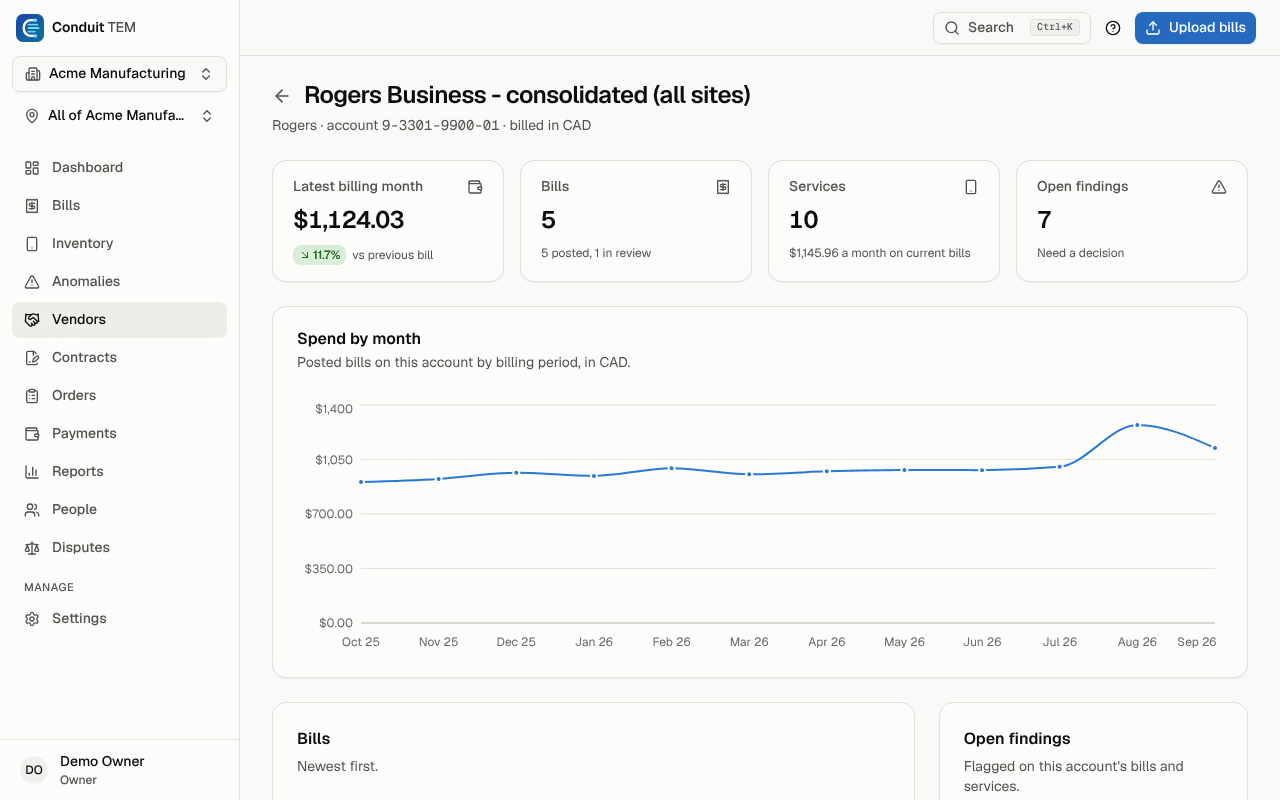
Select a card to open the account page. It brings together everything about that account:
- Totals for the Latest billing month (with the change from the previous bill), Bills, Services and Open findings.
- Spend by month for posted bills.
- The account's Bills, newest first, its Services and its Open findings.
- Sub-accounts billed under it, if it's a master account.
- Account settings and Notes for anything the next person should know.
Change an account's settings
Owners and admins can change these, either in the Account settings card on the account page or for all accounts at once under Settings → Vendor accounts.
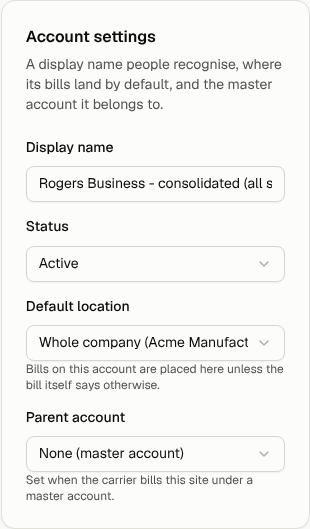
- Display name: a name people recognise, such as "Rogers – warehouse sub-account". It's used across the app instead of the bare account number.
- Default location: where this account's bills land when nothing more specific places a line. Choose Whole company to leave it open. See Company structure for the full placement order.
- Parent account: for carriers that bill each site on a sub-account under one master account. Pick the master account here; None (master account) means it's the top. The master account's page then lists its sub-accounts.
- Status: Active or Closed. Mark an account closed once you've cancelled it with the carrier.
Manage all accounts in one place
Settings → Vendor accounts shows every account in one table, with its last bill date and how many bills it has. On wider screens it also shows the Orders contact: the carrier email address where carrier orders for that account are sent.
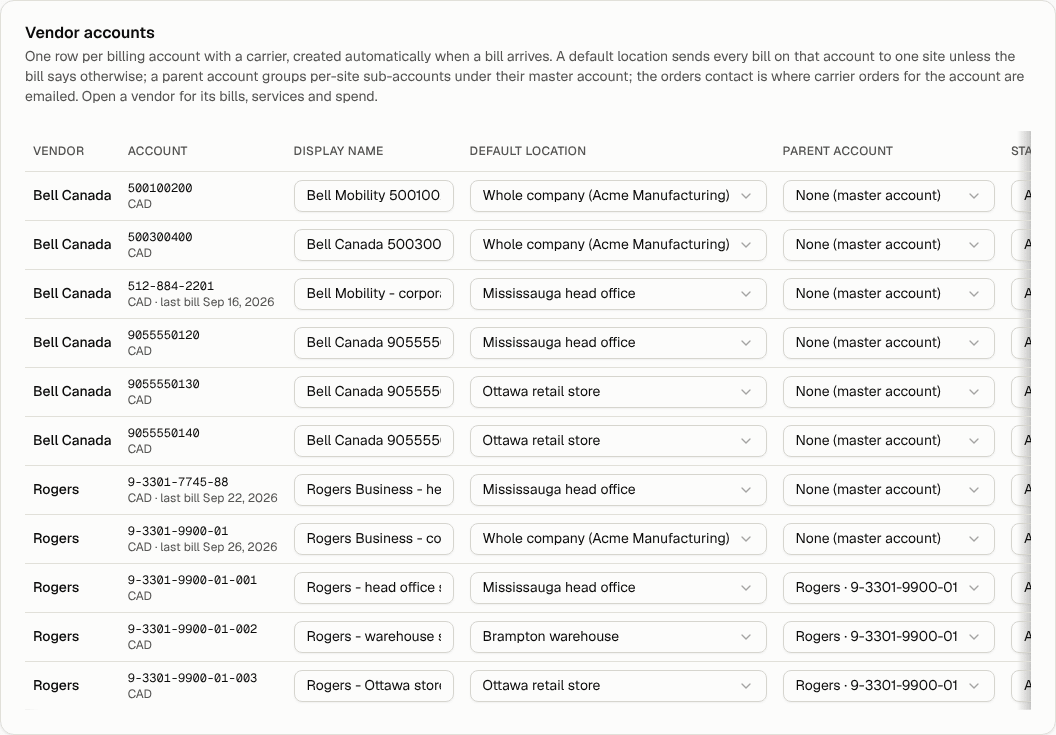
Changes save as soon as you pick a value or leave a field. Other roles see the same table, read-only.
Tip: Set a default location on single-site accounts. It's the quickest way to make sure their bills, including the account-level fees, always land on the right site.