Keep track of your carrier contracts
Add each carrier agreement, let Conduit AI read the signed PDF, enter its rates, and get warned before a notice deadline.
In the app:Contracts
On this page
The Contracts page holds each agreement you have with a carrier: the dates, the notice period, whether it renews by itself, and the rates it promises. Conduit TEM uses it in two ways:
- It warns you before the last day to give notice, so a contract never renews by surprise.
- It checks every bill on the contract's accounts against the rates you agreed. See The contract rate check.
Owners, admins and finance can add and change contracts. Everyone else can read them. Members limited to part of the company only see contracts placed in their part.
See your contracts at a glance
Select Contracts in the sidebar. The tiles at the top show:
- Active contracts.
- Notice or end within 90 days, with the next one due.
- Billed above contract rates: the overcharges found on posted bills so far.
The table lists each contract with the accounts it covers, its end date and notice date, its rates, and anything overcharged.
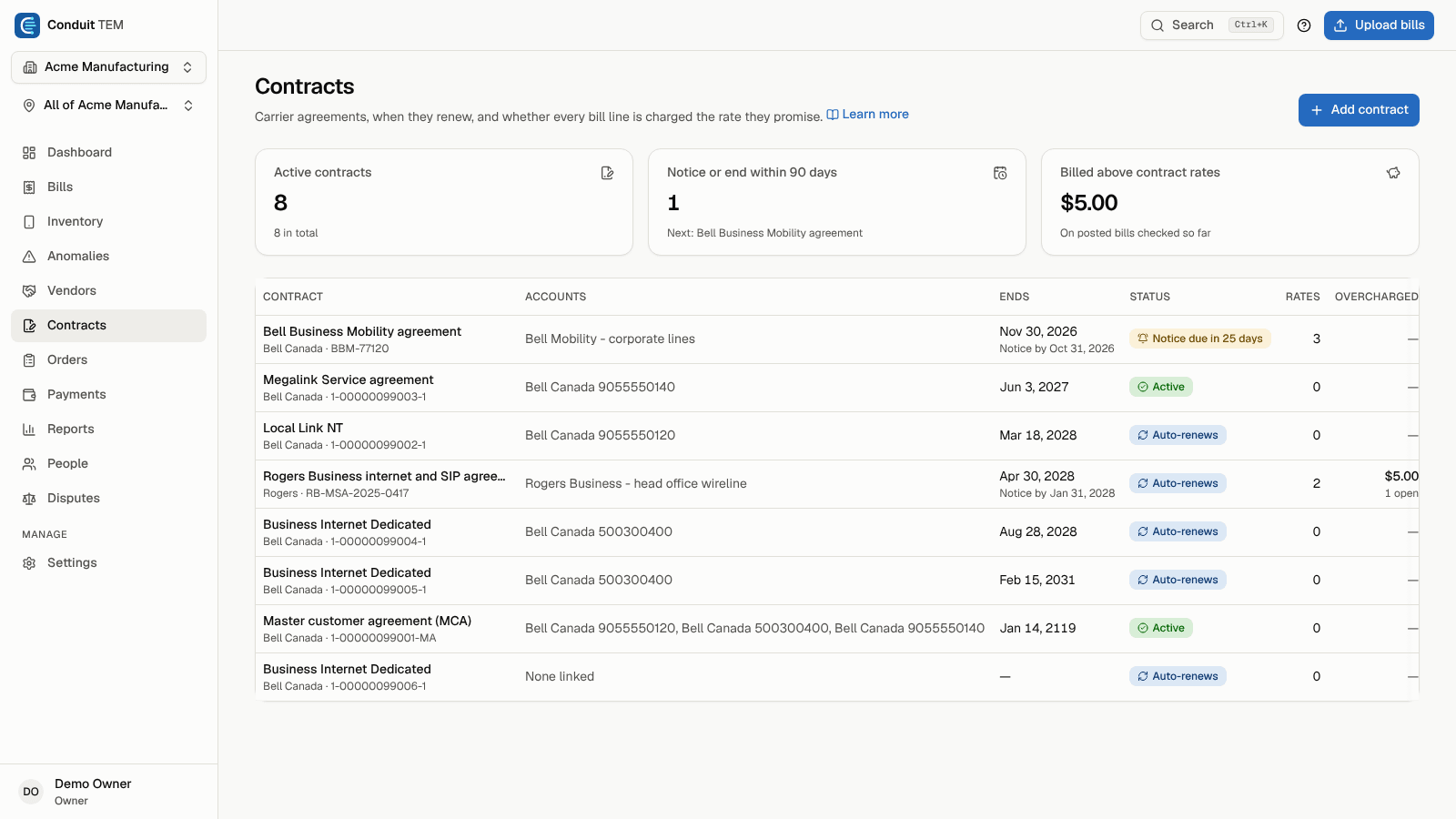
The Status column tells you what needs attention:
| Badge | Meaning |
|---|---|
| Notice due in N days | The last day to give notice is coming up (within 90 days). |
| Ends in N days | The end date is coming up, and there's no notice deadline or it has already passed. |
| Past end date | It ended and doesn't renew automatically. Renew or renegotiate. |
| Auto-renews | Active, and renews by itself at the end of the term. |
| Active | Active, with nothing due soon. |
| Ended / Cancelled | Kept for the record. Its rates are no longer checked. |
Add a contract from the signed PDF
The quickest way is to let Conduit AI read the agreement.
- Select Add contract.
- Under Start from the signed PDF, select Upload contract PDF and choose the file.
- Conduit AI reads the carrier, the dates, the term, the notice period, auto-renewal, any monthly commitment, the account numbers it names and every rate it commits to. Accounts whose numbers appear in the PDF are linked for you.
- The new contract opens. Check every field and rate against the PDF before you rely on them.

Note: If the agreement keeps a rate "at no change" without printing a price, Conduit AI tells you instead of guessing. Enter that rate yourself.
Add a contract by hand
- Select Add contract and scroll to Or enter it by hand.
- Fill in the Name and choose the Vendor.
- Under Accounts it covers, tick the vendor accounts this agreement applies to. Bills on these accounts are the ones checked against its rates. An account is created when its first bill arrives, so you can link it later.
- Add the Start date, End date or Term (months), and the Notice period (days).
- Turn on Renews automatically if it does, and add the Renewal term (months).
- Optionally add a Contract number, a Monthly commitment, the Owner (who gets the renewal warnings), a Location and Notes.
- Select Add contract, then add its rates on the next page.
Enter the contracted rates
On the contract's page, under Contracted rates, add each plan, service or feature the contract prices:
- Plan or service: the name, such as "Business Unlimited Share 75GB".
- Bill lines containing: the words a bill line must contain to match this rate. Leave it blank to use the name.
- Rate and Charged: per line / month, per month (a flat amount), or per unit (a minute, a GB, a channel).
- Service type: leave it as Any, or pick one so the rate only matches that kind of service.
- From and To: only for a rate that changes partway through, for example after an amendment. Leave them blank for the whole contract.
- Select Add rate.
To remove a rate, select the bin icon on its row.
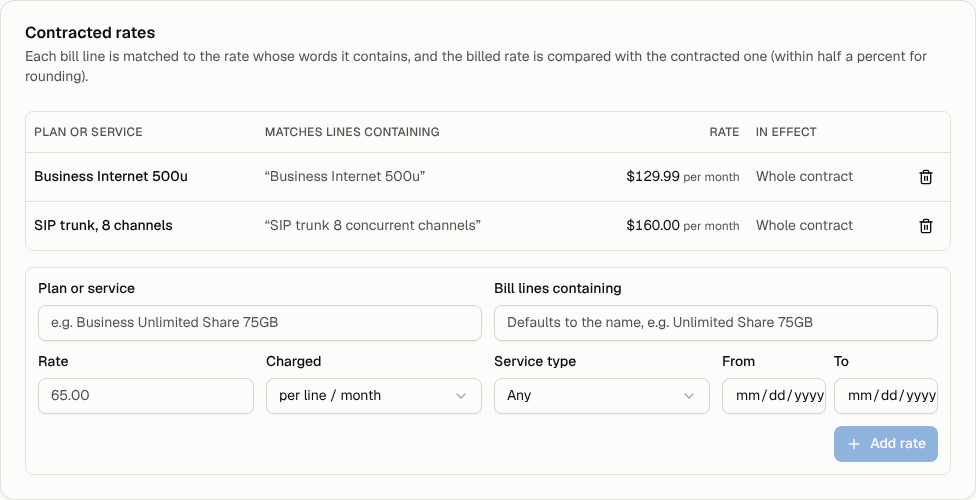
Adding rates and checking bills against them are part of the paid plans. On the free plan, rates you entered earlier stay readable.
Work with a contract
The contract's page shows its Term, the Accounts covered, the rates, the Bill lines checked against them, and any Open findings to dispute. Change anything under Details and select Save contract.
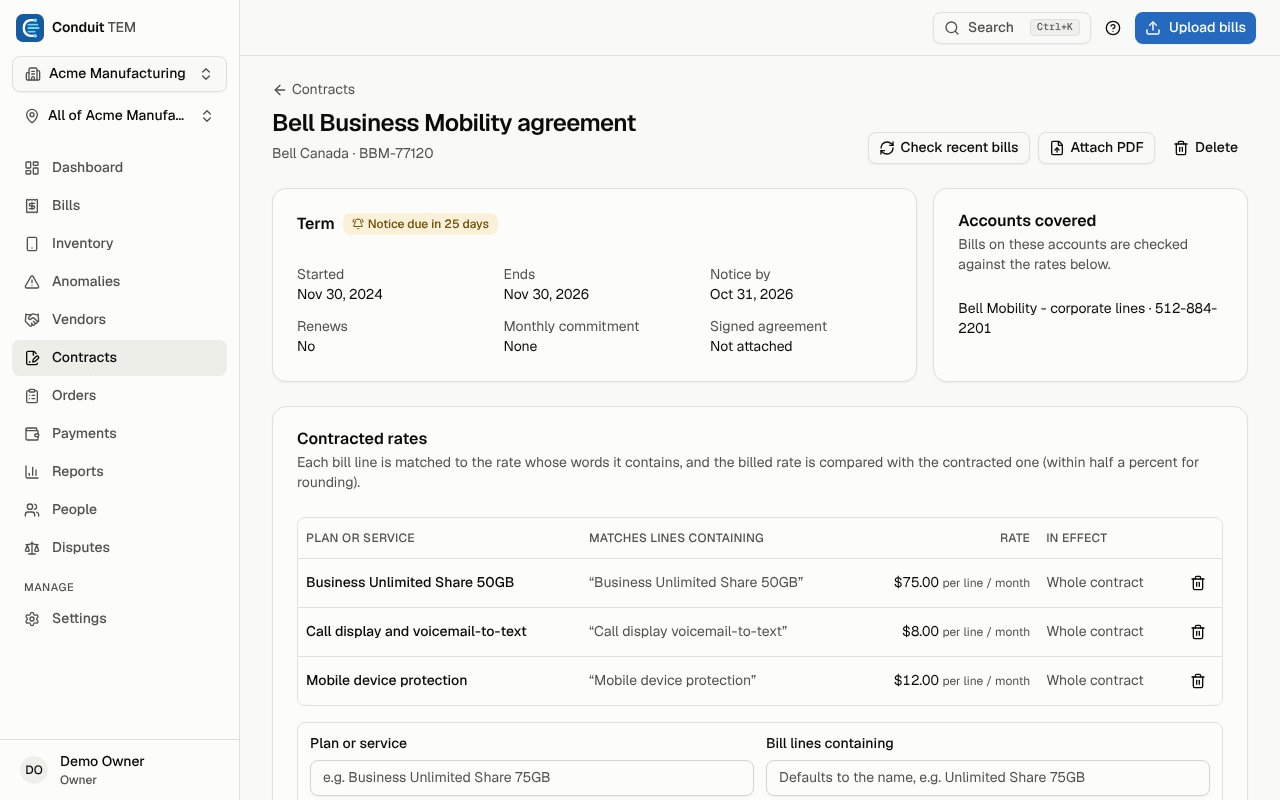
The buttons at the top:
- Check recent bills re-checks the last three posted bills on each covered account. Use it right after entering rates.
- Attach PDF (or Replace PDF) stores the signed agreement with the contract.
- Fill in from PDF has Conduit AI read the attached PDF again. It fills only the fields that are empty and adds only rates you don't have yet.
- Delete removes the contract, its rates and its check history. Bills and findings stay. To keep the history, set Status to Ended instead.
Get renewal warnings
Every day, Conduit TEM looks at each active contract with an end date:
- With a notice period, it warns you 90, 60, 30 and 7 days before the last day to give notice. That date is the end date minus the notice period.
- Without a notice period, or once the notice deadline has passed, it counts down to the end date itself: 90, 60, 30 and 7 days before (only 30 and 7 after a missed notice deadline).
Each warning is emailed once to owners, admins and finance, and to the contract's owner. Renewal emails are part of the paid plans. The deadlines and badges show on every plan.
Tip: When a contract ends and you sign a new one, set the old one's Status to Ended and add the new agreement. Each keeps its own rates and history.