Bring in your AI spend
Upload member lists from your AI tools and usage or cost exports from their consoles, check which column is which, and set each tool's seat price.
On this page
AI spend is built from files you export from your AI vendors and upload here, and from vendors you connect once with an admin key (Connect your AI tools): the OpenAI and Anthropic API platforms, GitHub Copilot and Cursor. Each upload shows a preview first, and importing the same period again replaces it, so you can upload a corrected file at any time.
For an account and month that a connection covers, a file uploaded to that account isn't counted: the connection wins.
Owners, admins and Finance can upload; owners and admins can change seat prices and locations.
What to export
| Tool | What to upload |
|---|---|
| ChatGPT Business or Enterprise | The workspace's member list, or the Enterprise user analytics export, as CSV. |
| Claude Team or Enterprise | The organization's member list as CSV. |
| Microsoft 365 Copilot | In the Microsoft 365 admin center, Reports → Usage → Microsoft Copilot, then Export the per-user table. Or the Active users export: users with a Copilot licence become seats. |
| Gemini for Google Workspace | A users export that lists the people with a Gemini licence. |
| GitHub Copilot or Cursor | A member list as CSV, or connect them instead. |
| OpenAI API | The cost export from the usage dashboard, by day. |
| Anthropic API | The usage and cost export from the Console. |
| Gemini API | A cost export by day; you choose the columns. |
| Azure OpenAI | An Azure Cost Management cost details export. Only the Azure OpenAI lines are kept. |
| AWS Bedrock | A Cost and Usage Report (legacy or 2.0) or a Cost Explorer CSV grouped by service. Only Bedrock is kept. |
A member list needs an email column. A last-active column is what finds idle seats; without it every seat counts and none is called idle.
Upload and check the preview
- Select AI spend → Imports.
- Under What is it?, pick the tool, or leave Detect from the columns. Member lists need the tool; you can also choose it in the preview.
- Drop the CSV (or a .csv.gz) on the upload area, or select it to choose a file.
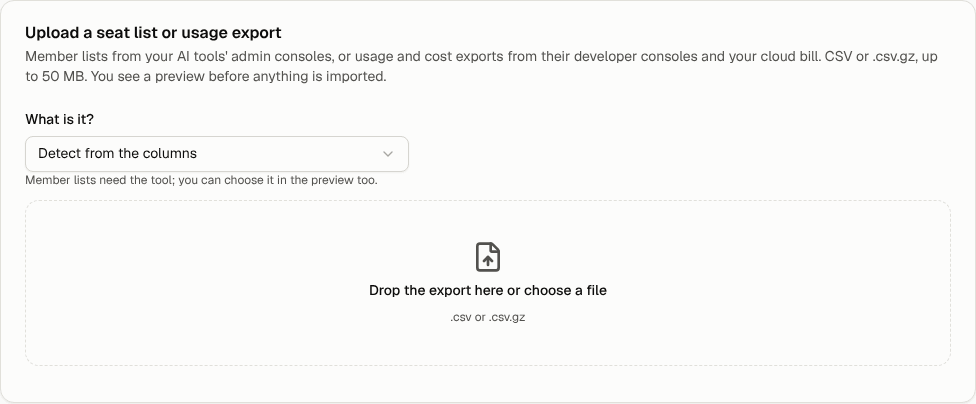
The preview shows what was read: the months and totals of a usage export with its projects, or the seats of a member list with a sample of people and how many are idle. Warnings say what was left out (lines for other Azure or AWS services, removed members, rows without an email).
Choose the columns
Open Columns to see which column each field was read from. When a required field is missing (the date and cost of a usage export, the email of a member list), the preview says so and opens the columns for you.
- For each field, pick the column it is in, or Not in this file. Each column shows its first value to help.
- Select Read again with these choices to update the preview.
Set the account and seat price
- Account: an existing account of that tool, or New account with a name. Importing again into the same account replaces the same period.
- Price per seat and Monthly or Annual: from your contract or invoice. Annual prices count a twelfth each month.
- Member list date: the day the list describes. Idle means no activity in the 30 days before it. A later list for the same month replaces this one.
- For usage: the currency to use when the file has no currency column, and whether the cost column is in Dollars or Cents (some API cost reports give cents).
Select Import when the preview looks right, or Discard to drop the upload.
What importing replaces
- A usage export replaces what is stored for that account in every month the file covers.
- A member list replaces that account's list for the month of its date. Earlier months keep their own lists.
- An upload whose data has all been replaced shows as Replaced under Past uploads.
Set seat prices and locations
Select AI spend → Accounts to see every account with its seat price and the latest month's spend.
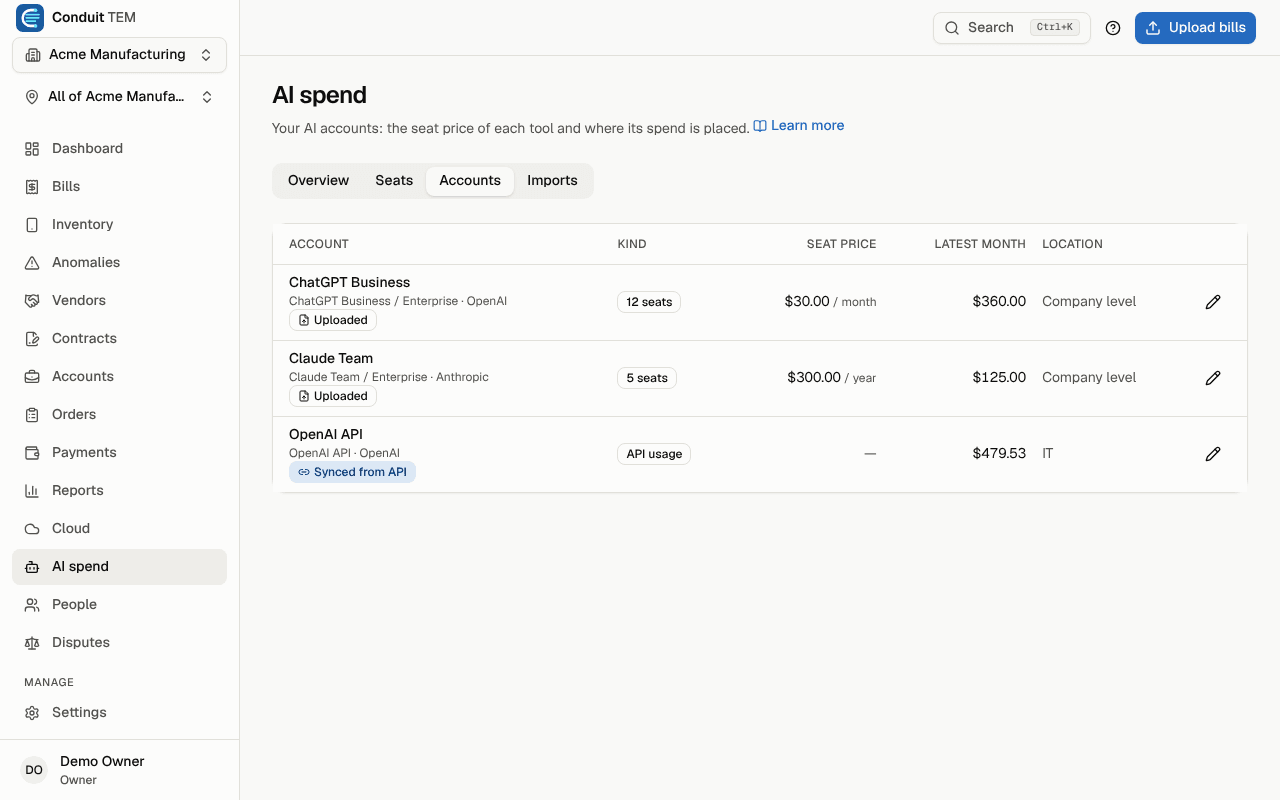
- Select the pencil next to an account.
- Change the name, the Price per seat, Billed (monthly or annual) or the currency.
- When your company has more than one location, choose a Location: API usage goes there; seats go to their person's home location and, for seats nobody matches, here.
- Select Save. Spend is recalculated at once.