High-usage alerts
Set the data, roaming and overage levels that matter to your organization; bills that cross them raise findings and email the people who turned the alert on.
In the app:Settings Profile & security Anomalies
On this page
High-usage alerts watch every posted bill for three things:
| Alert | Fires when | Default |
|---|---|---|
| Data on one line | One line uses at least this much data on one bill. | 20 GB a month |
| Roaming on one line | One line is charged at least this much for roaming on one bill. | $50 per bill |
| Overage on a bill | Data overage, roaming, long distance and other pay-per-use charges on one bill add up to at least this much. | $50 per bill |
Each one becomes a finding on the Anomalies page (High data use, High roaming spend or High overage on a bill), marked high severity when it reaches double the level for data, or three times for roaming and overage. They are a good start for a conversation with your account manager: a travel pass, a bigger data plan or a shared pool usually costs less than paying as you go.
Set the levels
Owners and admins set them for the whole organization.
- Go to Settings → Organization and find High-usage alerts.
- For each alert, use the switch to turn it on or off, and enter the level.
- Select Save alerts.
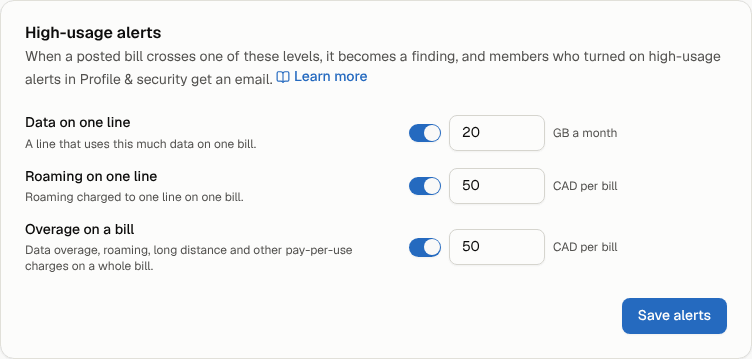
New levels apply to bills posted from then on.
Get the emails
High-usage emails are off until you turn them on, for each member.
- Go to Settings → Profile & security.
- Under Email notifications, turn on High-usage alerts.
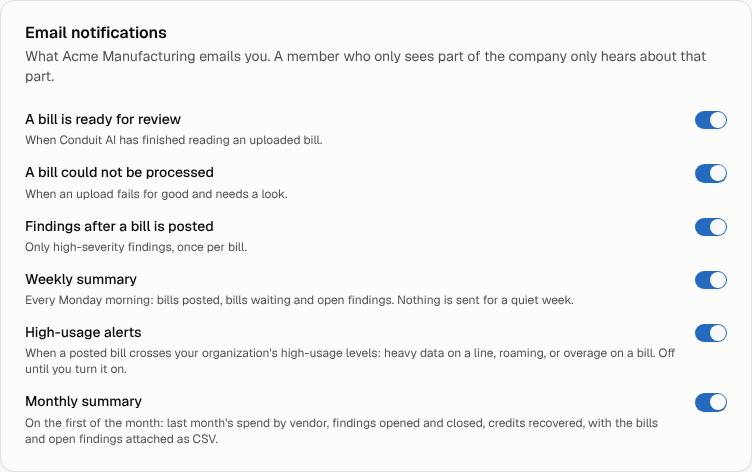
You get one email per bill that crosses a level, listing the alerts with links to each finding. A member limited to part of the company only hears about lines in their part. These alerts don't also arrive in the "Findings after a bill is posted" email.
For employees
When employee self-service is on, people see heavy data use and roaming on their own lines under Worth knowing, with a tip in plain words, and can ask for a travel pass before their next trip.