Import people from HR or your phone system
Bring in your people from an HR export or a phone-system extension list, link them to their lines, and preview every change before it's saved.
In the app:People
On this page
Typing in a whole company one person at a time is slow. Import people reads a spreadsheet from your HR system or your phone system, adds or updates each person, and links them to the lines they use, so bill lines are assigned without retyping. You see exactly what will happen to each row before anything is saved, and importing the same file again changes nothing.
Before you start
- Who can import: owners, admins, finance and analysts who see the whole company. Members limited to one location, and viewers, don't see the Import people button.
- What you need: a CSV, TSV or Excel (
.xlsx) file, or cells copied from a spreadsheet. Up to 2,000 rows per import and 5 MB per workbook. - For phone numbers to link: the lines must already be in your inventory, which happens when their bills are posted. An import never creates a mobile line or phone number.
- For locations to match: add your locations under Settings → Structure first, with the codes your file uses.
Step 1: Choose your file
- Go to People and select Import people.
- Under What are you importing?, choose:
- People list for an HR or staff export: names, emails, titles, departments, home locations, and phone numbers or extensions if you have them.
- Phone system export for an extension list: extension, name, direct number (DID) and email.
- Under Choose a file, pick your file. Or paste the rows into Or paste the rows and select Continue.
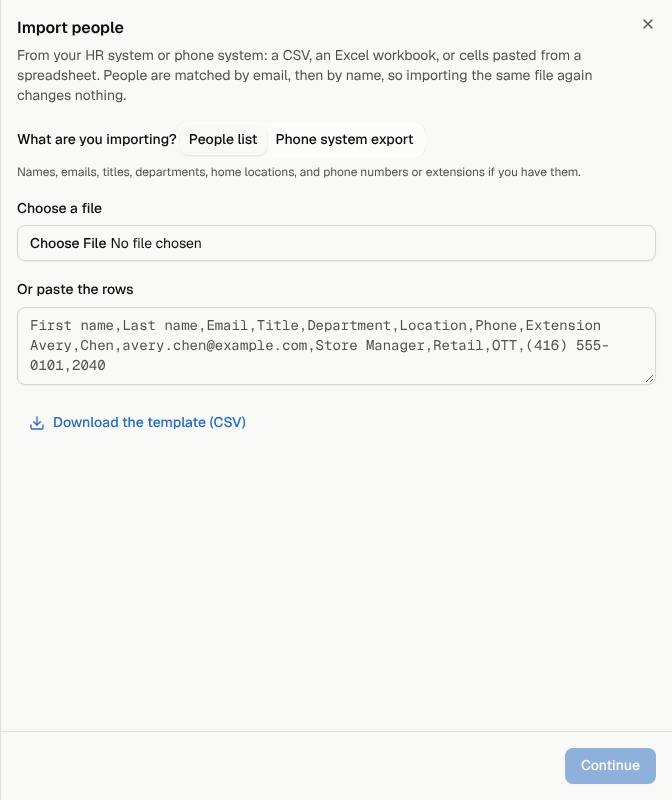
Not sure of the layout? Select Download the template (CSV) for a file with every column and an example row.
If your workbook has several sheets, the first one with data is used and a Sheet picker lets you choose another. Old .xls files can't be read; save them as .xlsx or CSV first.
Step 2: Check the columns
Conduit TEM finds the header row (even under a title line) and guesses what each column holds. Check each guess and change any that are wrong:
- Full name, or First name and Last name. You need one or the other.
- Email, Title, Department.
- Location / cost center: matched to your units by code, then by name. Only shown when you have more than one location.
- Phone number: you can map several columns, such as mobile, DID and desk.
- Extension.
- Don't import for anything else.
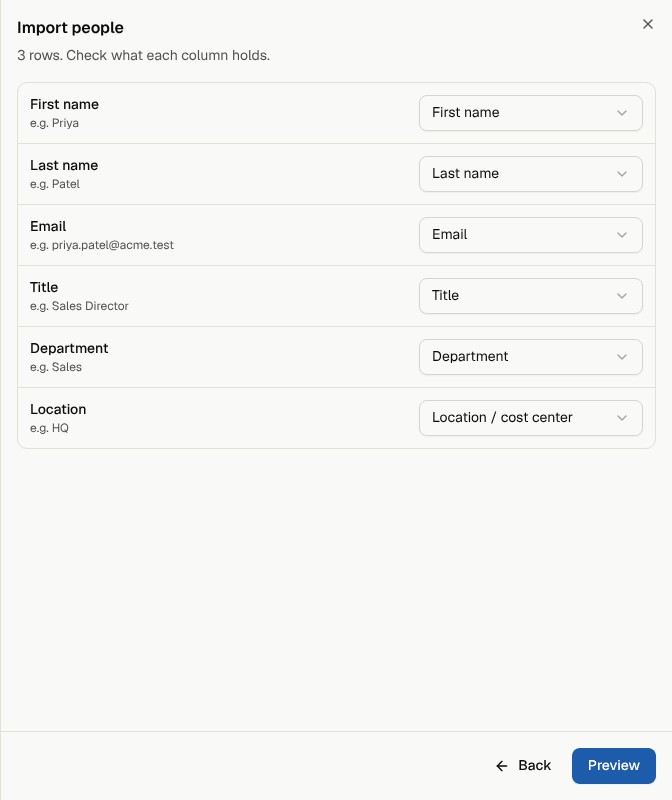
Only the columns you map are sent. Anything set to Don't import, such as salaries or employee IDs, never leaves your computer.
If you've mapped an Extension column, choose the Phone system for extensions: the vendor account of your phone system. Each extension then becomes a service on that account, assigned to its person, so the phone system's bill lines follow them. Choose Don't link extensions, only note them to skip this.
Select Preview.
Step 3: Preview what will happen
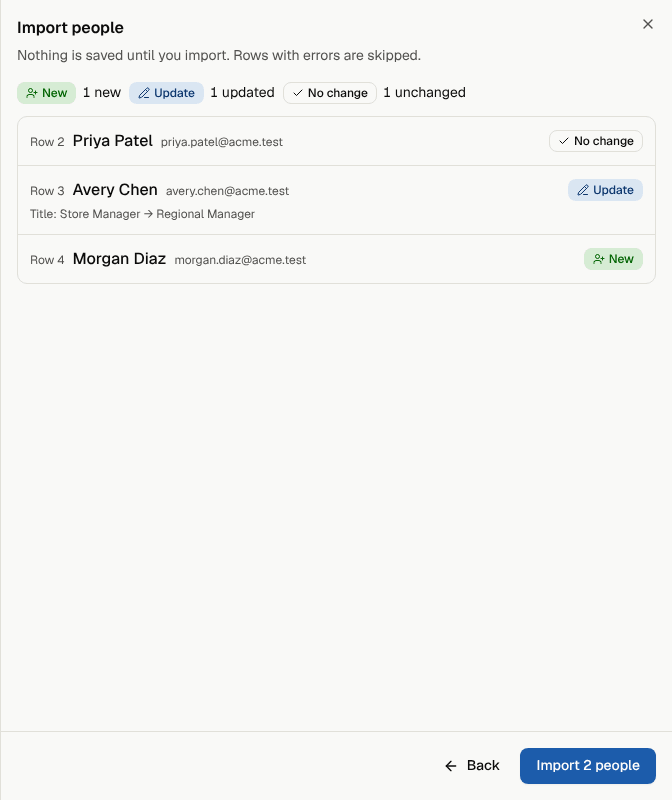
Each row gets a badge:
| Badge | Meaning |
|---|---|
| New | A person who will be added. |
| Update | An existing person who will change. The changes are listed, such as "Title: Store Manager → Regional Manager". |
| No change | Already up to date. |
| Error | Can't be imported. The reason is shown, and the row will be skipped. |
Rows also show which lines and extensions will be assigned, and any warnings. Nothing has been saved yet.
Step 4: Import
Select Import (number) people. A message confirms how many were added and updated, how many lines were assigned and how many rows were skipped. If someone changed people or lines since your preview, the message says the counts differ.
The import is recorded in the activity log under Settings → Activity.
How people are matched
- People are matched by email first, then by full name.
- A single name column is split for you: "Chen, Avery" and "Avery Chen" both work, and titles like "Dr." are dropped. A row with only one word, such as "Reception", is an error, because people need a first and last name.
- Blank cells never overwrite what's already stored.
- Someone with the same name but a different email is treated as a different person and added, with a warning.
- People who left the company are never matched by name. A row with a leaver's email is an error; reactivate them on the People page first.
- The same person twice in one file is an error on the later row.
How lines are linked
- Phone numbers are matched to live lines in your inventory: mobile lines, landlines, DIDs and PBX seats. A matching line is assigned to the person, even if it was assigned to someone else (the preview says from whom). Disconnected lines and circuits are never linked.
- A number listed on two rows stays with the first.
- A number that no bill has shown yet is noted, not created.
- Extensions become services on the phone-system account you chose. An extension that was disconnected there is restored instead of created again.
- New people also pick up unassigned services whose bill printed their name.