Work through your findings
Open a finding, get a plain-language explanation, set its status, add notes, and tell the checks which charges are expected.
In the app:Anomalies Expected charges
On this page
Each posted bill can raise findings: charges that look wrong, new, duplicated or wasteful. This guide covers working through them on the Anomalies page, from first look to closed. To learn what each check means, see What each finding means.
Anyone except a viewer can change a finding. Viewers can read everything. Members limited to part of the company only see findings for their locations.
Find what needs attention
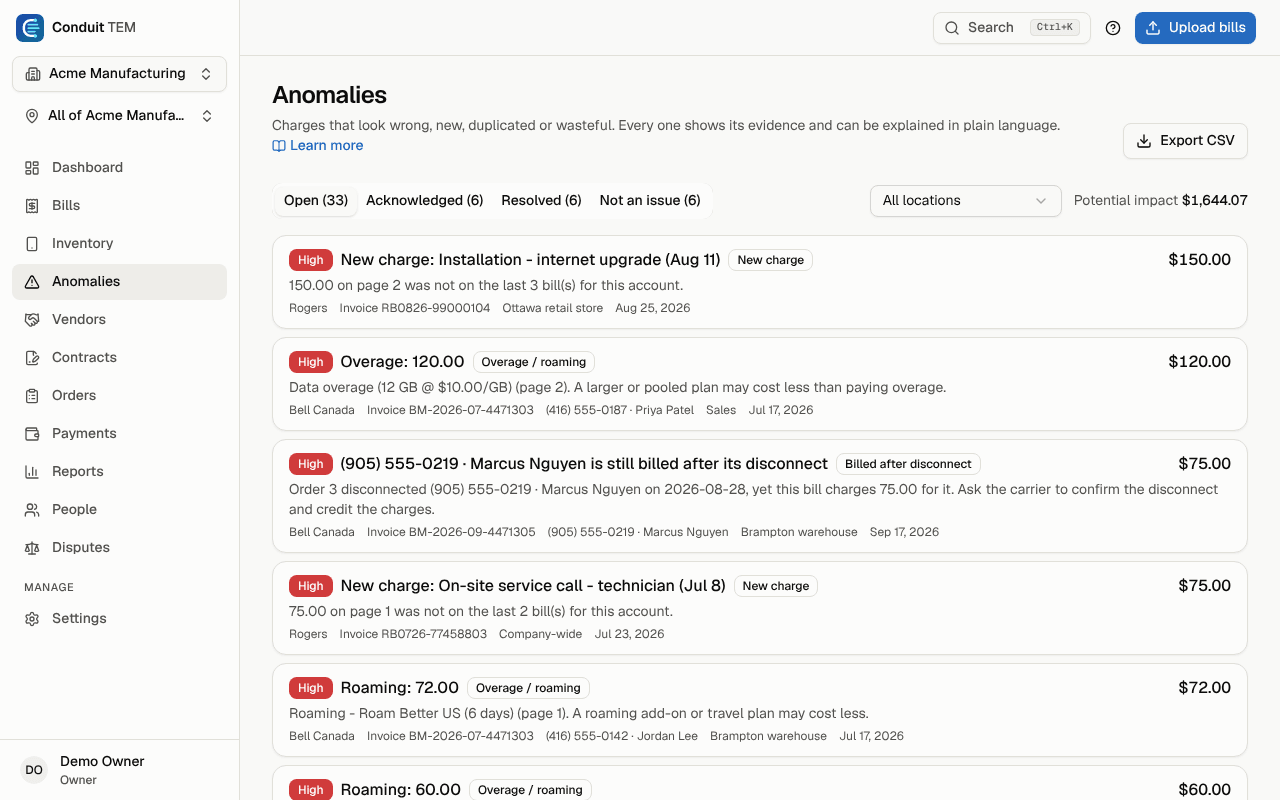
- Select Anomalies in the sidebar.
- The tabs across the top filter by status: Open, Acknowledged, Resolved and Not an issue, each with a count. The page opens on Open.
- If your company has more than one location, use the location menu to see one site, or Company-wide for findings that belong to no single site.
- Potential impact adds up the estimated impact of everything in the current list.
Findings are sorted by severity, then by amount. Each card shows the check that raised it, the vendor, the invoice, the line and when it was last seen.
Tip: Every bill's review page also lists the Anomalies on this bill. Select one to jump straight to it here.
To work in a spreadsheet, select Export CSV.
Open a finding
Select a finding to open its details. On a phone they slide up from the bottom. You'll see:
- Estimated impact and a one-line summary of what was found.
- Open invoice and Open service, to check the bill or the line in your inventory.
- Evidence: the exact figures the check used. Select it to expand.
- A Dispute box if a dispute has already been raised, with its status and a link to it.

Ask Conduit AI to explain it
- In the finding, select Explain with Conduit AI.
- Conduit AI reads the finding, the bill and the related charge lines. It writes what the charge is, the Likely cause and a Recommended action. When a charge looks worth disputing, it says so.
- The explanation is saved with the finding, so everyone sees the same text. Select Regenerate for a fresh one.
Always check the explanation against the bill before you act on it.
Set the status
Under Update status, type an optional note (a carrier ticket number, who you spoke to), then pick one:
| Button | Status | Use it when |
|---|---|---|
| Acknowledge | Acknowledged | You've seen it and someone is on it, or it's explained but worth keeping in view. |
| Resolved | Resolved | It's dealt with: the line was cancelled, the plan changed, the credit arrived. |
| Not an issue | Not an issue | The check was right on paper, but nothing is wrong. |
| Reopen | Open | It needs another look. |
The note is saved in the finding's history.
Some findings close themselves:
- Raising a dispute moves an open finding to Acknowledged.
- When the credit arrives, the dispute closes and the finding moves to Resolved.
- When a carrier order is confirmed on a bill, the findings it explains close too, such as a new line's Billed but not in inventory.
Add notes
Under Notes, write anything the next person should know and select Add note. Notes stay with the finding and show who wrote them and when.
Note: Findings don't carry tags. To tag a line (for example "candidate to cancel"), open it with Open service and tag it in Inventory.
Raise a dispute
If the carrier owes you money, select Dispute with vendor. The button appears when the finding has an amount, isn't marked Not an issue, and doesn't already have an active dispute.
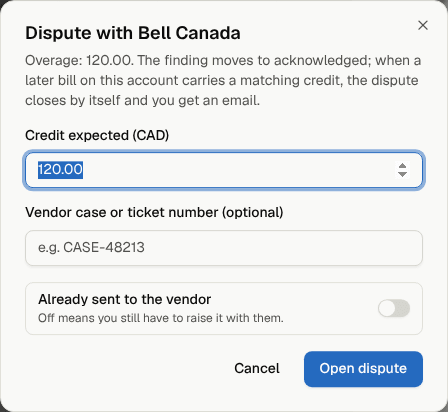
Disputes and credits covers what happens next.
Stop flagging a charge you expect
Some findings are correct but expected every month: a seasonal line that sits idle, or an add-on you keep on purpose. Marking these Not an issue every month gets tedious, so tell the check instead.
- Open the finding (it must be Open or Acknowledged) and select Don't flag this again.
- Under What the rule covers, choose one:
- This service: only this line or service.
- Lines described like this: charge lines containing the words you enter. Keep them specific, such as "late payment fee" rather than "fee". Matching ignores capitals.
- This whole account: every line on this vendor account.
- Under Why it is expected, say why, for example "Seasonal kiosk, idle outside summer".
- Under For how long, choose For 3 months, For a year or Until someone removes it.
- Select Mark as expected.
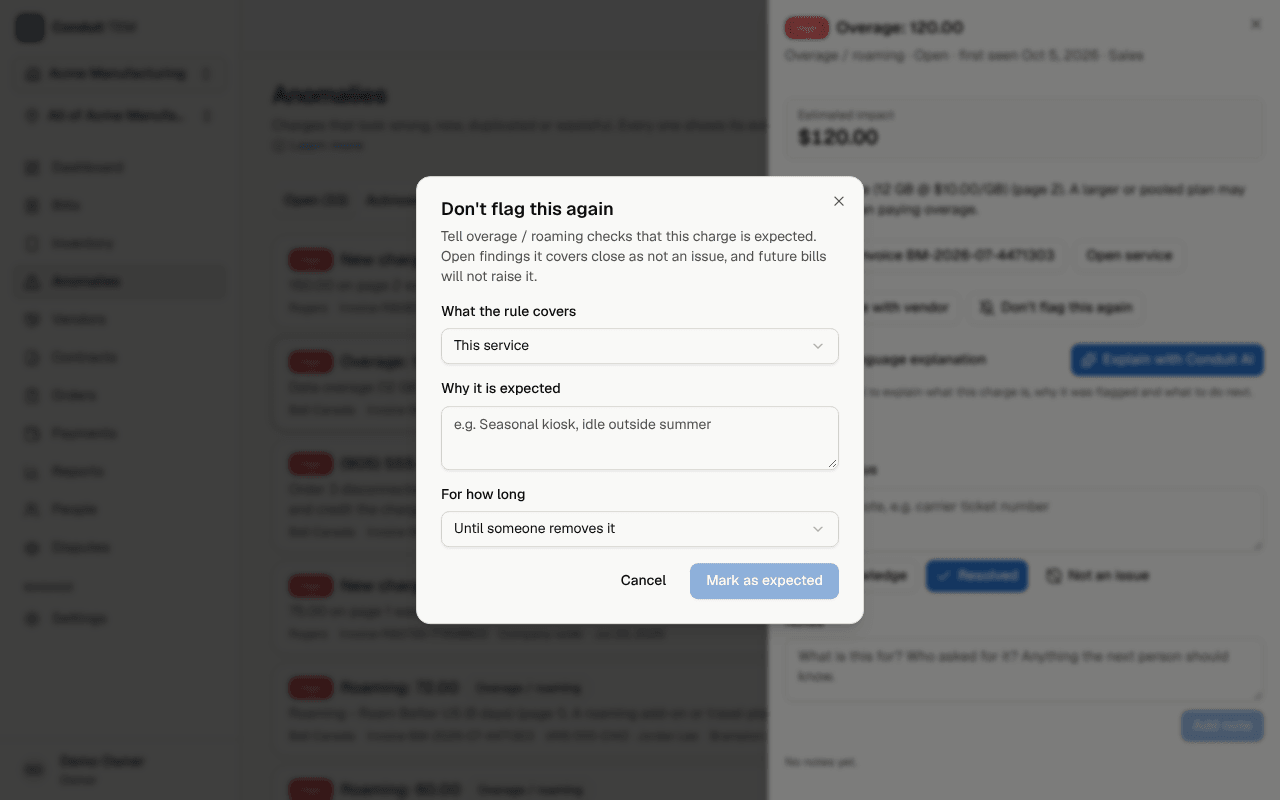
The rule applies only to the check that raised the finding. Marking a zero-usage line as expected won't hide a cost spike on the same line, for example. Straight away, this finding and every other open finding the rule covers move to Not an issue, with your reason as the note. Future bills still post normally. That check just stays quiet for what the rule covers.
Review or remove expected-charge rules
- Go to Settings → Expected charges.
- Each row shows the check, what it covers, why, who added it and when it runs out. Rules with no end date say Until removed, and rules that have run out show Ran out with the date.
- To let the check flag those charges again, select the bin icon (Remove) at the end of the row.
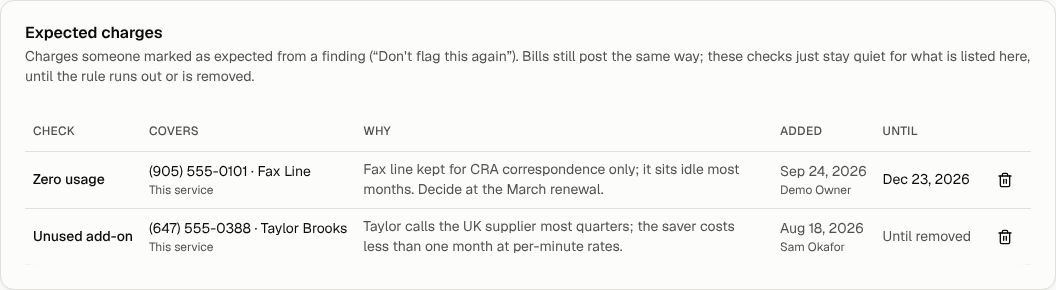
Tip: Rules that run out are a good prompt to look again. That idle fax line may be worth cancelling by now.