Import a cloud cost file from AWS, Azure or Google Cloud
Upload the monthly cost file from AWS, Azure or Google Cloud, check the preview, import it, and replace a month when a newer file arrives.
In the app:Cloud imports
On this page
Each cloud provider lets you download a file that lists everything you were charged. Upload that file to Conduit TEM once a month. Before anything is saved, you see a preview of what the file holds.
Owners, admins and finance can upload. Your company needs the Business or Enterprise plan.
Which file to ask for
Ask whoever manages your cloud accounts for the monthly cost file, as CSV. A compressed .csv.gz file is fine as it is. Conduit TEM reads:
- AWS: the Cost and Usage Report (the older version or 2.0), or a CSV downloaded from Cost Explorer. The Cost and Usage Report has the most detail: accounts, services and tags.
- Azure: the cost export with actual cost, from Cost Management. All agreement types work (Enterprise Agreement, Microsoft Customer Agreement, pay-as-you-go).
- Google Cloud: the billing export saved as CSV, or the cost table downloaded from the Billing reports.
For the best results, ask for daily detail, with your cost allocation tags included and the currency column kept. One file can cover one month or several. A file for the main billing account, which covers all your accounts or subscriptions, is better than one file per account.
Files can be up to 50 MB. A bigger file has to be compressed, or exported one month at a time.
Step 1: Upload the file
- Open Cloud and select the Imports tab. If the Cloud page is still empty, select Upload a cost export.
- Drag the file onto Drop the export here or choose a file, or select it to pick the file.
- Wait while the file uploads and is read. A large file can take a little while.

If the file isn't one Conduit TEM recognises, a message says so and nothing is saved. Check that it's one of the files listed above, in CSV and not a zip archive.
Step 2: Check the preview
The preview card is marked Waiting to import. It shows:
- what kind of file it is (for example "Azure cost export (EA / MCA)") and the dates it covers;
- Totals per month for the cost and the share with no tags, plus, under Now stored, what is already in Conduit TEM for those months;
- the accounts, subscriptions or projects in the file, with their totals;
- anything to check before importing, under Check before importing.
Compare the monthly totals with the bill or invoice from the provider. They should match, to within a few cents of rounding.
Read the warnings carefully:
- "runs to … only: it shows as month to date": the month isn't over yet. That's fine. Import it now and upload it again once the month has closed.
- "read as USD": the file has no currency column, so the dollar sign was read as US dollars. If your account bills in another currency, ask for a file with the currency column.
- "would count that spend twice": you're mixing a Cost Explorer file and a Cost and Usage Report for the same months. Keep only one of the two.
Step 3: Import
- Select Import (the button names the months, for example Import Sep 2026). A message confirms what was imported, and the Overview tab shows the spend.
- If something looks wrong, select Discard instead. Nothing is saved, and the uploaded file is deleted.
Upload a newer file for the same month
You can upload a month again whenever you have a newer file, for example once a month-to-date file is complete. Importing it replaces what was stored for those months and accounts, so nothing is ever counted twice. The preview shows what will be replaced under Now stored.
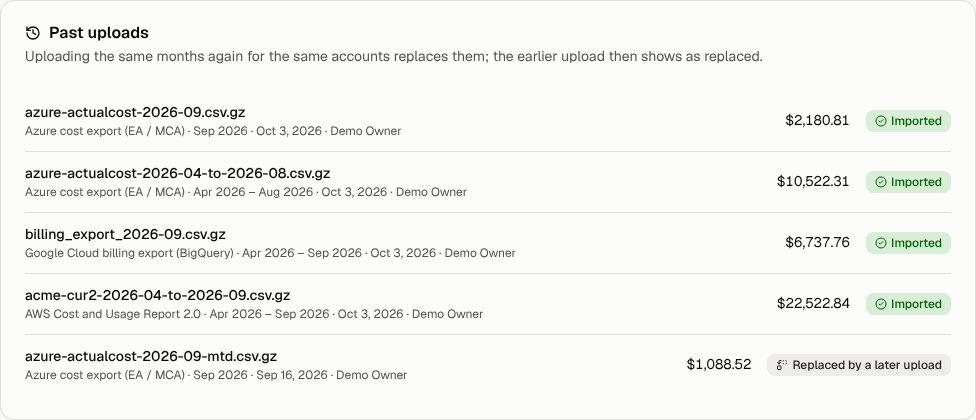
The earlier upload is then marked Replaced by a later upload under Past uploads.
See past uploads
Past uploads on the Imports tab lists every file with:
- its months and total;
- who uploaded it and when;
- its status: Imported, Replaced by a later upload or Discarded.
Uploads also appear in the activity log under Settings → Activity. Filter it by Cloud spend.